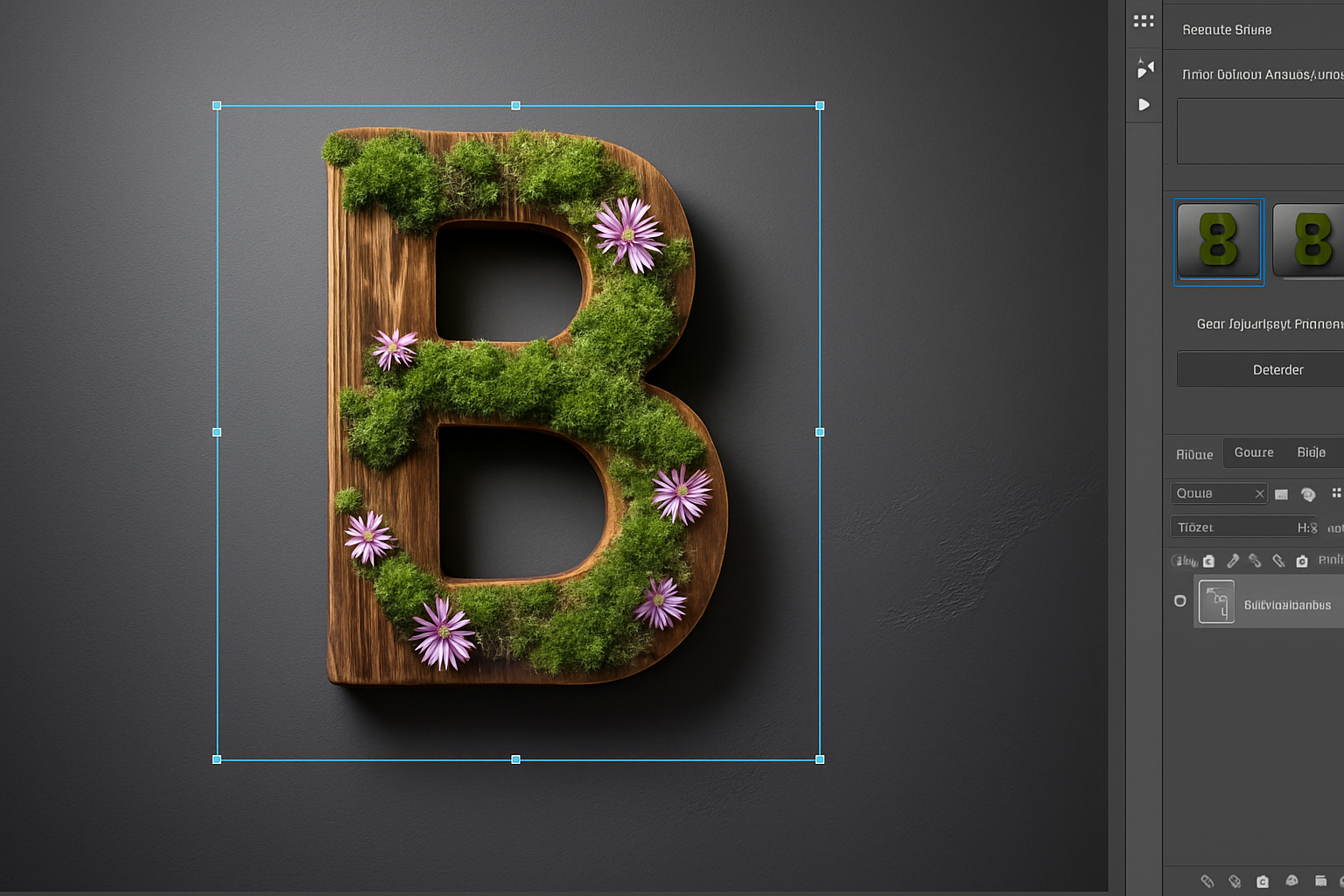
Supercharge Your Creativity: Photoshop’s Latest AI Innovations
Work smarter, not harder is more than a mantra—it’s the heart of Photoshop’s 2025 update. This release blends practical speed with creative precision, giving editors, designers, photographers, and artists tools that genuinely reduce friction. From selections that lock onto tiny details to on-canvas color tuning and AI-guided layouts, here’s what matters most and how to put it to work immediately.
For a concise overview of what shipped in the April 2025 desktop release (v26.6), see Adobe’s feature summary: What’s new in Photoshop (April 2025).
What’s New at a Glance
| Feature | Where to Find | Best For | Time Saved |
|---|---|---|---|
| Select People + Select Details | Object Selection tool > Options bar | Portraits, fashion, product edges | High – near one‑click isolation |
| Adjust Colors (on‑canvas) | Contextual Task Bar or Properties | Global/targeted hue & saturation | High – fast HSL masking |
| Text to Image + Composition Reference | Generate Image panel | Layouts, comps, concept options | Medium–High – structured ideation |
| Select Subject / Remove Background (Cloud) | Edit > Preferences > Image Processing | Hair, fur, soft edges | High – cleaner cutouts |
| Remove Tool (enhanced) | Toolbar > Remove | Distraction cleanup | High – one‑paint deletion |
| Smart Actions panel | Actions panel (modern view) | Suggested edits + previews | Medium – guided workflows |
Seamless Selections: Select Details + Select People
Photoshop’s selection intelligence has leveled up. With the Object Selection tool active, hover to preview what Photoshop can isolate—coats, hair, accessories, and more. Click to lock in the selection, or use Select People in the Options bar to target a whole person or specific attributes like hair, eyes, mouth, and clothing.
Real‑world wins
- Speed retouching: Isolate teeth or eye whites for subtle, targeted adjustments without fussy masking.
- Fashion/product edits: Cleanly select complex edges like lace, fur, or flyaway strands to swap backgrounds or refine color.
Pro tip: After making a selection, jump into Select and Mask to nudge radius and feather. Even with great AI, a 1–2 px tweak can turn great into perfect.
Mastering Hue: The New Adjust Colors Panel
Adjust Colors identifies the six most prominent colors in your image and builds editable masks for each. You can nudge hue, saturation, and lightness directly on canvas or from the enhanced Hue/Saturation panel—bigger swatches and sliders make precise edits faster and more intuitive.
Quick workflow
- Use the Contextual Task Bar to launch Adjust Colors.
- Drag the HSL sliders for a dominant swatch (say, a blue shirt) to shift it to another hue without wrecking skin tones.
- Brush on the generated mask to refine edges where needed.
If you love stylized looks, this stacks beautifully with Camera Raw Filter. Nudge HSL here for technical color balance, then grade mood and contrast in Camera Raw for polish.
AI for the Win: Text to Image with Composition Reference
Text to Image now respects layout as much as description. Composition Reference lets you guide structure—banners, social tiles, ad comps, even rough sketches—so generated results follow your spatial plan. This is especially handy when a client says, “Show me three directions by 2 PM.”
How to get consistent results
- Start with a reference that has clear structure and hierarchy.
- Write a prompt that describes subject, style, lighting, and mood.
- Regenerate variations to explore options while maintaining the layout.
Treat Composition Reference like a wireframe: the clearer your structure, the more usable your AI results.
Cleaner Cutouts: Select Subject + Remove Background (Cloud vs. Device)
Precision matters around hair, fur, and translucent edges. Photoshop can now process Select Subject and Remove Background locally or via cloud. Enabling cloud processing in Edit > Preferences > Image Processing often yields crisper, more faithful cutouts—particularly on challenging edges.
Which mode should you use?
| Mode | Strengths | Best Use |
|---|---|---|
| Device | Fast, offline, consistent | Simple edges, quick tests |
| Cloud | Sharper edges, complex detail | Hair, fur, fine fabrics |
For feature locations and setup, refer to Adobe’s release notes.
Speedy Editing: The Enhanced Remove Tool
The Remove Tool has been upgraded for smarter, cleaner fills. Paint over distractions—cars, logos, power lines—and Photoshop reconstructs the background convincingly. For larger objects, make a selection first, then click Remove for a one‑tap deletion.
Best practices for invisible fixes
- Work on a duplicate layer for non‑destructive tries.
- Remove from largest to smallest distraction, so fills have more context early.
- When patterns repeat (brick, tiles), remove across seams in short strokes to preserve rhythm.
Learn the tool specifics here: Remove unwanted objects with the Remove Tool.
Smart Suggestions: The New Actions Panel
The modern Actions panel now suggests edits based on your image. Hover previews show results live on your canvas, and you can apply them globally, to the subject only, or to the background. When you need to record or organize your own complex, multi‑step actions, you can switch to the classic Actions view at any time.
Think of Smart Actions as a creative GPS—it won’t do everything for you, but it’ll get you moving in the right direction fast.
Privacy and Responsible AI
As more workflows leverage cloud processing and generative features, it’s natural to ask how your content is handled. Adobe states that Firefly models aren’t trained on customer content; they’re trained on licensed data such as Adobe Stock and public domain content where copyright has expired. Read Adobe’s commitments here: Adobe Firefly AI commitments.
A 5‑Minute Workflow Recipe
Fast headshot refresh
- Select People: Target face and hair to isolate key areas.
- Adjust Colors: Nudge skin tones warmer, desaturate background mids slightly.
- Remove Tool: Zap minor distractions in the backdrop.
- Cloud Remove Background: Pop the subject onto a cleaner backdrop, or generate a subtle gradient plate.
- Finish: Camera Raw Filter—lift exposure slightly, add a touch of texture and clarity to the eyes, and a soft vignette.
Tip: For print output, add a whisper of grain at the end to unify noise across composites.
Final Take
Photoshop’s 2025 AI enhancements aren’t gimmicks—they’re practical accelerators. Select People and Adjust Colors give you precise control without the tedium. Composition Reference turns prompts into usable comps. Cloud‑powered cutouts and a smarter Remove Tool clean up scenes in seconds. And Smart Actions lowers the barrier to consistent, stylish edits.
Whether you’re retouching portraits, building marketing visuals, or iterating design layouts, these tools save time while keeping you in the driver’s seat creatively. Then come back to these new features to streamline your next project.
Strong summary:
- Faster selections that respect details
- On‑canvas color control with auto masks
- Structured AI image generation
- Cleaner cloud cutouts
- One‑paint object removal
- Guided, preview‑based actions
The future of Photoshop is not just powerful—it’s efficient. Dive in, iterate boldly, and let the AI do the heavy lifting while you focus on the creative calls.