
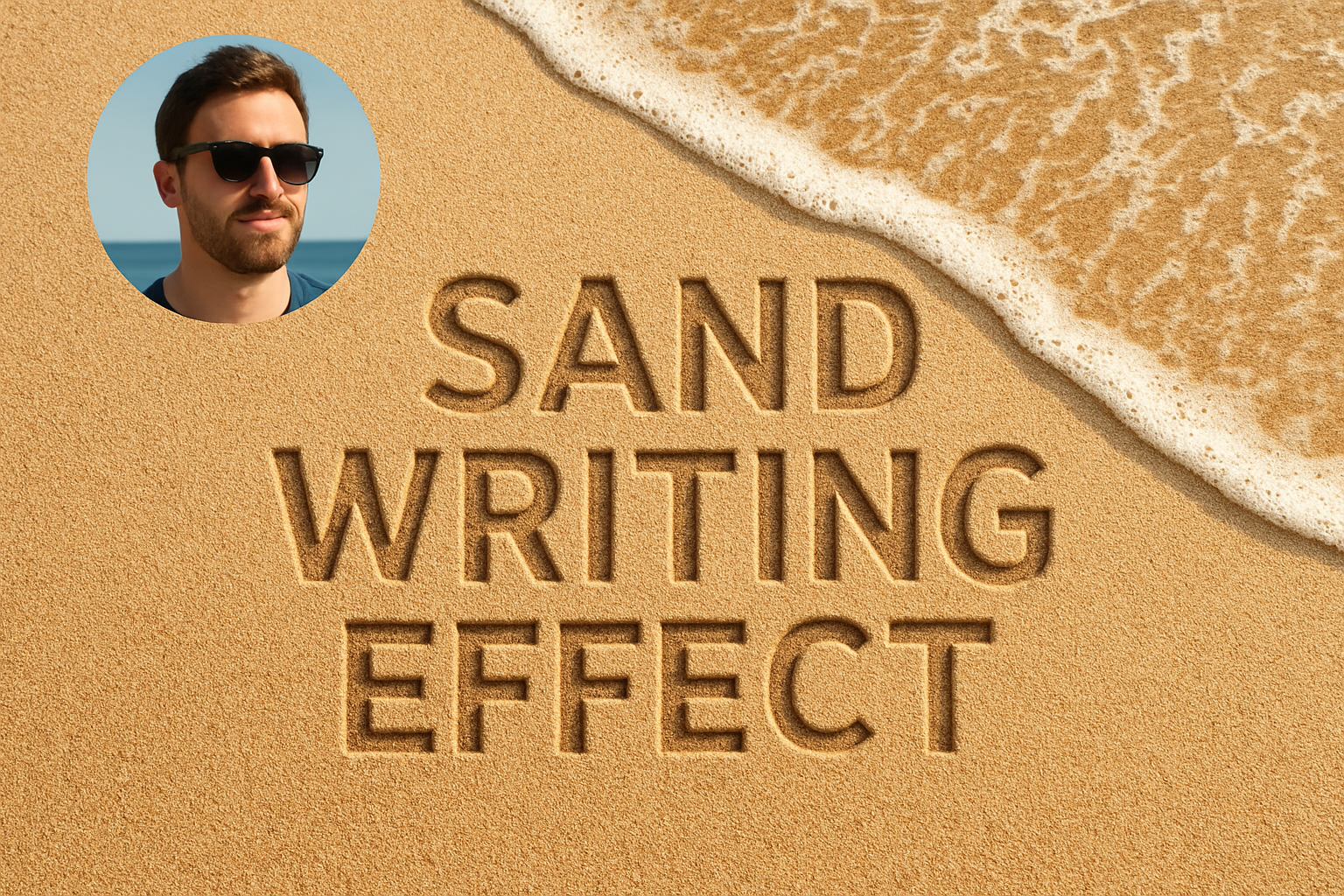
Add a Beachy Vibe to Your Art: Master Sand Writing in Photoshop
There’s something inherently tranquil about a beach scene—a lapping ocean, endless horizons, and the ephemeral beauty of sand writing. With Photoshop, you can capture this charm anytime you want. The best part? You don’t even need to trek down to an actual beach or risk sunburn. So strap on your digital flip-flops, and let’s delve into the art of creating sand writing effects using good ol’ Adobe Photoshop.
Essential Ingredients for Your Sand Drawing
To kick things off, you’ll want an image of a lovely beach setting—clue: it’s provided in our project files. Along with this, you’ll also need the divine “KG Midnight Memories” font to bring your sandy inscriptions to life. You can find links to these resources in the video description.
Now, before we dive in, please remember to hit that ‘Subscribe’ button on our YouTube channel to stay updated on more creative juices flowing into your feed.
Getting Around Photoshop’s Playground
We’re starting by making selections, because who wants blurry edges spoiling the fun? With the Quick Selection Tool set at a reasonable radius of 4 pixels, go ahead and select the water. Once that’s done, head over to “Select and Mask” to refine those edges. Depending on your Photoshop version, you might see “Refine Edge” instead. You might be wondering, Why the fuss about selections? Well, making crisp, clean selections ensures that your text won’t just spill across the gently lapping waters, disrupting the serene beach vibe we’re going for.
Don’t forget to save your selections—both of the water and the surrounding wet sand. Trust us, your future self will thank you.
Text Me Friendly
Now to the pièce de résistance—your text! Using the Horizontal Type Tool, make your text delightfully visible with a temporary black hue against the sand. This ensures you can see what you’re crafting whilst you work on spacing such as kerning (spacing between characters) and leading (spacing between lines). Remember to keep your text sleek, thin, and ready for its beach debut by contracting it by a few pixels.
Dress That Text in Sandy Grains
It’s time to sprinkle a bit of magic—or, in more mundane terms, layer styling. Through the Layer Style window, using Color Overlay and setting it to C7AB99, you’re transforming that text into an emblem embedded into the sand. And with Outer Glow and an additional finesse of Bevel & Emboss, you’re ensuring it literally pops off the page like you actually took a stick to sand.
Textured Just Right (No Beach Required!)
Apply that Clouds texture pattern from Photoshop’s Legacy Patterns for some beautifully randomized grain detailing. Adjusting the Scale and Depth settings tailors the roughness of your sand, offering a more authentic feel.
Creating Perspective Magic
To mimic how you would see text on a slightly tilted beach, adjusting its perspective is key. Zoom out, twiddle that Transform Tool, and warp it just right. It’s like precision origami but with pixels. Next, let’s tame the sand writing’s appearance on locations where the sand meets water by masking those parts away, artfully using the selections we saved earlier. This maintains the integrity of both the texture and shadows, ensuring it looks spick and span.
A Breath of Fresh sea-Air and You’re Done!
With these steps, not only have you planted text charmingly in the sands of Photoshop, but you’ve also learned a little more about effectively using layers and selections. Remember to play with different fonts and images to create your unique beach stories.
If you’ve mastered these techniques, who needs a plane ticket to Fiji to experience your own delightful beach? Just set your masterpiece as a screensaver, and voila, eternal summer!
Ready to have some Photoshop fun? Grab your digital brush, add some driftwood texture for perspective, and get creating!





