
Unleash Your Inner Designer with Easy Logo Creation in Photoshop
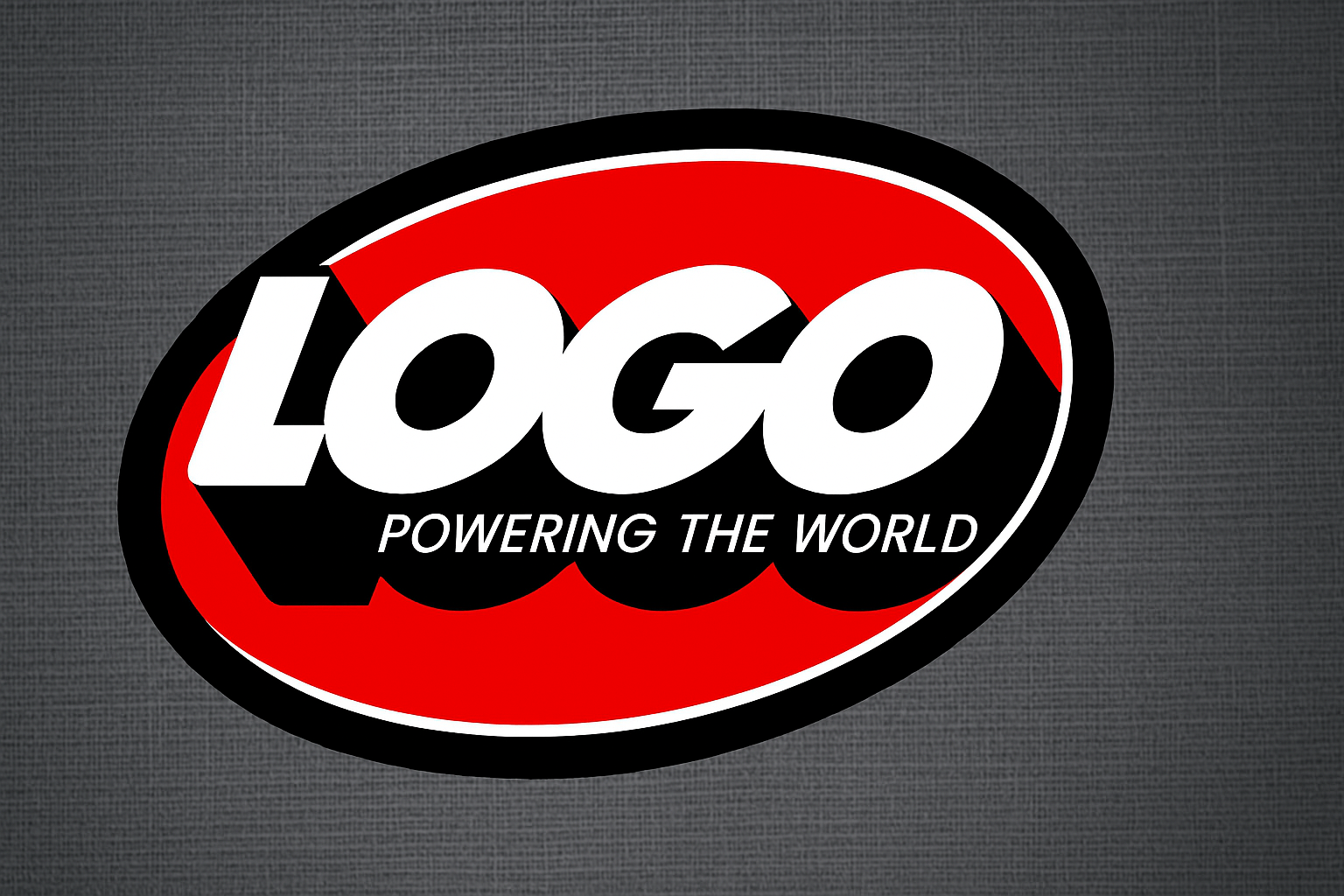
Is the digital world screaming for your brand to stand out? Creating a unique and memorable logo could be the answer. In this tutorial, we’ll delve into the art of creating a simple yet dynamic logo design using Adobe Photoshop. Whether you’re a budding designer or someone who’s just tired of generic logos, this guide is your gateway to designing visual magic.
Setting the Stage: Your Canvas and Essentials
Before we dive in, let’s prepare our canvas. This foundational step may seem simple, but it sets the framework for any design project and helps you visualize your masterpiece. Let’s get those creative juices flowing.
Creating a New Document:
- Open Photoshop and press
CtrlorCommand + Nto create a new document. - Choose any size and resolution that suits your project. A popular choice is a width of 1920 pixels, height of 1080 pixels, with a resolution of 150 pixels per inch.
- Ensure that the color mode is set to RGB and the bit depth is 8 bits for optimal color fidelity.
Customizing the Background:
- For a clean slate, pick white as your background color from the custom tab.
Make Your Mark with Text
The heart of any logo is its text. Whether your brand exudes modern flair or classic elegance, the typographic choices you make will echo that sentiment.
Typing Your Text:
- Activate the Horizontal Type Tool and choose any font that resonates with your brand’s identity.
- Set the font size to your liking; 250 points is a bold start.
- Opt for smooth aliasing and center alignment for balance.
- Double-check the text color box and ensure it’s set to black if that’s your color of choice.
Adjust the text’s overall spacing with the Alt or Option key and the arrow keys, then tweak individual letter spacings as needed.
The Art of Transformation
Visual dynamics add life to your design. By applying simple transformations, you can transform flat text into an engaging graphic statement.
Bring on the Drama with Angles:
- Use
CtrlorCommand + Tto open the Transform tool. - Rotate your text by typing your desired angle, such as 45 degrees, into the field at the top.
Crafting the Perfect Shadow:
- Duplicate your text to create depth by adding shadow. Hold
AltorOptionplus the down arrow key to make multiple text copies. - For noticeable depth, you’ll need around 100 copies to achieve a solid drop shadow effect.
Combine these layers and position your newly created drop shadow under the main text layer for that extra pop.
Bells and Whistles: Subtext and Icons
A logo is more than just text—it’s a combination of elements that work harmoniously. Adding subtext or a tagline can give your design a complete narrative.
Adding Subtext:
- Click on your shadow layer, then use the Type Tool to insert subtext such as a company motto.
- Select a font size that fits snugly within your logo design.
Stylizing Subtext:
- Italicize using the Transform tool for dynamic character.
Designing the Background
Create a contrasting background shape to make your logo stand out. Whether you’re in the mood for circles or want something else, here’s how to play with shapes.
Background Shapes Made Easy:
- Use the Shape tool to create an ellipse and select a fill color that complements your logo.
- The stroke can be customized with your chosen thickness to outline your shape distinctively.
Finalize the background by rotating, resizing, and aligning it until it feels just right.
The Finishing Touch: Saving and Exporting
Your logo masterpiece deserves to shine online or in print. Ensure the quality stays put with the right file format.
Saving Your Logo:
- Hide the background layer to make the logo transparent.
- Trim excess canvas space with Image > Trim and choose the transparent pixels option.
For the highest quality, save it as a PNG file. This format maintains color clarity and transparency—perfect for any application.
Claim Your Brand’s Identity
Voilà! With some strategic design and Photoshop know-how, you’ve created a compelling logo that speaks volumes. Whether it’s for a startup, a personal brand, or so that you just want to impress your cat, the power of design is officially at your fingertips. Want to explore even more design avenues? Be sure to check out our other Photoshop tutorials on the Blue Lighting YouTube channel.




