
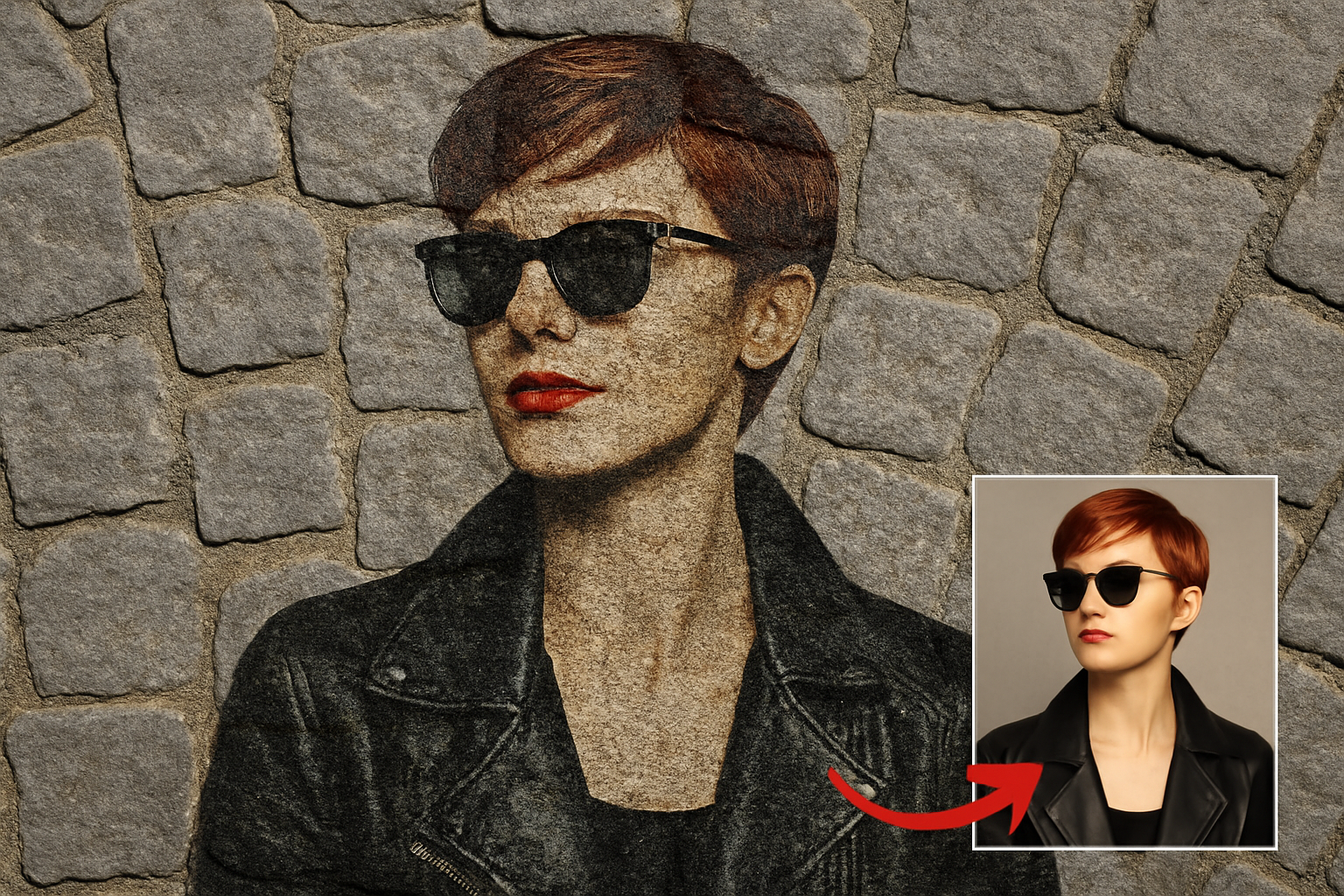
Crafting Photographic Masterpieces from the Streets of Stone
What if you could take a regular photo and swathe it under the artistic guise of street art on cobblestones? In a digital age where creativity marries technology, transforming photos into a semblance of cobblestone street art using Photoshop isn’t just intriguing—it’s downright revolutionary.
Blue Lightning TV guides you through a step-by-step process of converting any photo into a cobblestone street art masterpiece. We’re diving into the nuances of layer masking, blend modes, and displacement maps to give your images the grit and character reminiscent of bustling urban streets.
Step-by-Step Transformation: Cobblestone Wizardry
Creating cobblestone street art is like crafting a digital canvas that reflects the charm of an ancient yet timeless artistic expression. Here’s how you can do it:
Gathering Your Arsenal
Before we embark on this graphical journey, you’ll need a few essentials:
– A photo that you love. We recommend sourcing high-quality images from platforms like Shutterstock.
– A cobblestone texture, which is available via the video link from Blue Lightning TV.
Prepping the Subject
Begin by opening your chosen photo in Photoshop. The first crucial step requires isolating the primary subject from its background:
1. Utilize the Quick Selection Tool and, if you are using Photoshop CC 2018 or later, make your life easier with the “Select Subject” button.
2. Clean up your selection by holding Alt (or Option on Mac) to subtract unwanted areas.
3. With your subject perfectly selected, apply a Layer Mask. Think of it as the stencil, where white reveals and black conceals.
Overlay the Charm
Equipped with your cobblestone backdrop, it’s time to overlay your subject:
1. Drag your masked subject onto your cobblestone image.
2. Use the Transform Tool (Ctrl/Cmd + T) and resize or reposition your subject ingeniously across the cobbles.
Smart Object, Smart Choice
Enhance flexibility by converting your subject into a Smart Object. This allows you to non-destructively apply future interactions or replace your subject without losing those precious effects.
Texturing with Filters and Blend Modes
Let the magic unfold with filters. The cobblestone effect isn’t just about visuals—it’s about capturing nuance:
1. Change the Blend Mode to Overlay for seamless integration with your cobblestone background.
2. Brighten shadows and adjust highlights via Image » Adjustments » Shadows/Highlights.
Add Visual Flair with Artistic Filters
Our first brush with artistic genius involves the Dry Brush filter, altering brush size, detail, and texture to mimic street art:
1. Access through Filter Gallery under Artistic, refine details with Brush Size 2, Detail 8, and Texture 1.
Introducing a Deeper Dimension
Soften and add depth with Photocopy filter by altering blend modes:
1. Dive into the Filter Gallery, apply the Photocopy filter, set Detail to 24, Darkness to 10, and switch the Blend Mode to Soft Light.
Melding Reality with Displacement Maps
Enter the realm where digital mimics tactile:
1. Convert your cobblestones into a Displacement Map by desaturating and blurring the duplicate backdrop.
2. Use the Displace filter to contour your subject into the cobblestone crevices, invoking realism.
Vibrancy and Final Tweaks
Our artistic journey endures by amplifying colors:
1. An Adjustment Layer of Vibrance (around 60 for intensity) ushers rich hues across your artwork.
2. Dial into subtle edges by exposing cobblestones using a Black Layer Mask, revealing stone textures.
Final Touches: Perspectives and Edge Roughing
Finish up by angling your unified image through perspective transformations:
1. Convert your assembly of layers into a cohesive Smart Object.
2. Utilize Edit » Transform » Perspective to align your artwork for a striking finish.
Creating street art with a digital essence is more than just technicalities—it’s about reimagining spaces. With this guide, you can now immortalize your photos under the artistic flourishes of cobblestone streets. Get Photoshop primed, ready your favorite photo, and redefine creativity at your fingertips!





