
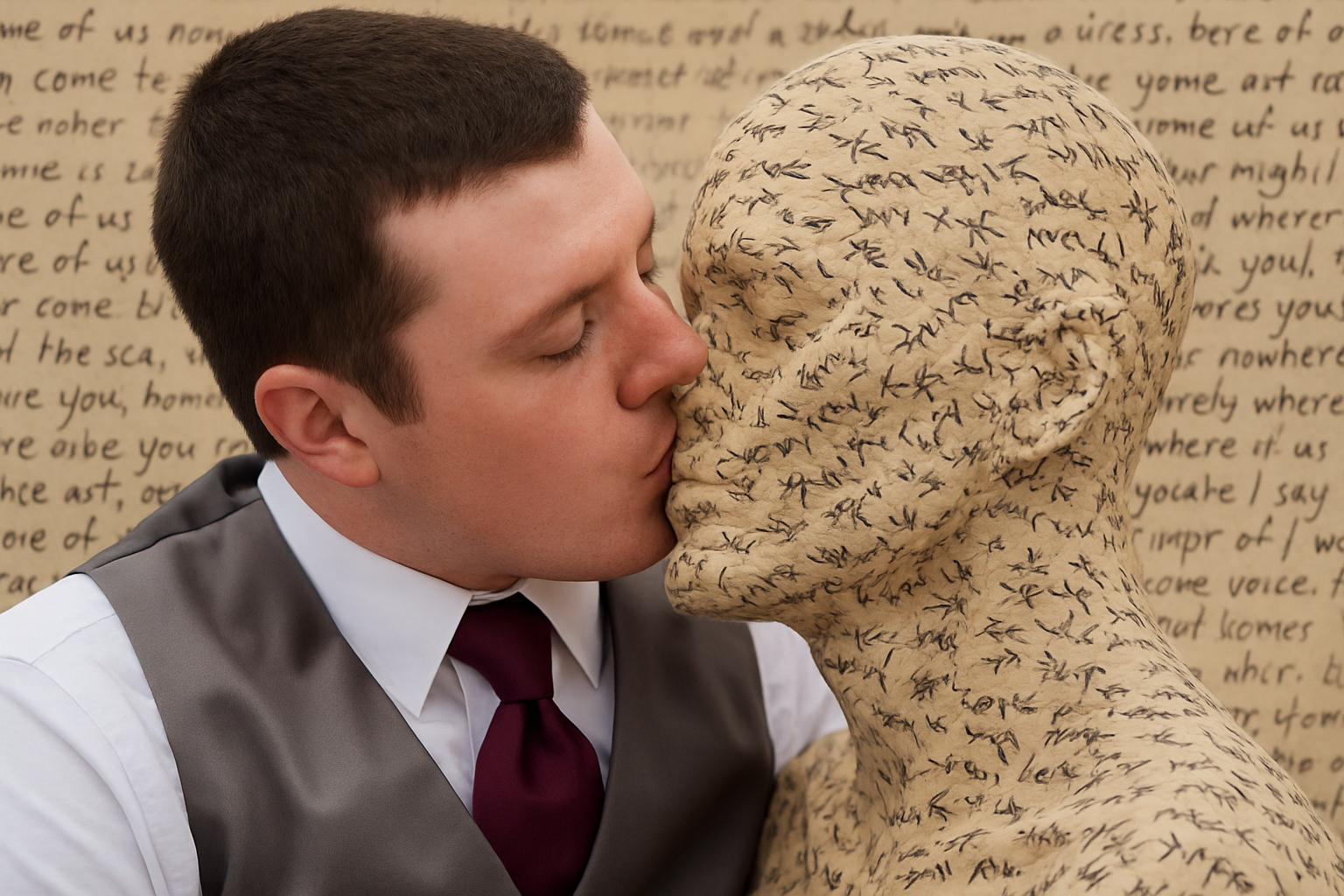
Blend In and Stand Out with a Unique Camouflage Text Effect
Creating eye-catching text effects in Photoshop not only enhances the visual appeal of your projects but also adds a personal touch that captivates audiences. In today’s tutorial, we’re diving into the world of camouflage, showing you how to create a stunning camouflage text effect using a simple photo. Whether you’re designing posters, book covers, or digital graphics, this effect will add an element of mystery and creativity to your work. Let’s blend in with the best of them!
Why Camouflage?
In the ever-vibrant landscape of design, the power of text cannot be understated. It’s more than information delivery—it’s art, acting as an anchor for your viewers’ attention. By incorporating camouflage techniques, you embed textures into text, making your work leap from the mundane and into the realms of the innovative.
Camouflage text allows you to seamlessly blend words with intricate patterns, subtly conveying messages while making an unmistakable visual statement. It’s the kind of unexpected flair that makes your design memorable.
Setting Up Your Workspace
Before you embark on this camo-text adventure, download the provided Photoshop file, containing the essentials to follow along. This file includes a photo to work with and an image of parchment paper to add depth to the camouflage effect.
Here are the specs we’re working with:
– Dimensions: 1342 x 1080 pixels
– Resolution: 72 pixels per inch
But don’t worry, you can replace the photo with one of your choosing and play around with dimensions to suit your project.
The Creative Journey Begins
- Layer Adjustments
Begin by hiding any unnecessary textures (like the paper texture) and duplicate your desired photo layer twice usingCtrl(orCmd) +J. - Fill the Scene with Neutrality
We’re going to fill a new layer with 50% gray. This neutral base helps in manipulating the image without affecting the core colors when further effects are applied. UseShift + F5to open the Fill window, select 50% Gray, and fill away. - Selection is Key
With the original photo layer visible, make a selection around the subject. You can use the Quick Selection Tool and click to select areas of the image that you want to blend into text. - Perfecting Your Selection
Refine your selection by zooming in and out, adjusting the edges to achieve precision. Consider toggling to Quick Mask mode (Q) to visualize the masked areas better. - Crafting the Displacement Map
To give our text the flexibility to wrap around our subject, create a displacement map. This technique simulates the physical texture or shape underneath the text. - Desaturate and Blur
Desaturate the image (turn it into a grayscale) for the displacement map. Apply a slight Gaussian blur to soften details and enhance the text wrapping effect. - Text: From Lorem Ipsum to Spotlight
Craft or find a block of text that resonates with your image. Using your preferred text editing tool, ensure it’s devoid of breaks and jumbles. Import this into Photoshop with your Type Tool and adjust the size and leading for a snug fit. - Coloring Your Canvas
With a color of dark, camo-friendly hue—try a deep earthy tone—you’ll define the mood and emphasis of the text. In this tutorial, we use a hex value of 160C04 for a classy dark brown. - Wrapping it Up with Smart Objects
Convert the text layer into a Smart Object. This step ensures your alterations are non-destructive and easily tweakable. - Displace It to Wrap It
Use your saved displacement map to distort the text, giving it the appearance of organically flowing around your image’s contours. - Final Touch: The Drop Shadow
Apply a subtle drop shadow to your text layer for depth, ensuring it doesn’t overshadow the delicate balance you’ve created between naturally blending text and subject.
Unleashing Your Creativity
By now, your work should possess a striking uniqueness, combining the intricate camouflage effect with the depth provided by the displacement map. We’ve armed you with knowledge as well as nuanced techniques to breathe life into your Photoshop projects, once pixel at a time.
From casual graphics to professional designs, knowing how to blend elements using camouflage techniques unlocks a new realm of possibilities. Creativity is akin to camouflage—it thrives under the surface, waiting to be discovered.
Experiment, explore, and most importantly, enjoy the process. Go forth and create!




