
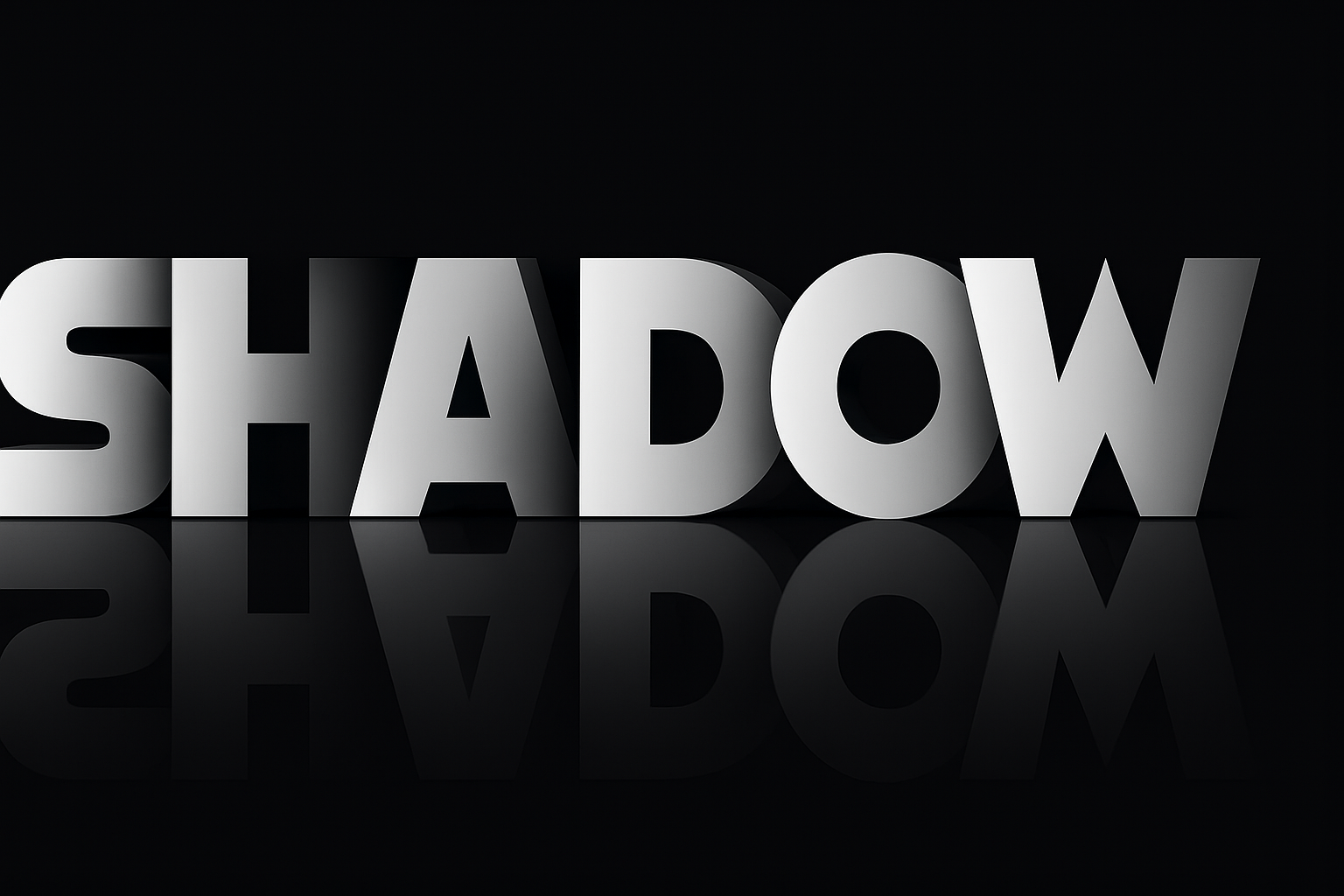
Elevate Your Typography Game with Depth and Reflection
In our never-ending quest to transform ordinary text into something spectacular, today we dive into the art of creating a dramatic overlapping text effect with reflections in Photoshop. This technique not only brings your text to life but adds a level of sophistication and professionalism that ensures your designs stand out. Whether you’re making digital art, designing posters, or just jazzing up your social media graphics, this effect will feed your creative hunger.
The Quick and Efficient Update You Needed
Photoshop aficionados might remember a similar technique from a few years ago, but this updated tutorial trims the fat, offering quicker and more efficient steps. Let’s cut straight to the creation process so you can wow your audience in no time.
Setting the Stage: Your Photoshop Canvas
Before embarking on your text adventure, first, create a new document. You can do this by pressing Ctrl or Cmd + N, or by navigating to the “File” menu and selecting “New”. Make your canvas any size, but a popular option is 1920 x 1080 pixels with a resolution of 150 PPI for crisp visuals. Start with a classic black background to make your text pop.
Pick Your Font and Prepare to Type
Your text will be the star of the show, so select a typeface with presence. Thick, bold fonts work magic here. For this tutorial, we’re rolling with “Alfarn Regular,” but any bold font you adore will do the trick. Set the font size to a generous 180 points or adjust to your liking. The rule of thumb is to ensure your word fits on a single line without causing character claustrophobia.
The Alphabet of Overlapping
Type the individual letters of your word and space them appropriately. We’re using “SHADOW” as an example. Start by typing the first letter and use the Move Tool to drag it into position. Counting your word’s characters will guide you in duplicating the letter layer as needed to create separate letter holders for overlapping. If “SHADOW” is your word, prepare five duplicates to account for each letter.
Ensure your workflow is smooth by disabling “Auto-Select” before dragging letters, helping you avoid accidental selections.
Layering it Up: The Overlapping Symphony
Move each letter into position, one by one, to craft the overlapping effect. Here’s where keyboard shortcuts become your new best friends. Use Ctrl/Cmd + J for duplicating layers, and hold Shift while dragging to maintain perfect horizontal or vertical alignment. This step demands precision, but the result is well worth the effort.
Once everything is in place, click the Layer Mask icon to introduce layer masks and apply gradients using Photoshop’s trusty Gradient Tool for a seamless transition effect. It’s the secret sauce for that smooth overlap.
Create the Reflective Illusion
With the text looking snazzy, it’s time to reflect. No, not on your life choices—on your text. Duplicate the folder containing your text layers. Name this duplicated folder “Reflection.” Use Edit > Transform > Flip Vertical to turn your text world upside down. Then, drag the reflection to sit right under its upright counterpart using the Shift key to keep alignment snug.
Dial back the opacity to around 25% to mimic a reflection fading as it gets further from its source. For added depth, apply another gradient via a layer mask on this reflection layer, ensuring the reflection subtly disappears into the void.
Finishing Touches: Center That Masterpiece
Last but not least, center your text and its reflection in the document. Select all layers by Shift-clicking and using Ctrl/Cmd + A to select the entire document. Tap V to revisit your Move Tool, and align everything dead-center using the alignment options. Now, sip your coffee and bask in your text’s glory.
The Education of Layer Love in Photoshop
Creating text effects like these not only enhances your design aesthetics, but it’s also a playground to master Photoshop’s vast toolkit. Layer masks, gradients, and transformations all come together here to illustrate how powerful this software is for designers. So the next time you want to make your text leap off the page and into the third dimension, revisit this tutorial—your dash of overlap and reflection awaits.
Whether you’re a Photoshop pro or just dipping your toes into the world of design, always remember: It’s not just about the pixels—it’s about how you use them. Happy designing!





