
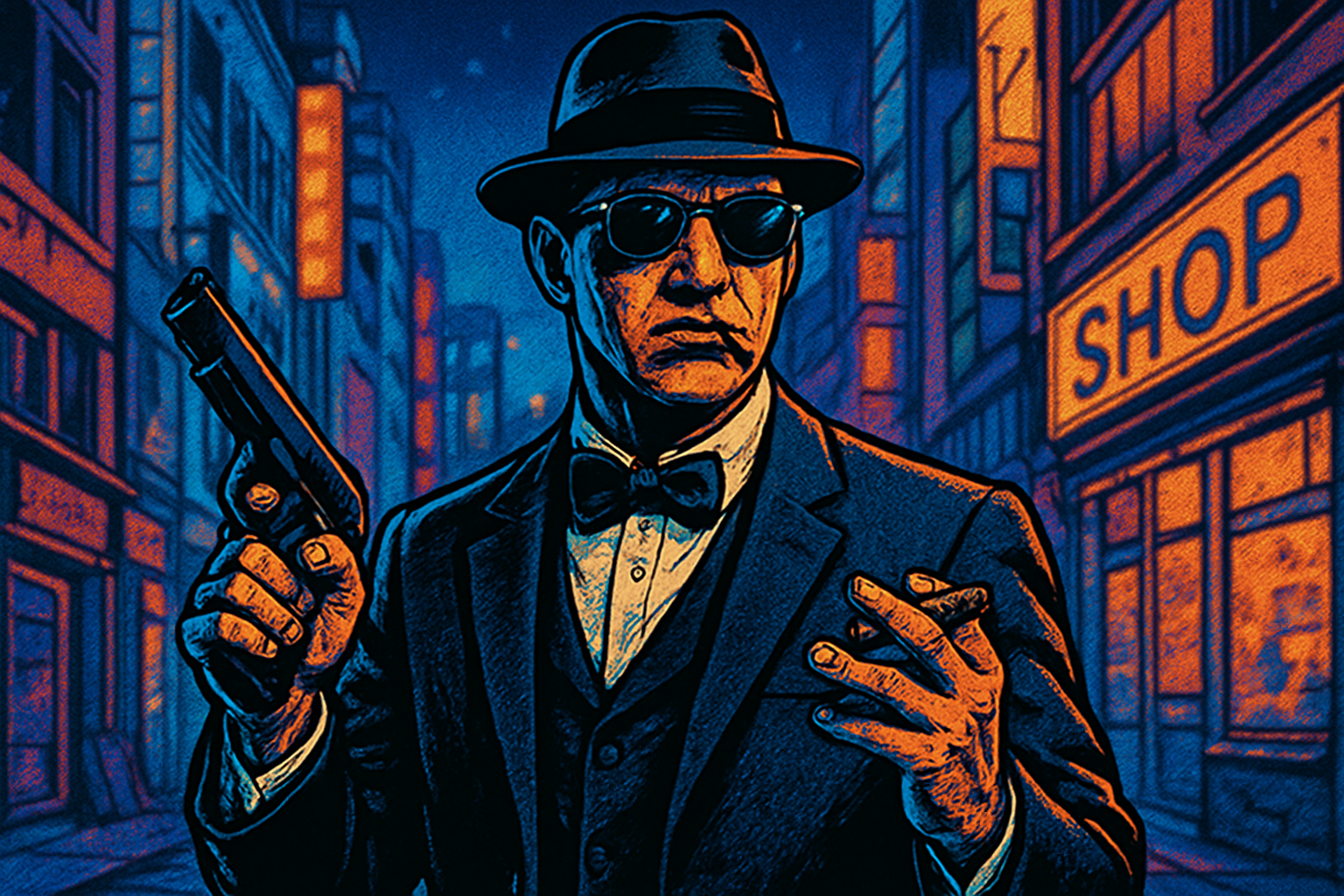
Unveiling the Secrets of Rockstar’s Iconic Style
Ahh, the Grand Theft Auto series—the games that keep us glued to our screens and occasionally have our mom yelling over dinner about picking a more “wholesome” past time. But let’s be real, art enthusiasts: whether you’re a gamer or not, you can’t deny the classic allure of that GTA cover art with its retro style and vibrant graphics. Welcome to Blue Lightning TV, where today we’re diving right into how you can use Photoshop to mimic that unmistakable genre-defining style and bring it into your own creative projects. Embrace your inner Rockstar!
Selecting the Perfect Background
Before you dive into the creative waters, you’ll need a background image. While originality is key, sometimes curating your own masterpiece demands a little help. Lucky for you, I’ve provided a link in the video description that sets you up with a background, but feel free to let your inner Picasso select something else. Just keep one thing in check: set your image at 72 pixels per inch to ensure your cover art remains sharp and ready for viewing.
Bringing Your Subject Front and Center
The real heroes of GTA cover art are those bold, stellar characters. Grab a photo of someone you’d like to bring to life on your mock cover. Separation is key here (we’re talking about the image, not relationships). Kick things off by making a meticulous selection around your subject. While numerous paths can get you there, for flawless precision, use the trusty Pen Tool or the Curvature Pen Tool if you’re ship sailing on Photoshop CC 2018 or later.
Once your path is ready, make sure to convert it to a selection. Be sure to set the “Feather Radius” to 0—smooth edges today, sharp headliner tomorrow!
The 70’s Brighten Effect
Now, brighten up that image as though your subject is already amidst the neon glow of Vice City by visiting Image, Adjustments, then Shadows/Highlights. Tune the settings to your liking or follow the recommended guide numbers—Amount: 70%, Tone: 60%, and Radius: 30 pixels.
Styling for that Signature Look
Time to bestow a filter frenzy on your subject. First, hit up Filter, Stylize, and give that subject a bath in the “Oil Paint” filter. We’re talking high “Cleanliness” and lower “Stylization” for that textured artsy vibe.
Next stop, the “Poster Edges” filter—just the kind of flair you need when you’re aspiring for that collect-them-all poster effect. Pair it up by adding a “Smart Blur” to your checklist, smoothing those colors and emulating the iconic Grand Theft Auto flair—a con artist’s suit never fit so snuggly!
Another round of Filter Gallery awaits; this time, drive right into the wacky world of “Cutout.” Again, go easy on the settings and keep it subtle.
Add Some Decor—Or Deco
Let’s add those ever-recognizable borders. Enter the Layer Style window and embark on adding some “Inner Glow,” followed by a fine, nifty “Stroke.” I recommend starting with a blend mode of “Linear Dodge” for that internal light show. Remember, less is more, but in our glowy world, a little more doesn’t hurt.
Transforming Your Background Masterpiece
Time to turn that background into a Smart Object to mirror effects from your focal hero to your backdrop. Glide through those Smart Filters like a breeze—alter, copy, and paste them to achieve perfection. Emphasize colors for a cohesive backdrop so your subject feels right at home.
Adding a “Color Overlay” to your background is a clever way to synergize your color scheme. Select a lighting hue that speaks to your creative soul and make your digital canvas as loud and bold as the virtual cities we love.
Seal the Deal: Add that Logo
No GTA cover art is complete without that epic Rockstar logo. Grand Theft Auto already provided their household logo, but personalize your end title by adding it into your art and place it where it complements your piece best. Whether it’s the corner or floating proudly at center stage, your GTA tribute awaits proudly.
And there you have it! Step back, take in your masterpiece, and revel at your creation—a Rockstar-worthy nod to gaming legend, now ready for your personal pantheon or project.
Remember, the iconic look of Grand Theft Auto doesn’t just happen—it’s meticulously crafted. So go on; paint your digital way through the pandemonium.





