
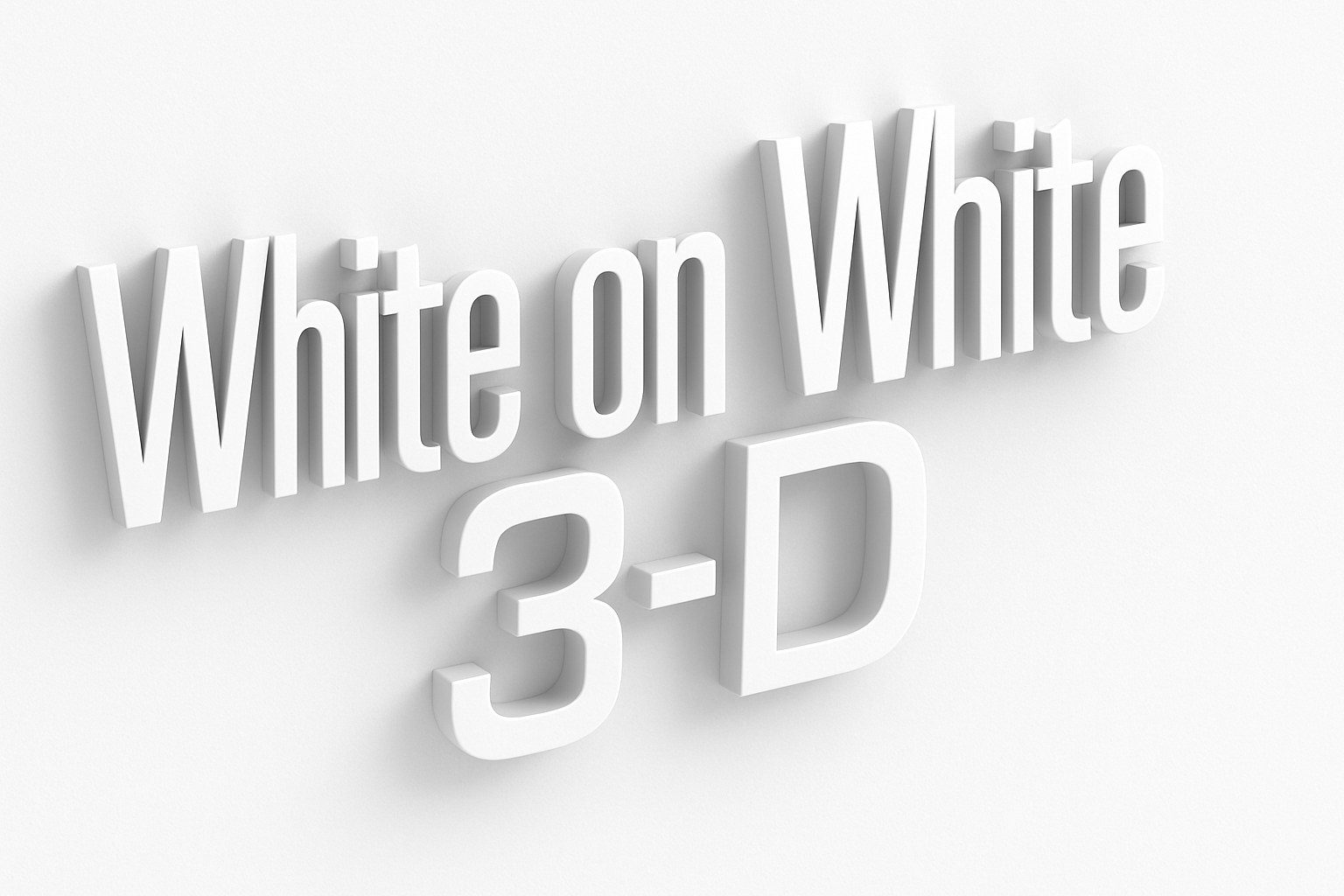
Elevate Your Text Design Game with 3D Elements in Photoshop
Welcome to the aesthetic wonderland where text comes to life—or at least appears to jump right off the screen. Creating three-dimensional white text with subtle, realistic shadows and highlights can add a whole new layer of sophistication to your design projects. We know what you’re thinking: But won’t that take forever? Fear not, my Photoshop warriors! Using this quick, yet effective, technique, you’ll have your text looking like it spent years cramming for an art degree—without all the debt.
Getting Started with the Basics
First things first, you’ll need Photoshop CS6 or later to join in on the fun. Let’s break down the beginning steps to creating this illusion of grandeur—a three-dimensional text with that oh-so-fashionable white-on-white aesthetic everyone seems to be chasing these days.
Setting Up Your Document
- Create Your Canvas: Start by creating a new document by pressing Ctrl (Cmd on Mac) + N or navigating to File > New. Set your width to 1920 pixels and your height to 1080 pixels. For that crisp look, adjust the resolution to 72 pixels per inch. Make sure your color mode is set to RGB with 8 bits per channel. Let’s aim for simplicity here: ensure the background is white.
- Kick Off the Text Adventure: With the canvas set up, it’s time to add some text magic. Open your horizontal type tool and pick a font that speaks to you. Whether you’re feeling the classic vibe or going rogue with something avant-garde, just ensure it fits within your document comfortably. The key is making sure the text’s aliasing is sharp, and its alignment is centered.
Bringing in the 3D Effects
Here’s where we elevate that simple text into a visually striking design element with just a few clever tweaks.
Adjusting Color and Extrusion
- Color Tweak: First, change your text to a very light gray (almost white) using the color picker. Aim for a brightness value of 97 in the color picker.
- Initiate 3D Extrusion: Click on the text layer and right-click to bring up the fly-out list. Select the option for “New 3D Extrusion from Selected Layer.” You may need to switch to the 3D workspace at this point, so go ahead and do that if prompted.
- Visual Adjustments: Adjust the camera by dragging the 3D camera icon until you see the extrusion of your text along the background. You should now notice an intriguing 3D outline emerging.
Refining Your 3D Masterpiece
Creating something truly outstanding often involves a few final touches. Dive into the nuances of rendering settings and ensuring everything flows smoothly.
Tuning the 3D Settings
- Render and Right Align: Make sure your text is correctly aligned with your background by clicking the align left icon. This will ensure your text isn’t doing the cha-cha slide off into the corner.
- Play with Shadows and Light: Explore the edit settings under Preferences and adjust factors such as shadow quality, ray tracer threshold, and render tile size. While these settings may seem technical, they are crucial for achieving image perfection.
- Render to Completion: Once you’ve set your preferences, hit the render icon. Depending on your setup, this could take anywhere from minutes to over an hour. So maybe grab a snack—art waits for no one.
Bringing It All Together
Once complete, take a moment to appreciate your digital handiwork. The last thing to do is flatten your image by selecting “Flatten Image” from the layers panel. Voilà! Bask in the glory of your three-dimensional text, bursting with realism.
With this technique, you’re one step ahead in the graphic design game, armed with a tactic that can take plain text from ho-hum to high art. So go ahead, experiment, and perhaps surprise even yourself with how creative layering and perceptual shifts can breathe life into your design projects. And remember: never underestimate the power of a good shadow.
Don’t forget to share your digital art masterpieces with us! Until next time, dare to dream bigger and design bolder.





