
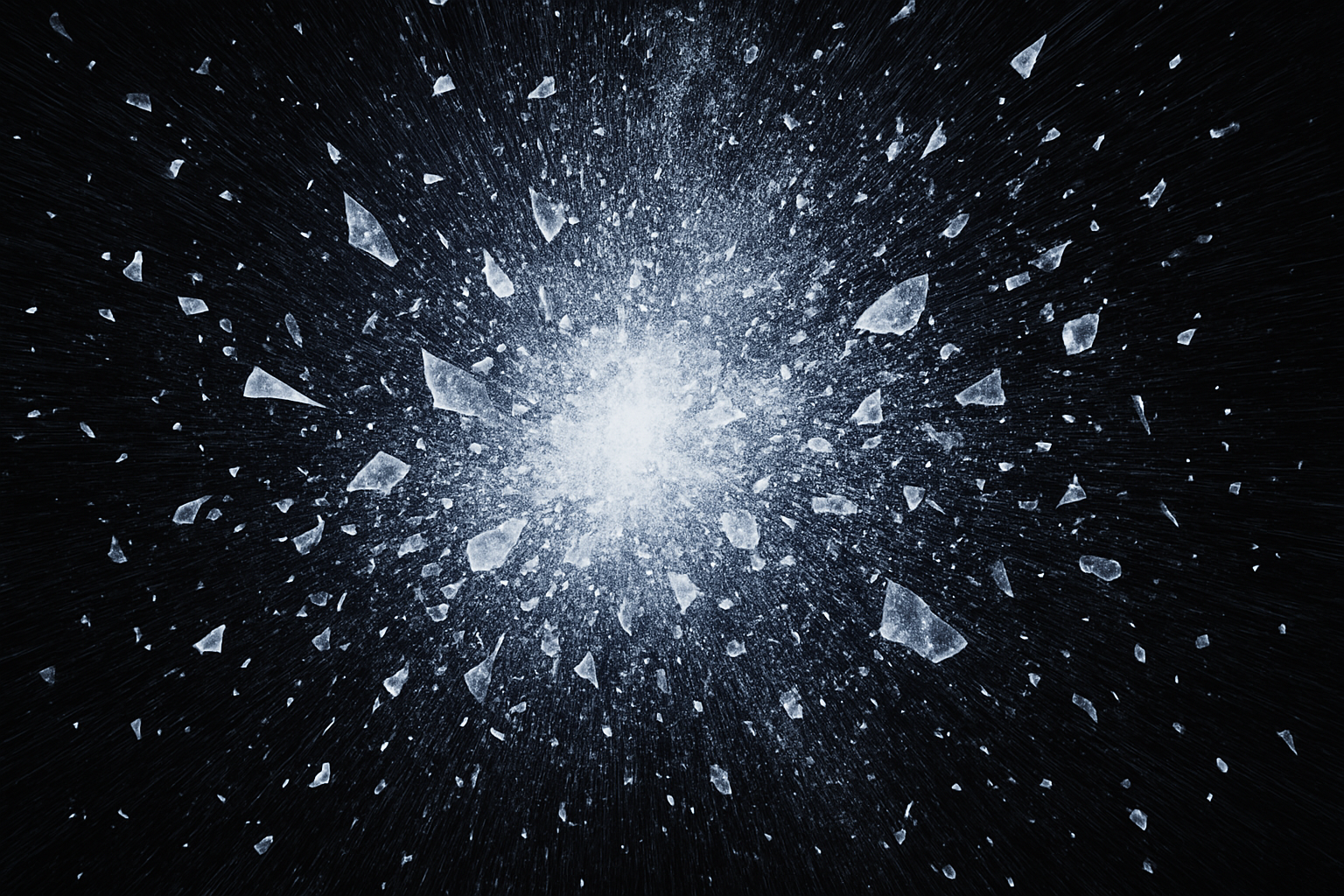
Unleash the Power of Explosive Text Effects in Photoshop
If you’re on a mission to make your text pop—no, explode—right off the screen, then you’re in the right place. In this tutorial, we’re diving deep into the art of creating shattered text effects using Photoshop and a few trusty resources. Buckle up because your typography is about to get a major glow-up.
Welcome to the Text Smashing Party
First things first, head over to the description of the YouTube video to grab some super handy assets: a cracked texture file, a set of explosion brushes, and a smoke brush set. These are the secret ingredients to making this effect sizzle like a well-roasted marshmallow. Don’t worry, if you’re not familiar with installing Photoshop brushes, simply scroll down for a link to a handy video guide.
Text Setup: The Canvas Awakens
Once equipped with brushes and texture, let’s get rolling. Open the cracked texture file in Photoshop and unlock its layer. You might feel like a hacker at this point, but don’t worry—you’re only unlocking potential, not bank accounts.
Here’s where things get dark—literally. Create a new layer below the texture and fill it black. This step is crucial for getting that text to stand out like Kanye at an award show.
The Font Chronicles
Choose a thick, heavy font to channel your inner college football team vibe. “FM College Team Regular” is used in the video, but feel free to pick another bold font family. Once decided, let your chosen font size mirror the importance of your message. Sizes may vary—unlike a certain celebrity’s Oscar speech length.
Use the Horizontal Type Tool to place your text, then adjust spacing and height using nifty keystrokes (Alt or Option commands on your keyboard). Just like any avant-garde art piece, let your characters dance in position—uneven and turbulent, you’re aiming for an earthquake of text.
Sculpting the Shatter
Center your text with precision. Convert your text layer into a Smart Object to maintain sanity—as well as non-destructive editing.
Next up, arm yourself with the explosion brushes and a layer mask. This is where things start to blow up—figuratively—within Photoshop. Paint over your text to scatter pixels like a confetti cannon at a surprise party.
Cracks Filled Without Nostalgia
Bring the cracked texture into play using a clipping mask. This trick frames the texture within the text epically. Just imagine it in an action movie trailer style—In a world where cracks meet letters…
Brush with Destiny
Time to get explosive again (non-pyrotechnically). Add more explosion brushes to a new layer for dramatic effect. Rotate and adjust sizes to sprinkle creativity into the chaos.
Don’t forget those shards. Create them via a series of filters and adjustments—from noise to blur. Transform these pixels into erratic shards bursting from the text’s epicenter. Don’t fret if it feels too scientific. It only requires a few mouse clicks to transform random speckles into expressive bursts.
Once the Dust Settles
Add finishing touches with a dust cloud. Another appropriate use of the brush tool to graciously sprinkle dust like a hipster sprinkling cinnamon on a chai latte.
Finally, colorize the image to tie all elements together with luminescent harmony. Adjust the hues and saturations to fit your project’s aesthetic buzzwords. There’s no better ending than bathing this work of typographic destruction in vibrant color.
Why Shattered Text Rules the Design Galaxy
So why should you care about shattered text effects? For starters, it’s a unique way to draw attention. It feels transformative, Doge-approved cool, and a bit mischievous. Use it for posters, album covers, or social media graphics. Cool for the club—or, you know, your portfolio.
Now go forth with this power of destruction under control. Embark on breaking text barriers at your creative discretion. You can always trust Photoshop, pixels, and a touch of Blue Lightning TV wisdom to make the mundane magnificent.
Enjoy your explosive journey.





