
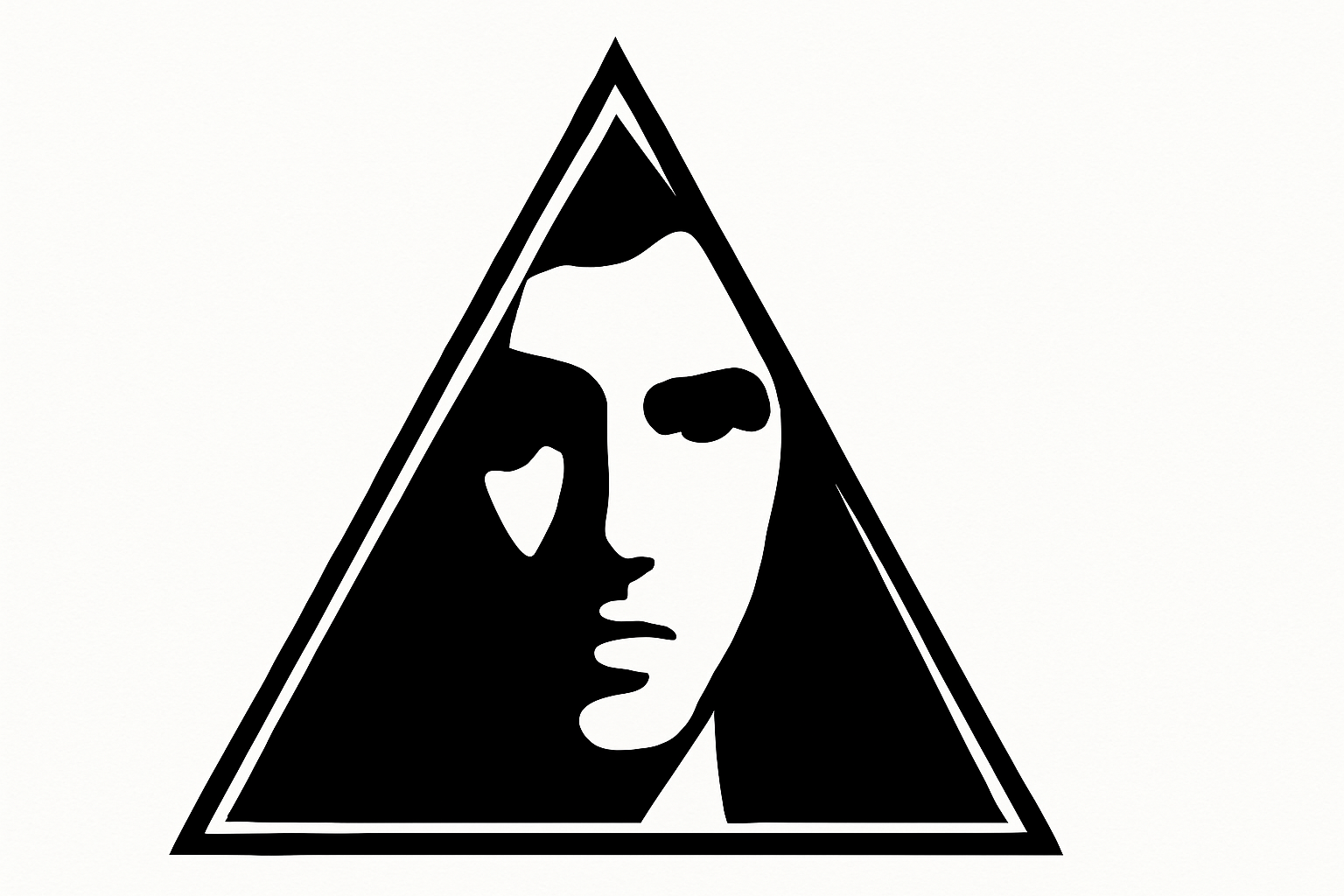
Transform Your Portrait into a Striking Logo
Welcome back to Blue Lightning TV, where we make even the most intricate Adobe Photoshop tasks seem like taking candy from a baby. Today, we’re diving into the world of creating logos. But not just any logos—logos crafted from your own face and name. If you’ve ever wanted to brand yourself, this logo technique is a powerhouse. Let’s explore how a few steps in Photoshop can transform a simple photograph into a head-turning personal brand icon.
Let’s Get the Ball Rolling
For starters, you’ll need a photo of your grand face or someone else’s, sourced perhaps from a stock photo site like Shutterstock if you’re into faces that aren’t your own. So, why use a photo in your logo? Because nothing screams “authenticity” like your unique face, setting you miles apart in a sea of generic brand identities.
Our initial focus will be cutting your face out from its existing background. For this demonstration, we’re using the quick selection tool, and I promise, it won’t be a pain. Just drag that tool over your subject until you’ve got a nice, clean selection. To clean up the edges, hold ‘Alt’ (or ‘Option’ on a Mac) and swipe over those pesky extras.
The Magic of Layer Masks and Smart Objects
Once selected, slam that layer mask button to isolate the face. But don’t rush off yet! The next step involves placing a new layer beneath your subject. Easy-peasy, just Ctrl-click or Command-click the new layer icon and fill that sucker with black.
Why black? Because it’s the color of sophistication—and because it makes our selections pop. Confirm your foreground is black by tapping ‘D’ on your keyboard. The quicker this becomes second nature, the better.
Now it’s time to get techy with Smart Objects. Convert your work by selecting your layers and clicking ‘Convert to Smart Object’. Smart Objects are like those super-security locks that keep your edits pristine.
Add Some Blur and Stylize with Threshold
Onwards to adding a cheeky blur. Head over to the filters, pick ‘Gaussian Blur,’ and set it to 10 pixels (or play around to find your sweet spot). The blur adds a stylized flair that’d make Andy Warhol jealous.
But wait—there’s more! Next, go to ‘Image > Adjustments > Threshold’. We’ll keep things standard at 128, which magically turns your portrait into a stunning, stylized graphic.
Crafting Your Signature Shape
Want to impress with a snazzy geometric overlay? Enter the polygon tool. We’re opting for a triangle, a symbol often used to imply power and strength. To do this, type ‘3’ for the sides under the polygon options and salute your new shape.
To see it in action, Ctrl-click or Command-click to create a selection, then paint over those extraneous white areas using the pencil tool. Also dabble in stroke boxes and learn how to manipulate outline frames for an intrinsically edgy look.
Getting Texty with It
Now, accessorize your handiwork with some text. I’m flexing Deco Tech TL Regular for this tutorial. Font choice is all about vibe, darling. Make sure you’re aligned correctly and feel free to adjust the text size to fit your personal aesthetic.
Once positioned, you might want to toggle the size and position of your portrait. Photoshop’s transform tool serves as your best friend here. Unlink the layer and mask if you’re keen on independent adjustments—because full control shouldn’t just be a concept, but reality in design.
The Final Embellishment
Finally, let’s anchor our new logo against a black backdrop, merging all layers into a tidy folder and spotlighting your logo for the world to see. Apply the finishing crop to shed any empty space and tidy up your digital masterpiece.
In the crescendo of creativity, don’t hesitate to adjust specs using the crop tool, keeping dimensions around 1000 px by 300 pixels per inch for that crystal-clear finish.
And voilà! You’ve mastered turning your photo into a logo that’s as iconic as it is personal. Thanks for visiting Blue Lightning TV, where branding meets visual artistry with finesse and flair.
Embrace this technique and unleash your inner designer, pushing Photoshop’s boundaries for a logo that is irresistibly you.




