
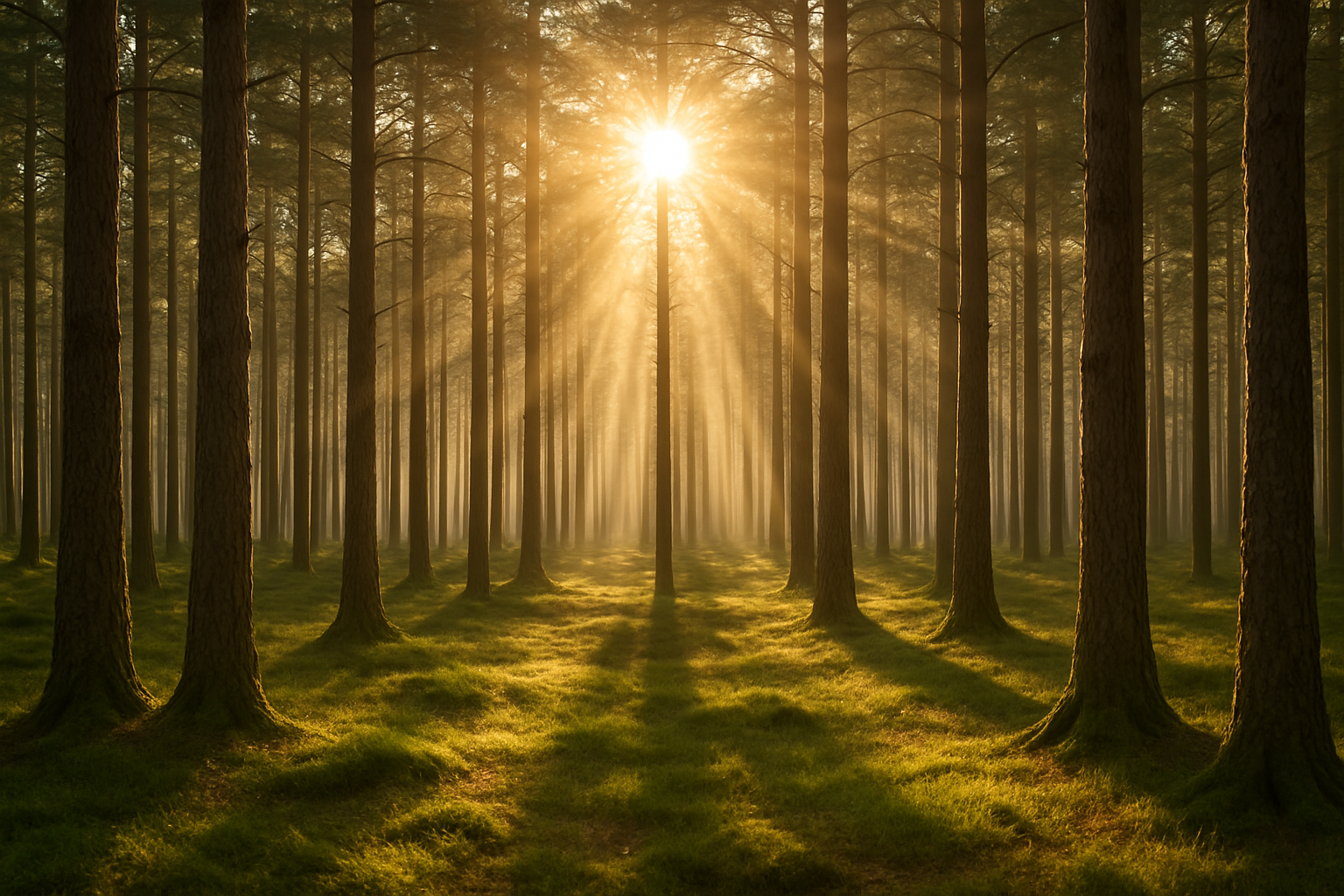
Unlock the Magic of Sunrays with Photoshop: A Guide to Creating Sunbeams Piercing Through a Forest
We all love that breathtaking moment when sunbeams gently pierce through the forest canopy, illuminating the ground with soft, mystical light. These golden rays can evoke emotions and bring depth to any scene. The good news? You don’t have to wait for the perfect sunny day to capture this effect. With Photoshop and a bit of magic, you can create beautiful sunbeams in any forest scene. No green thumb required.
Prepping Your Project
To get started, you’ll need a forest background image. Marty from Blue Lightning TV has thoughtfully provided a background you can download to follow along. It’s set at a width of 1920 pixels and a height of 1280 pixels with a resolution of 72 pixels per inch—essentially, it’s optimized for stunning results. Make sure, if you’re using your own image, that it matches this resolution to ensure consistency.
Once you have your image, copy it by simply pressing Ctrl or Cmd + J. This duplicates your background layer so that the original remains untouched as you dive into the edits.
Highlighting the Sky
The first step is to separate the sky from the land. Navigate to Select > Color Range and choose “Sample Colors.” For a precise selection, make sure “Localized Color Clusters” is checked. Set the Fuzziness to around 80 to balance accuracy with coverage, and make sure the range is at 100%. Click on the sky in your image to start the selection, adding to this by holding Shift and clicking more areas until the sky is fully visible in the preview.
Once you’ve formed your sky selection, press “Q” to switch to Quick Mask mode, allowing you to use the Pencil Tool to paint over unwanted areas with precise control. Pencil settings: 100 pixels size, 100% hardness, and opaqueness.
Creating the Sunrays
With your selection cleanly outlined, create a new layer and fill your selection with white using Shift + F5 and selecting “White” from the Fill options. With the sky now isolated, you can delete the duplicate background layer.
Rename this layer “Rays” and convert it to a Smart Object. Head over to Filter > Blur > Radial Blur, set the amount to 100, Blur Method to Zoom, and Quality to Best. Position the crosshair to where you’d like the rays to emanate—typically near the top center for effect.
Add an Outer Glow effect to this layer: go for an F8FF8D hue, Screen Blend Mode, and balance your spread and size settings to home in on the desired ethereal glow.
Enhancing the Rays
Change the layer’s blend mode to “Soft Light” and duplicate it for further manipulation. Zoom out and transform the rays with Ctrl or Cmd + T, focusing on maintaining your sunrays’ center. Increase their size by dragging from a corner while holding Alt or Option + Shift. Then, apply a Gaussian Blur at 50 pixels for softness.
Revisit the original Rays layer, apply a Gaussian Blur at 5 pixels, and adjust the blend mode back to “Soft Light.” The combination of these layers creates dynamic depth and variation in your sunbeams.
Adding the Sun
Activate the top layer, create a new layer, and generate a composite snapshot by pressing Ctrl + Shift + Alt + E (Cmd + Shift + Option + E for Mac users). Next, inject the sun using Filter > Render > Lens Flare, positioning it where your rays emanated. Choose a “50-300mm Zoom” for a natural effect.
Finalize by deleting the snapshot layer and filling a new layer with black. Set this layer to Screen mode and reapply the Lens Flare exactly as before; Photoshop remembers your settings.
Color Harmony
Finally, bring everything together with a Hue/Saturation adjustment layer above your lens flare. Clip it to affect only the Lens Flare (Ctrl + Alt + G or Cmd + Option + G) and set the Hue to 37, Saturation to 44, creating a gold hue that matches the natural lighting filtering through your virtual trees.
And voilà, your forest image is now alive with the illusion of sunbeams, a testament to what a bit of digital artistry and Photoshop savvy can accomplish! Ready to make the virtual forest glow? Explore and experiment, and don’t forget to flex those creative muscles.





