
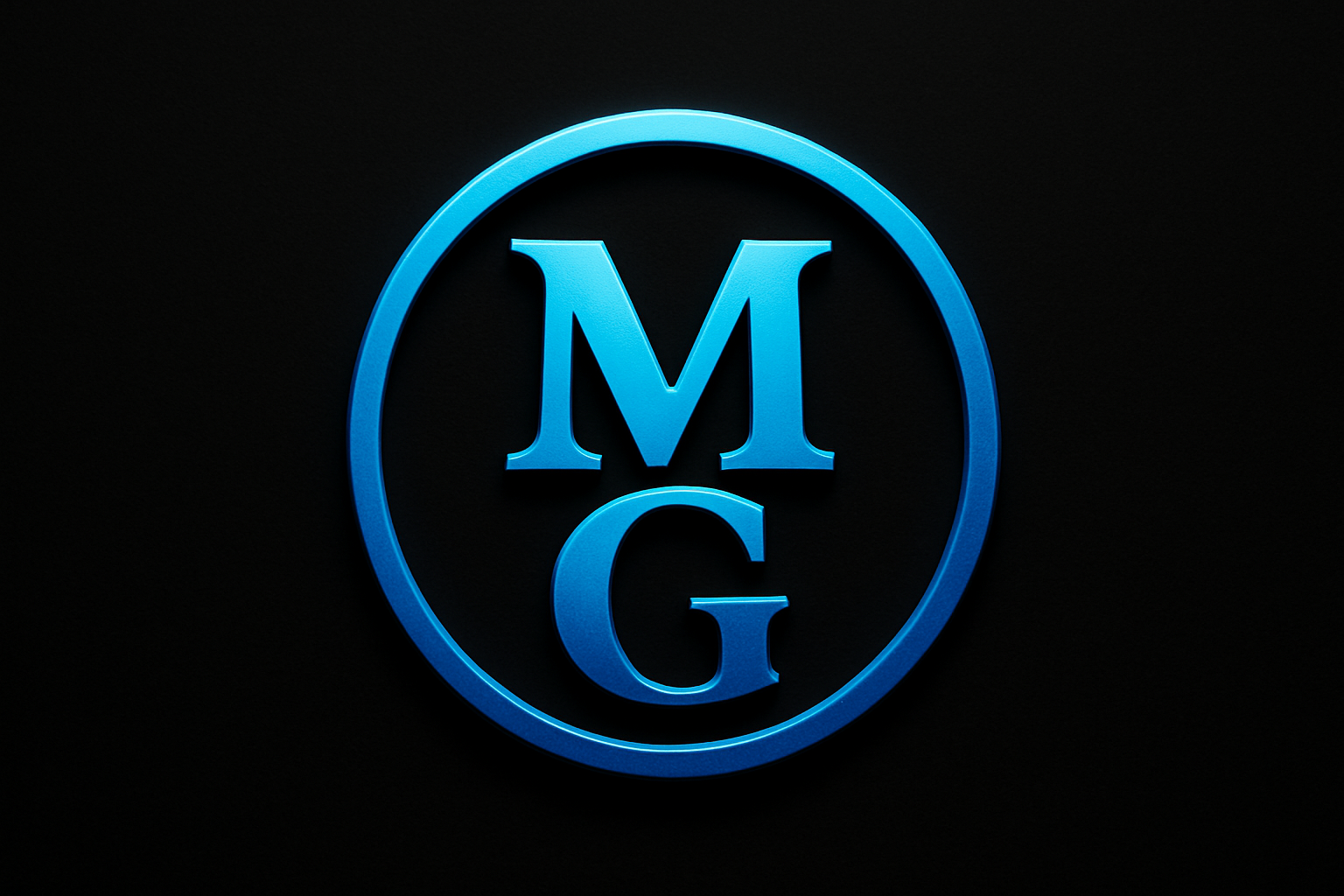
Transform Your Initials into a Powerful Graphic with This Easy Photoshop Tutorial
In the vast realm of graphic design, personalization is key. Whether you’re stamping your unique signature on a brand or crafting special stationery, personal stamps like a shiny emblem of your initials can add a custom touch. Luckily, with Photoshop’s extensive toolkit, this creative endeavor can be both efficient and fun. Here’s a capacious tutorial updated for modern versions of Photoshop, aimed at helping you create a powerful, shiny emblem of your initials.
Let’s Begin with a Brand-New Canvas
To kick things off, open your beloved Photoshop and summon a new document (Ctrl/Cmd + N). We’re seeking a perfect square of equal width and height: 1000 pixels. Set the resolution to 150 pixels per inch—perfect for the web or crisp printouts. Ensure the color mode is set to RGB Color with 8 bits per channel, and like a cunning ninja, turn the background into a dense black by selecting it within the Color Picker.
Once you’ve clicked “Create,” ensure your creation fits snugly on the screen by pressing Ctrl/Cmd + 0. Convenience at its finest!
Guide Your Design with Precision
Guidelines are your best friends to ensure that everything is aligned to perfection. For users riding on the Adobe CC wave or newer, hop over to View and click “New Guide Layout.” Here, setting both the ‘Number’ fields in Columns and Rows to 2 will ensure your canvas is divided into perfectly equal quadrants.
If you’re cherishing an earlier Photoshop version, no fret. A simple yet effective approach involves adding guides independently—set them to 50% for perfect vertical and horizontal alignment.
Time to Shine: Create the Central Emblem
- New Layer, New Beginning: Start fresh by clicking the New Layer icon.
- Shape It Up with the Ellipse Tool: Go round and smooth with the Ellipse Tool. Set it to Shape if you’re styling in modern Photoshop. Fill is non-existent here, but you’ll style your Stroke color. A magnificent electric blue (Hex: 187AFF) brings your ring to life.
- Circle from the Center: Tick ‘From Center’ when placing your ellipse. Drag from the crosshairs of the guide lines to witness a deftly drawn circle emerge.
- Fancy Effects with Layer Styles: With the rectangle path hidden (Ctrl/Cmd + H), employ the “Bevel Emboss” option under fx for an enticing 3D effect. The “Inner Bevel” style, with settings like Technique: Chisel Hard, Depth: 100%, and Direction: Down, will add that exquisite credibility to your design.
Personalize with Your Initials
- Introduce Yourself: Through the Horizontal Type Tool, choose or curate your font (‘Copperplate Gothic Bold’ is a darling). Size, align, color, and position—do it all until your initials pop out with commanding presence.
- Align & Center with Precision: Using the Move Tool (Ctrl/Cmd + A), ensure those initials sit dead center with the Align options.
- Smart Object Sorcery: Convert your freshly typed initials into a Smart Object. A magical creature that lets you rework without restarting.
Let’s Lavish Some Digital Bling
Add a touch of classy bling with blending options like ‘Bevel Emboss’, ‘Stroke’, and ‘Drop Shadow’. With this essential trio, your text moves from being plain and flat to fabulous and dynamic. Experiment with modes — Linear Dodge, Multiply — to find the perfect fit.
Final Touches and Dramatic Flares
After the major elements are in place, why stop there? Polish with a gradient touch using adjustment layers, create effective contrasts with brushes, and apply clipping masks for trapping those delightful details in shape outlines. Be strategic with lens flares; they add a dazzling finish that can make the emblem feel complete.
Let’s Reflect:
Creating a shiny emblem of your initials doesn’t need to be all hustle, especially with Photoshop’s intuitive features at disposal. With a touch of creativity and a sprinkle of precision, your initials can transform into a powerhouse emblem that is both striking and unforgettable.
Now, dear readers and design aficionados, your initials can ascend the mundane and embrace splendor. Whether for marketing material, branding, or personal joy, this form of creative expression empowers not just your design skills, but your creativity as well!
Ready to make your mark in the digital realm? Let’s get creating—your initials await their bright transformation!




