
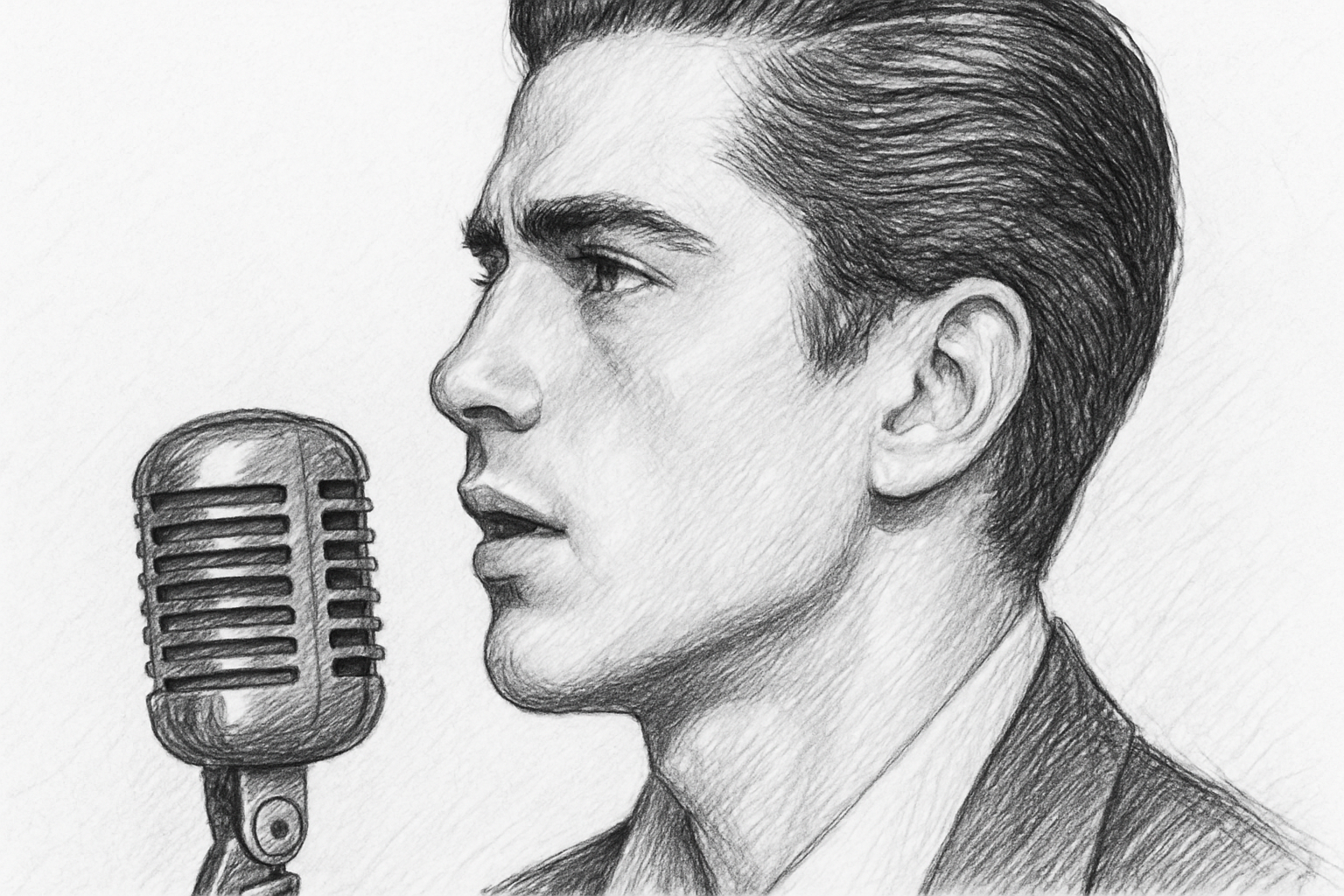
A Creative Twist: From Photographs to Pencil Masterpieces
Are you ready to discover a new way to breathe artistic flair into your photography? In this tutorial, we will explore how to transform a simple photograph into a beautiful pencil drawing using Adobe Photoshop. Whether you’re a seasoned Photoshop pro or a curious newcomer, this process blends creativity with technical know-how to produce an artistic result that is sure to impress.
From Pixels to Pencils: The Basics
Preparing Your Canvas
The first step is to select and open a digital photograph of your choice in Photoshop. If you’re at a loss for subject matter, platforms like Shutterstock are a treasure trove of stunning imagery. With your photograph in place, it’s time to prepare it for transformation. By duplicating the photo twice and desaturating one version, you’re setting the stage to manipulate and filter the image without losing the original’s integrity.
Making Smart Moves with Smart Objects
Before we dive into editing, convert your image layers into smart objects, a magical feature in Photoshop that retains your ability to manipulate filters non-destructively. This step is a game-changer for anyone who values flexibility in their creative process. With smart objects, you can adjust or modify applied filters at any time, ensuring that your creative expression knows no bounds.
Adding Artistic Flair with Filters
Blur Your Vision, Sharpen Your Art
Using the Gaussian Blur filter, delicately soften the details of your image. Adjusting the radius will determine the intensity of this effect, and since your layer is a smart object, it’s fully adjustable to match the desired detail level in your pencil drawing.
Glow and Charcoal—The Dynamic Duo
Once you’re satisfied with the blurring effect, it’s time to layer on some artistic depth. By employing filters like “Glowing Edges” and “Charcoal”, your photograph will start to metamorphose into a sketch artist’s dream. Each filter in Photoshop’s Filter Gallery offers unique textures that contribute to the drawing’s intricacy, so feel free to play around with the settings to match your artistic vision.
Mastering Blend Modes
After applying your filters, the magic continues with blend modes. In this tutorial, “Multiply” and “Linear Dodge” work in harmony to simulate a dynamic range similar to classic pencil sketches. These blend modes are crucial for creating a contrast that makes your image pop!
Final Touches
As you apply these techniques, remember, each photo is unique. The beauty of Photoshop lies in its flexibility, so don’t shy away from experimenting with various filter settings and blend modes. This guide provides a foundation, but your creative touch will bring the image to life.
Conclusion: Your Pencil Drawing Awaits
Congratulations! You have successfully transformed a basic photograph into a sophisticated pencil drawing. This process doesn’t just harness the power of Photoshop; it opens up a realm of creative possibilities. Whether your photo becomes a gift, a display piece, or another jewel in your portfolio, know that you now have the tools to transform any photo into a pencil sketch masterpiece. So why not let your creativity run free and experiment with your own images?
Explore this, and other creative possibilities in our tutorials, and remember, the artistry of Photoshop is only limited by your imagination. Happy sketching!





