
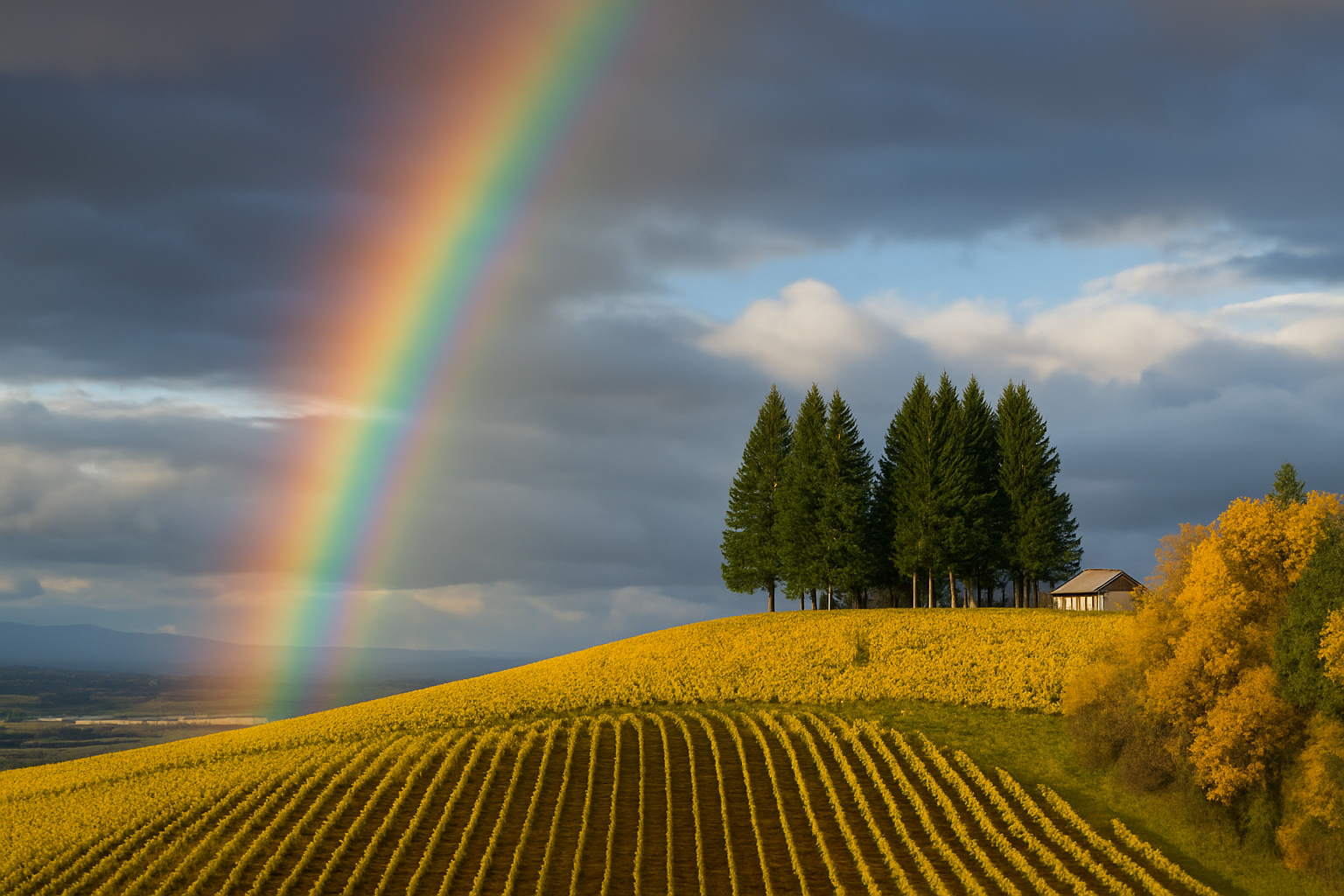
Unleash Your Inner Photoshop Wizard with a Dash of Color
Is the world looking a little too grayscale for your taste? Do you yearn to sprinkle a touch of color over the mundane? Well, look no further because today we’re diving into the vibrant world of Photoshop to tackle an effect that’s as timeless as nature itself—the rainbow. Now, before you dash out with a magnifying glass looking for pots of gold, let’s talk about a tool that’s already within arm’s reach. Say hello to Russell’s Rainbow, a ready-made gem nestled within Photoshop’s treasured gradient presets. Not to mention, it’s about to make adding rainbows to your photos as easy as pie.
Step-By-Step: Painting the Sky with ‘Russell’s Rainbow’
- The Foundation Layer:
Start by cracking open your chosen photo. Perhaps something that could use a shower of colors of a bright rainbow.
Create a new layer by clicking on ‘New Layer’ icon—the new canvas for your elusive rainbow. - Summon the Rainbow:
Select the Gradient Tool and open the gradient thumbnails. Here’s where the magic starts.
Find the gear icon to reveal a hidden list of gradient presets. Under ‘Special Effects,’ you’ll spot Russell’s Rainbow. Append this colorful cascade to your arsenal.
Embrace the radial gradient icon like it’s your Hogwarts wand. Click it—it’s crucial for rendering the beautiful arc of a rainbow. - Positioning Practically Perfect in Every Way:
Drag your gradient line from the lower right corner, holding down the Shift key to maintain that crisp, horizontal order. Release where you want your rainbow to gently rest.
From Dreamy Arch to Subtle Blend
- Delicately Soft Blur:
It’s time to whisper sweet nothings to your rainbow, head over to filter settings: choose Filter > Blur > Gaussian Blur. Blur it by 50 pixels, though feel free to let your photo’s resolution guide you. - Seamless Integration with the Sky:
Give it a screen blend mode for that ethereal touch. Adjust opacity between 50-70% for an authentic dispelling light whisper against your photo’s backdrop. - Natural Fade with a Gradient Mask:
Since rainbows like to vanish just as mysteriously as they appear, use a gradient mask. Click the ‘layer mask’ icon, follow it up with the black-to-white gradient and the linear gradient icon.
Drag your gradient line vertically to help the colors elegantly disappear into the earth just like they do in nature.
Why Use Photoshop for Rainbow Effects
While capturing an actual rainbow with your camera feels magical, it’s not always possible. With Russell’s Rainbow tucked away in Photoshop, you’re not beholden to nature’s whims. You have a trusted tool to recreate this eye-catching phenomenon, and enhance your visuals, add a mood of whimsy, or creatively convey messages of hope and diversity through the promise of a rainbow.
Wrapping Up
Photoshop is more than just a digital darkroom. It’s a palette where both novice and seasoned creators can experiment fearlessly. The magic of Photoshop lies in these everyday tools that often go unnoticed. By utilizing Russell’s Rainbow, you’re not just creating an effect; you’re painting with light and color, breathing life into flat imagery, and expressing emotions that a mere cursory look could miss. Embrace the Photoshop prowess and let the vibrant colors of creativity beam onto your work.
Now that you’ve mastered summoning rainbows, what other secret weapons have you tucked away in Photoshop—or stumbled across entirely by accident? Grab your digital paintbrush and get colorful!





