
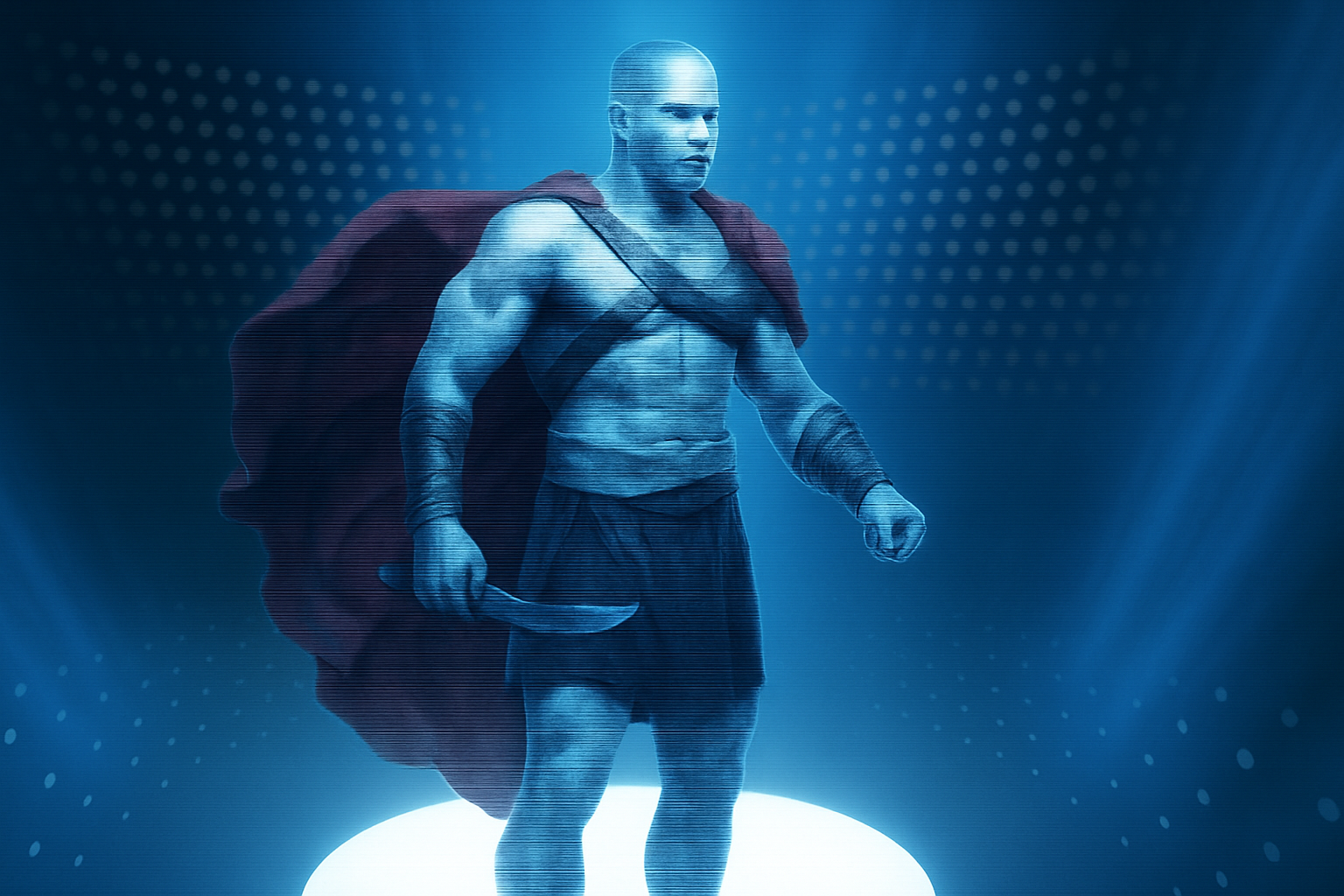
Step into the Future of Creativity with a Sci-Fi Hologram Effect
Are you ready to bend reality and travel into the futuristic aesthetic world of sci-fi cinema? Today, we’re going to delve into the mesmerizing craft of creating a retro sci-fi hologram effect using Photoshop. This blast from the past gives your digital art an incredible futuristic feel, reminiscent of the holograms from beloved science fiction movies and television. It’s an updated spin on an old technique, made even better with modern software features. So buckle up, fellow digital artiste, because things are about to get techy and super cool.
Your Guide to Holo-Fabulous
Creating a hologram effect involves several nuanced steps, merging dynamic selections, blurs, and layer styles in Photoshop. It’s a creative process that elevates a simple image into a digital masterpiece brimming with style and sci-fi sophistication.
Begin with the Image
Firstly, choose an image you want to transform into a hologram. I picked a picture from Shutterstock for this example, but you can opt for any high-resolution image that fits the narrative you want to tell. The first task is creating a clean cut-out of your subject from the background using the Quick Selection Tool. This tool allows you to highlight your subject swiftly and accurately, setting the foundation for the hologram effect.
Pro Tip: Adjust the tool size depending on the complexity and size of the selection area. A larger selection tool for broad areas and a smaller one for detailing helps manage the workflow efficiently.
Cut, Paste, and Layer
After making your selection, press Ctrl (Cmd) + J to cut and paste your subject onto a new layer. Once your subject is on its own layer, it’s time to introduce it to the mystical hologram background. Use the Move Tool to drag and adjust your subject, ensuring proper alignment and proportion on the background layer.
It’s important to name your layers for easy navigation as you progress. In our project, the layers are named as “Glow,” “Blur Edges,” and “Motion Blur” for clarity.
Apply Motion Blurs and Glows
With our layers sorted, it’s time to apply the sci-fi magic. Start by selecting the “Motion Blur” layer and applying a Linear Light blend mode to it. Add a Motion Blur effect to simulate the distinct streaking synonymous with holograms. Tweak the angle and distance until you achieve the futuristic effect that resonates with you.
Then, on the “Blur Edges” layer, modify the blending mode to Luminosity. Contract, feather, and blur the selection to soften the edges and integrate the layers seamlessly.
Let It Glow
We’re now adding the radiant glow, a vital element to any hologram. Adjust the “Glow” layer fill to 0%—don’t worry, this only makes the layer contents invisible, not the effects. Head into the Layer Style and add both Outer and Inner Glow effects to this layer. Selecting a white glow and modifying blend modes and opacities gives the hologram its dreamy, ethereal appearance.
Add Futuristic Scan Lines
What’s a retro hologram without a smattering of scan lines to transport viewers back in time? Create a new layer filled with 50% gray, then apply a Halftone Pattern filter to emulate the iconic scan lines. Reduce the pattern layer height to double the lines and ensure precision by using guides and snap-to features. Merge and refine your lines for the final holographic stroke.
Cool Down the Colors
Sci-fi holograms are drenched in cooler tones, evoking themes of technology and the cosmic unknown. To achieve this, group your hologram layers, then apply a blue photo filter and adjust the density to imbue the image with those signature digital hues.
Pro Tip: Group layers and adjustments together to keep your workspace tidy and organized. This practice aids not only in workflow efficiency but ensures all holographic elements move and adjust cohesively.
Final Thoughts on Your Digital Voyage
Congratulations! You’ve taken an everyday image and transformed it into an art piece worthy of the futuristic settings of your favorite sci-fi universe. With a dash of creativity and a sprinkle of Photoshop magic, the retro sci-fi hologram is a potent visual that can elevate both digital content and storytelling.
In this process, we’ve learned the power of digital layer manipulation, blur effects, and how small tweaks can yield monumental visual changes. Now that you’re equipped with this technique, the sky—or shall we say, the galaxy—is the limit. Gravity, be gone, and may your creative journey be boundless and shiny!





