
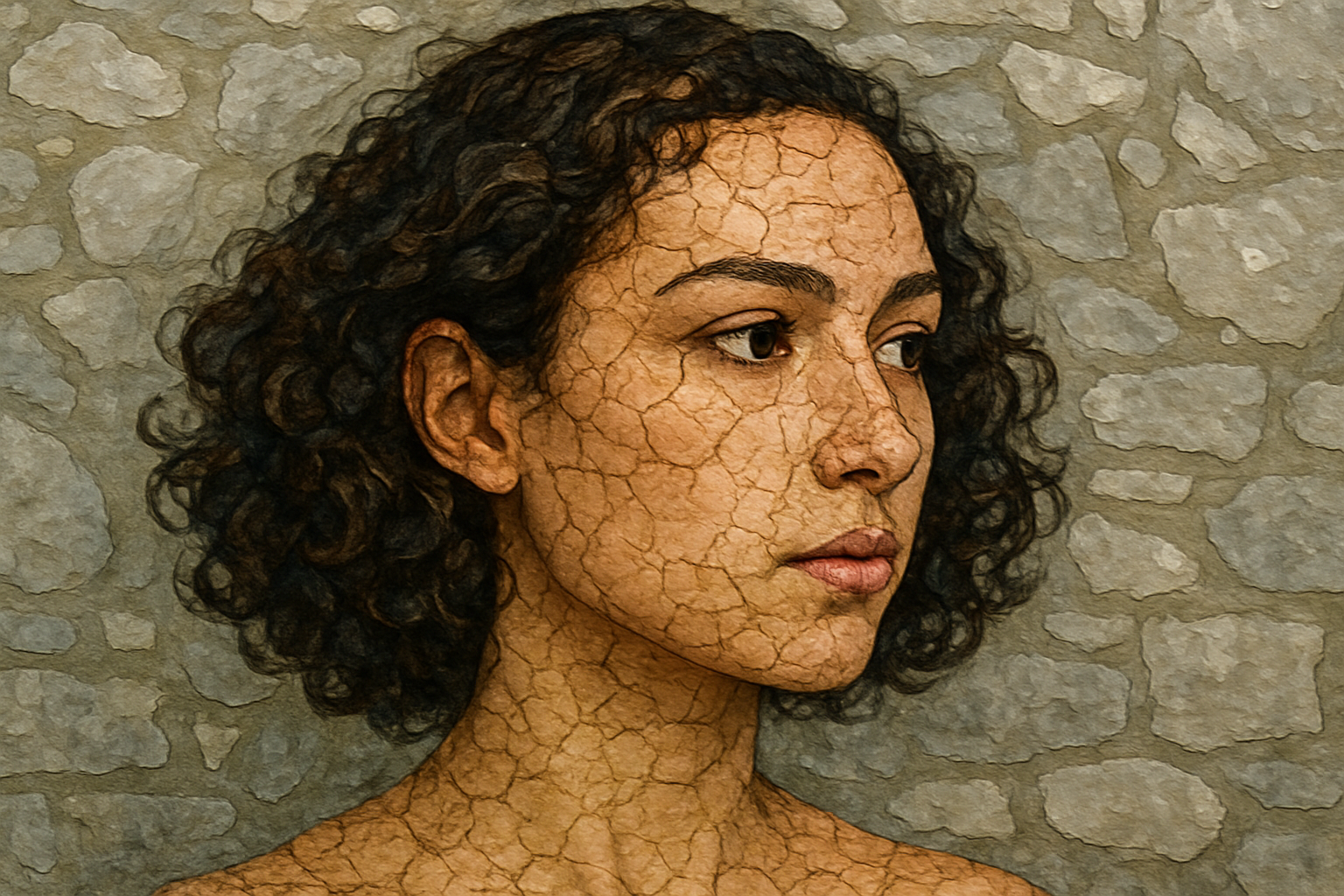
Transforming Your Photos into Textured Art
Have you ever wished to see a portrait of someone you love, but not in just any ol’ picture frame or digital photo album? How about painted on a cobblestone path or another eye-catching paved surface? Hold onto your Wacom tablets—today, we’re taking a creative leap to transform ordinary portraits into extraordinary sidewalk art using Photoshop. Whether you’re a Photoshop wizard or a novice looking to level up your skills, these bite-sized steps will equip you to create a masterpiece.
Preparing Your Photoshop Canvas
Before you dive head-first into designing, you’ll need to prep your canvas. Create a document size of 2400×2000 pixels with a resolution of 150 pixels per inch. Textures breathe life into paved surfaces, so head over to Textures.com to download a cobblestone texture that piques your interest.
Overlaying and Transforming Your Portrait
Here’s the million-dollar step—getting the image you want painted onto your cobblestone. Start by opening the document that contains the image of your choice. Select, copy, and then paste it into your canvas. Photoshop makes you feel like Hercules with its transformational arsenal; utilize the Transform Tool (Ctrl or Command + T), and optimize your image size by dragging while holding Shift and Alt (or Shift and Option on Mac).
Subtlety and Precision with Quick Selection Tool
Time to play detective—an image detective, that is! Use Photoshop’s Quick Selection Tool to mark the face or object you wish to paste. This tool is for those who enjoy a potent mix of ease and precision. Perfect your selection through Select and Mask (a.k.a. Refine Edge). Finesse it by selecting Smart Radius and adjusting to your artistic cravings.
Bringing the Portrait to Life with Blend Modes
Next comes the marching order: making your portrait coalesce harmoniously with the cobblestones. Change your layer’s blend mode to “Overlay.” This mode ensures the image blends seamlessly, merging colors and textures like peanut butter blended with jelly—sorry, photographers with peanut allergies!
Poster Edges Filter for Visual Punch
Vividness alert! Navigate through Filter > Artistic and choose Poster Edges. Feel free to tinker with the settings to your heart’s desire—10 for thickness, 3 for intensity, and 6 for posterization are excellent starting points. Imagine it as tailoring a suit, but for textures and colors.
Crafty Details with the Pencil Tool
To put an exclamation point on your image, let’s rough it up a bit. Start by adding a Layer Mask to duplicate the background, invert it (Ctrl or Command + I), and paint freely with the Pencil Tool. Again, consider this phase your artistic playground. Brush the lower edge with a natural brush preset—many of which are freely available at BrushyZ.
Compositing for Fictional (Yet Realistic) Art
Ah, composites. Nature’s way of digitally storytelling. Combine layers into one epic “composite snapshot” using Ctrl or Command + Shift + Alt + E. The pièce de résistance? Placing it all in perspective. Once satisfied with the look, copy it into a smaller 1280×720 pixel document, call up the Transform Tool, and finish with an artful perspective adjustment. Trust us; you’ll feel like Michelangelo with a mouse!
Creativity Unleashed: Final Touches and Revelations
With this comprehensive how-to, watch as your portraits bask in the glory of tangible grit and texture, as though earth and art had a digital rendezvous. So, sit back, let your mouse do your bidding, and craft captivating cobblestone art. Remember, with great power comes great creativity, and Photoshop gives you access to both. Unleash your inner artist, one cobblestone portrait at a time.
Now, what are you waiting for? Open Photoshop, grab a textured surface, and transform your reality into art that demands a second look—because when creativity and tools collide, magic happens!




