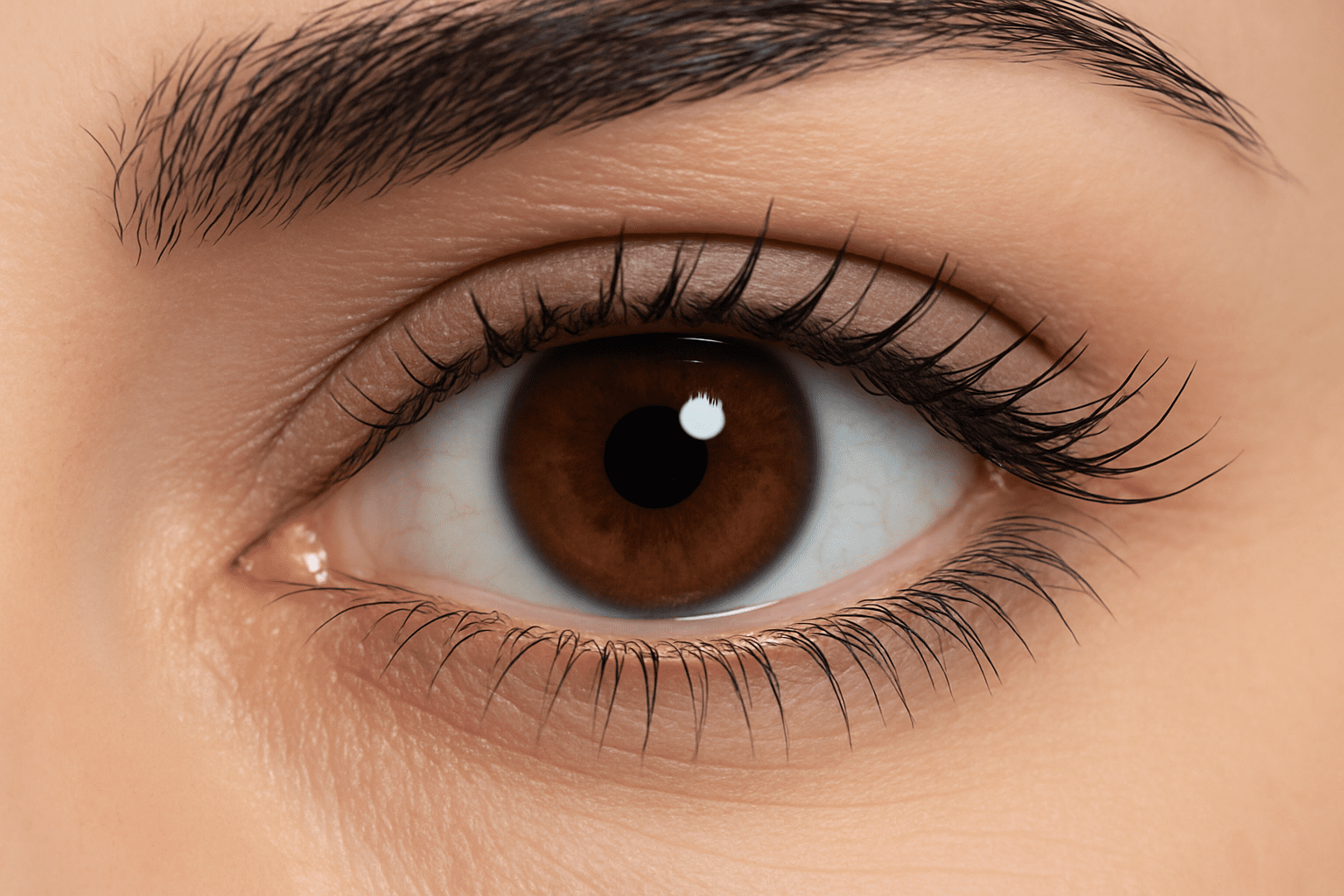
Fine-Tuning Your Images: The Power of Sharpness Filters
Sharpening an image is like adding the finishing touch to a masterpiece—a little bit of sharpening can transform a dull, lifeless photo into a vibrant work of art. While Photoshop offers several options for sharpening images, today we’re diving into the nuances of three popular filters: High Pass, Smart Sharpen, and Unsharp Mask. Which one should you use? Let’s find out.
The Allure of the High Pass Filter
When it comes to sharpening in Photoshop, many enthusiasts express favoritism toward the High Pass filter. Its appeal lies in its ability to target only the edges of an image—leaving other areas untouched—and thereby highlighting what truly matters: the details.
How to Apply the High Pass Filter:
1. Duplicate the Original Layer: Either by pressing Ctrl + J (or Command + J on Mac).
2. Navigate to the Filter Menu: Select Filter > Other > High Pass.
3. Adjust the Radius: Start with a low radius and gradually increase it. Be cautious—a high radius may introduce a halo effect, which is usually undesirable.
4. Blend Mode Considerations: Modify the layer’s blend mode to either Overlay, Soft Light, or Hard Light, based on the sharpening intensity desired.
5. Adjust Opacity if Needed: If the effect is too strong, lower the opacity.
The beauty of the High Pass filter is that it offers precise control over sharpening. By focusing exclusively on edges, it ensures that the integrity of the texture and tone—a key for maintaining image realism—remains intact.
Smart Sharpen: Intelligent and Customizeable
Enter the Smart Sharpen filter, possibly the more tech-savvy sibling of the bunch. It sets itself apart by being able to intelligently reduce blur based on its Gaussian and Lens Blur options, allowing you to decide exactly how much of the image you wish to enhance.
How to Use Smart Sharpen:
1. Duplicate Background Layer: As with the High Pass, replicate the original layer with Ctrl + J or Command + J.
2. Access the Filter: Go to Filter > Sharpen > Smart Sharpen.
3. Tweak Settings: Adjust the radius, percentage, and removal method. This can radically transform the sharpness based on the blur type you’re compensating for.
Smart Sharpen is like having a little Photoshop genius at your fingertips; it gives you the flexibility to tweak your images with its sophisticated algorithms.
Unsharp Mask: The Classic Approach
Despite its somewhat misleading name, the Unsharp Mask is an enduring favorite among photographers. Why? Because it simply works for most scenarios. This filter enhances the contrast at edges, creating an illusion of increased sharpness.
How to Work with Unsharp Mask:
1. Layer Duplication Again: Hit that Ctrl + J or Command + J.
2. Open the Filter: Find it under Filter > Sharpen > Unsharp Mask.
3. Adjust the Two Key Ingredients: Play with Amount and Radius until satisfied.
Though may seem rudimentary compared to Smart Sharpen, Unsharp Mask is tried and true. It’s reliable, straightforward, and sometimes simplicity is truly king.
Putting It All Together: Filter Showdown
How do these filters really stack up against each other on a single image?
Let’s briefly recap:
- High Pass: Great for edge-specific sharpening without affecting the entire image.
- Smart Sharpen: Best for dynamic, custom sharpening, offering various deblur options.
- Unsharp Mask: Reliable and uncomplicated, especially when you need a quick fix.
The real magic lies in experimentation. No single filter is the “best fit” across the board. Depending on the image, one might outperform the others—such as landscapes flourishing with Unsharp Mask while urban photography thrives with High Pass. Always try different blend modes and opacities when using High Pass to get a feel for its potential.
Sharpening might seem like a small tweak, but it can make a world of difference. So next time you need to give your image that extra ‘pop’, return to one of these filters and see for yourself the impact it can have. Happy editing!