Bring the Snow to You with These Simple Photoshop Steps
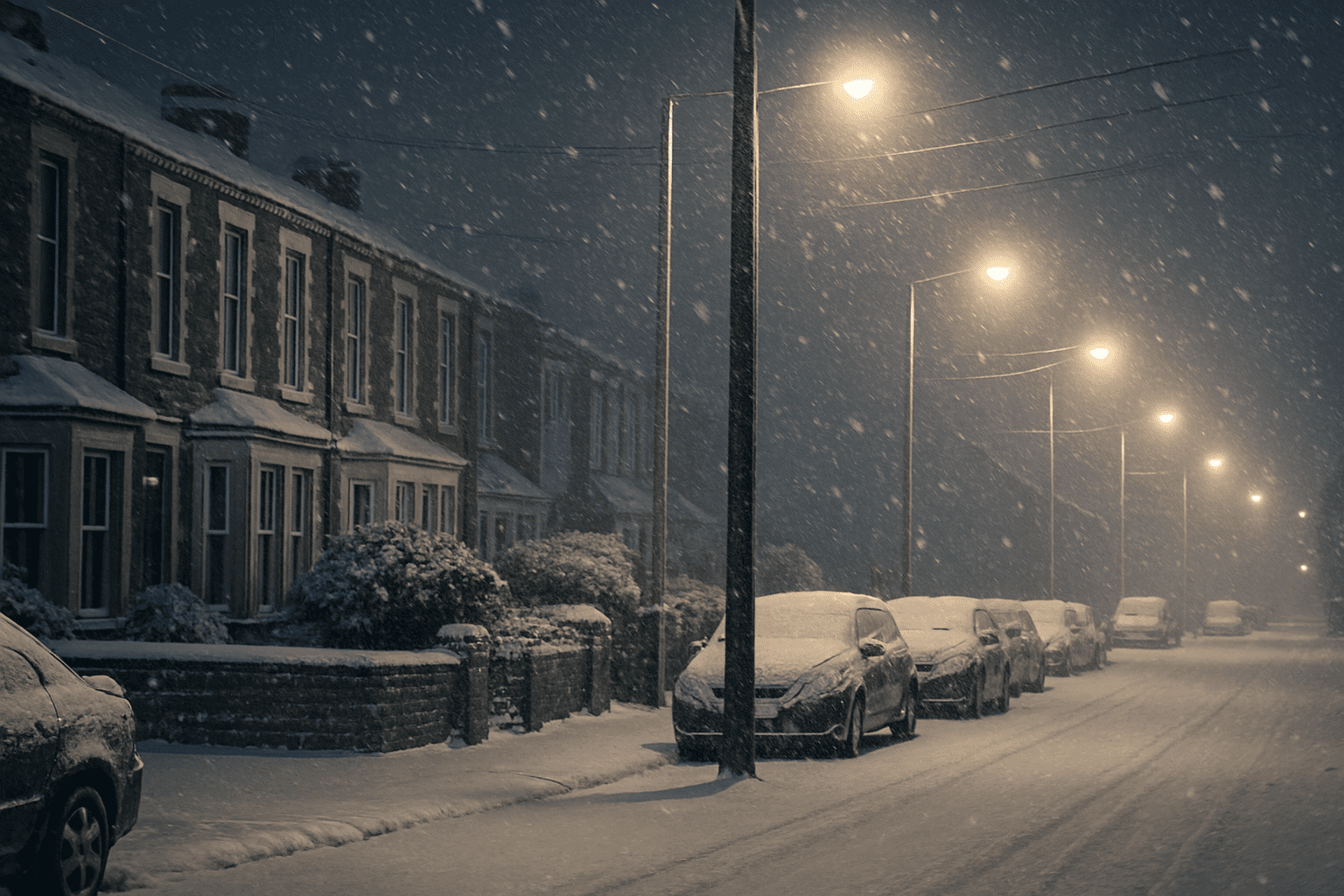
Who said you need to brave the cold to enjoy the magic of a snowy landscape? With just a few filters and quick adjustments in Photoshop, you can create a mesmerizing, realistic snowfall effect for any of your digital creations. Whether you’re looking to add a wintery touch to a Christmas card or bring the chill of winter into your digital artwork, this guide has you covered. With Photoshop open, let’s journey into the realm of faux snow!
Setting the Stage: Document Dimensions
Before we dive into the creative process, let’s lay down the groundwork for our digital snowfall. We’ll be working with a document size of 1280 by 720 pixels, paired with a resolution of 72 dpi. This setting is perfect for high-quality digital art, and particularly for animations or video overlays. It’s almost like setting your canvas before painting the masterpiece.
Creating the Base for Snow
Start by creating a new layer. This blank slate is where the magic begins. Make sure black is set as your foreground color, then fill the layer with black by pressing Alt + Delete on Windows or Option + Delete on Mac. This solid black backdrop provides the right contrast to make your snow appear vivid and bright against whatever background you choose.
Next, we infuse this base with noise. Navigate to Filter > Noise and hit Add Noise, sliding the intensity up to 200%. Trust me; it won’t stay chaotic for long.
The Magic of Filters and Levels
The real charm of this effect happens when you apply a Gaussian blur to the noisy base. Head over to Filter > Blur and select Gaussian Blur with a radius of two pixels. This softens the noise, setting the stage for our snow-like transformation.
Now, it’s time to manipulate the Levels to shape your blur into genuine-looking snowflakes. Hit Ctrl + L (Command + L on a Mac) to access the Levels panel. Adjust the Black, Midtone, and White input values to 127, 74, and 169 respectively. Suddenly, your screen isn’t just a blur of white; it’s a delicate dusting of varying snowflakes.
Add Motion to Your Snowflakes
We can’t have our snow just hovering there; it needs movement. Enter, motion blur. Go to Filter > Blur and select Motion Blur, giving your snow an angle of around -53°—as if a brisk winter breeze is sweeping through. Set the distance to 10 pixels. This mimics a camera’s shutter speed, capturing the falling snow in mid-flight.
Layering Up for a Blizzard Effect
It’s time to intensify the snowfall. Change the layer’s blending mode from Normal to Screen. Suddenly, your snow becomes lighter and more ethereal. For that thick, immersive blizzard feel, you’ll want to duplicate your snow layer by pressing Ctrl + J (Command + J for Mac users). Multiply it until you’ve blanketed your canvas in the fluffiest, most chaotic storm of pixels.
To create even more depth, divide your canvas into quadrants and distribute your duplicated snow layers evenly across these sections. This ensures that different sizes and intensities of snowflakes populate every corner of your frame, leaving no spot untouched by winter’s hand.
Fine-Tuning Your Winter Wonderland
Move and place these extra layers using Ctrl + T (Command + T on Mac) for the transform tool, ensuring alignment and creating a smooth overlap where needed. Continue tweaking your layers, adding more duplicates if necessary, until your masterpiece captures that perfect blizzard intensity.
Let It Snow!
And there you have it—an incredibly realistic snowfall effect achieved with a bit of Photoshop magic. This technique isn’t just fun to learn but can seriously elevate any winter-themed project, making your digital art look like a snow-clad wonderland straight out of your imagination.
Whether it’s for personal creative pursuits or professional design projects, mastering this technique equips you with an invaluable skill to enhance any seasonal artwork. So, keep experimenting with different intensities and layer combinations until your digital snowfall looks as beautiful as Mother Nature’s own design.