
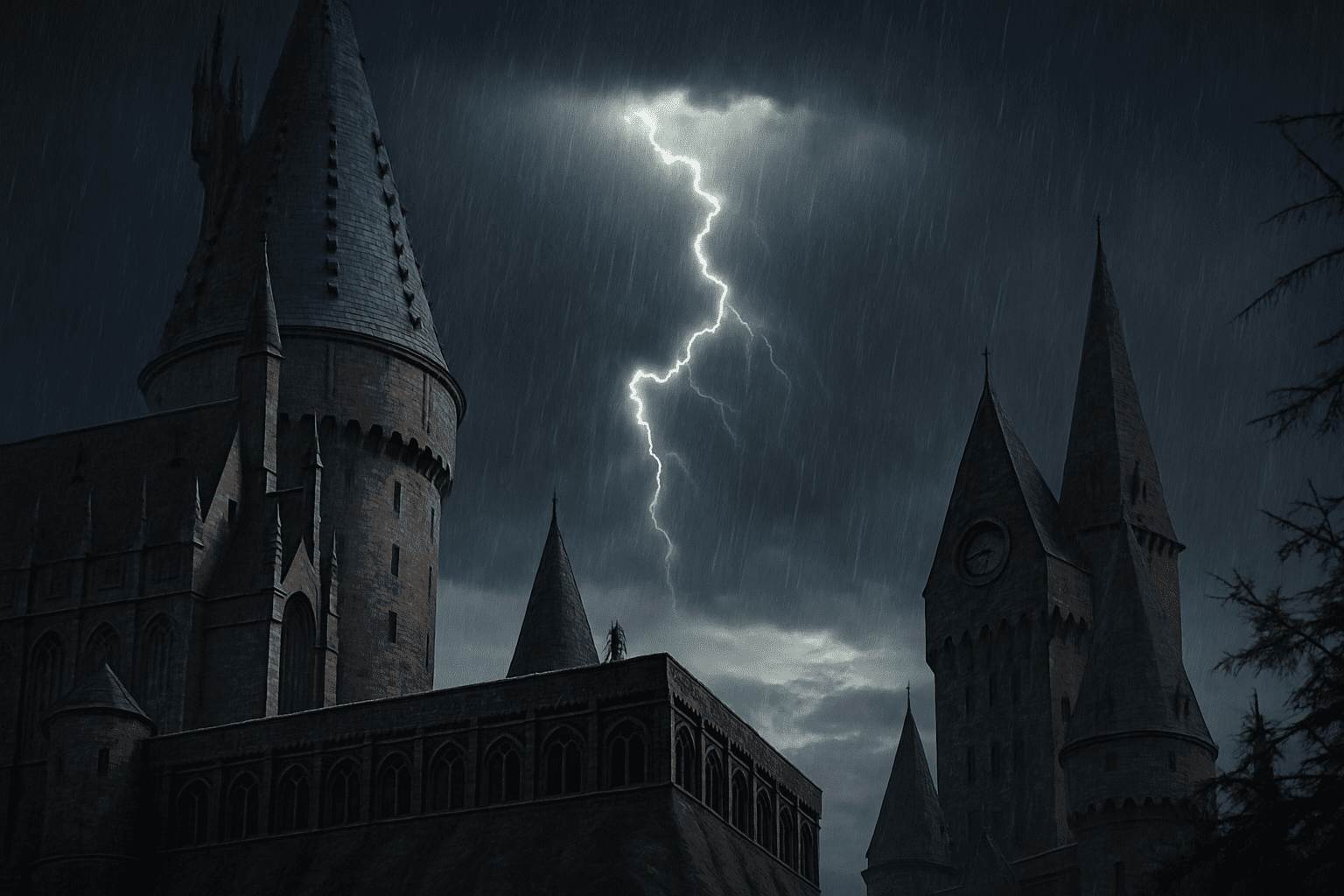
Transform Your Hogwarts Castle with Spellbinding Stormy Weather
There’s something enigmatic and powerful about a thunderstorm that can instantly elevate any ordinary scene into a dramatic masterpiece. For those of us encapsulated in the magical world of Harry Potter, creating that intense, electrifying stormy environment around Hogwarts Castle is nothing less than casting your digital spell. In today’s blog post, we’re drawing our creative wands, aka Photoshop, to conjure realistic lightning effects and transform any photograph into a stormy spectacle.
The Magic Behind the Lightning Effect
Creating realistic lightning isn’t just relegated to professional graphic artists anymore. With tools like Photoshop, anyone can electrify their photos by following a few thunderous steps:
- Layering Up: Begin by creating a new layer to work with. This allows you to experiment without altering the original photo irrevocably. Think of it as your invisible cloak for trying new spells (or in this case, effects).
- Gradient Game: Using the Gradient Tool allows us to mimic natural skies by dragging from black to white, setting the foundation for our stormy backdrop. This transition will help in creating the high contrast areas reminiscent of authentic lightning flashes.
- Shaping the Clouds: The Render > Difference Clouds option in Photoshop adds those unpredictable and erratic cloud patterns. It’s like brewing the perfect storm out of gaseous digital pixels.
- Inversion Incantation: By inverting the image (Ctrl/Command + I), you bring forth the hidden “lightning” from the difference clouds. No lightning in a bottle here, just pure digital zest!
- Leveling the Thunder: Fine-tune the lightning by adjusting levels (Ctrl/Command + L). Setting the black input to 200 and the mid-tones to 0.24 ensures that only the most dramatic configurations break through the darkened digital sky.
Refining and Colorizing Your Lightning
With the initial setup complete, the next phase involves refining the lightning bolts to fit seamlessly into your scene.
- Selective Highlighting: Carefully paint the areas you want to keep using the brush tool, selectively erasing those that don’t fit the aesthetic. You want the lightning to appear natural, so respect the composition and focus on the areas most likely to be illuminated by a real storm.
- Hue and Contrast Manipulation: As a final touch, adjust the mode to screen in the Layers Panel, making the lightning mesh with the scene. Using the Hue/Saturation window enables you to give the lightning a color that reflects the atmospheric hue of the rest of the image. Think midnight blue, or electric purple—your choice.
Adding Depth to the Storm
Lightning is only part of the storm; the clouds hold the electric ambiance that sets the mood. Bringing this depth means playing with lights and colors.
- Ethereal: Enhancing Light Sources: Subtly brighten the lightning to simulate its intense illumination. Changing the mode to Soft Light and adjusting your brush size and opacity ensures the lighting underneath the cloud looks naturally diffused.
- The Green Effect: Ominous clouds aren’t complete without an acid green hue, suggesting volumes of energy and impending action. By adjusting the foreground color, you give your scene that charged atmosphere reminiscent of classic thunderstorm imagery.
- Polish with Precision: Focus on brushing in color with reduced opacity to keep things not too overpowering. You want the castle’s new stormy setting to be as believable as walking into a rainstorm during a spring night.
Final Spellbinding Touch
With all these alterations and manipulations, you now hold a picture that not only captures an iconic location but does so with cinematic flair. The Hogwarts Castle cloaked in an impressive lightning display turns into a masterpiece worthy of any wizard’s wall.
Whether you’re jumping into the world of digital design or are a seasoned pro looking for fresh ideas, creating realistic lightning effects in your photography leads you on an insightful trek through Photoshop’s powerful spells—be they muggle-friendly or otherwise.
With your newfound skills electrifying your creative arsenal, don’t forget to subscribe to Blue Lightning TV on YouTube for more spellbinding tutorials, tricks, and tips catered to your creative pursuits in both Photoshop and After Effects!





