
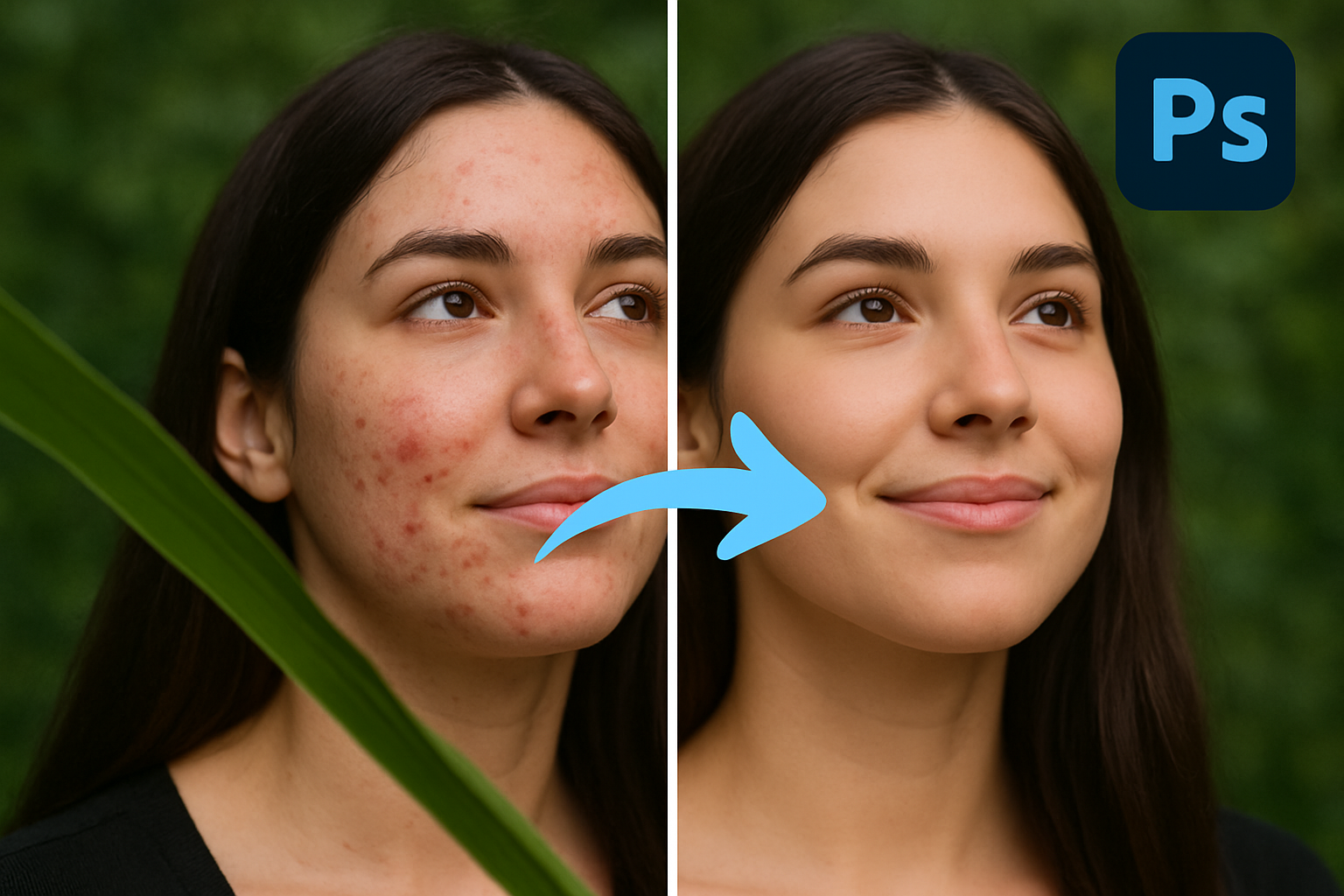
Master the Art of Retouching with Photoshop’s Neural Filters
Picture this: you’re scrolling through your Instagram feed, and you come across a portrait of seemingly flawless skin that looks natural yet radiant. You might think, “That’s got to be some next-level editing skills.” Well, today’s your lucky day, because we’re diving into how you can achieve this magic using Adobe Photoshop. Specifically, we’ll unravel the secrets of using Photoshop’s neural filters alongside some clever techniques to tackle even the most stubborn acne challenges. Spoiler alert: you’ll learn how to make significant improvements in just a few clicks.
The First Step: Harnessing Neural Filters
Navigate to your image of choice in Photoshop, and let’s fire up those neural filters. Located under the ‘Filter’ menu, these filters are not just smart; they’re downright brilliant when it comes to executing tasks that once took hours of manual work. Switch on skin smoothing, and voilà — an immediate transformation is visible. But don’t get carried away! You want your subject to look natural. Adjust the smoothing to about 53% to maintain that perfect balance between clear skin and natural texture.
Keep Backup Layers Handy
For any Photoshop wizard, the first rule of thumb is to keep a backup. Duplicate that original layer like your creative life depends on it because it just might. This ensures that you have a safety net if your edits go a bit too far into uncanny valley territory.
Diving Deeper with Inverted Colors
Now, let’s jump to your freshly duplicated layer. Head to ‘Image’, swing by ‘Adjustments’, and take a pit stop at ‘Invert’. Why the bizarre color switch? This step isolates texture details, preparing them for the heavy-lifting effects that follows.
Convert your layer into a Smart Object, choosing ‘Vivid Light’ as your blend mode. Yes, it’s going to make the image look weird, but if Photoshop had a motto, it would be, “Trust the process.”
High Pass and Gaussian Blur: The Dynamic Duo
Please turn your attention to the ‘High Pass’ filter located under ‘Filter’ – ‘Other’. Set it to around 40 pixels to accentuate those tiny details. Next, grab the ‘Gaussian Blur’, set its radius to a modest 1.3 pixels. This combo keeps your details crisp — but not too sharp, preserving the natural illusion.
Painting with Precision
It’s time for some finesse. Add a layer mask to your edits, and conceal your track’s detective-style by filling the mask with black (shortcut: Command + Backspace). Swap to a white brush when you’re ready for precise acne-editing surgery, and paint the effect just where needed.
Leveraging the Spot Healing Brush
Now, let’s whip out the spot healing brush tool for a quick touch-up. This tool is as magical as it sounds. Simply click over those pesky blemishes, and Photoshop will do the rest. You’ll notice how everything starts to blend together seamlessly, a harmony of pixels and light, creating the portrait of dreams.
Color Correction With Subtlety
With our background workload out of the way, freshen up the color tones. Create a new layer, set its blend mode to ‘Color’, and with the eyedropper tool, grab a skin tone match from well-lit areas. Paint over blemishes needing minor color adjustments. Lower your layer opacity to about 35%, ensuring that colors blend naturally without looking conspicuously artificial.
Bringing Texture Back with Noise
Our final touch to ground these edits in realism is noise. While noise sounds counterproductive, in this context, it’s your ally. Visit the ‘Filter’ menu again and navigate to ‘Noise’ > ‘Add Noise’. Initially, set it to 3% in uniform distribution, and for good measure, pass again at 4.5%. These faint additions of noise will bring texture back to your subject’s skin, making your edits incredibly realistic.
To Infinity and Beyond (Well, Almost)
Your masterpiece isn’t just about severe acne removal. It’s about combining tools like generative fill for those few additional retouches. This step is optional — consider it your creative handspring. You’ll unveil before-and-after reveals that are sure to leave clients or socially-savvy friends in awe.
Voila! We’ve successfully navigated a step-by-step journey to remove severe acne using Adobe Photoshop. What seemed impossible is now within your grasp — at least where photo editing is concerned. If you found these tricks beneficial, why not make a habit of learning more Photoshop wizardry?
Remember, there’s always more on our YouTube Channel where the magic of creativity never ends.





