
Dive Into the World of Sci-Fi Logo Design With Photoshop
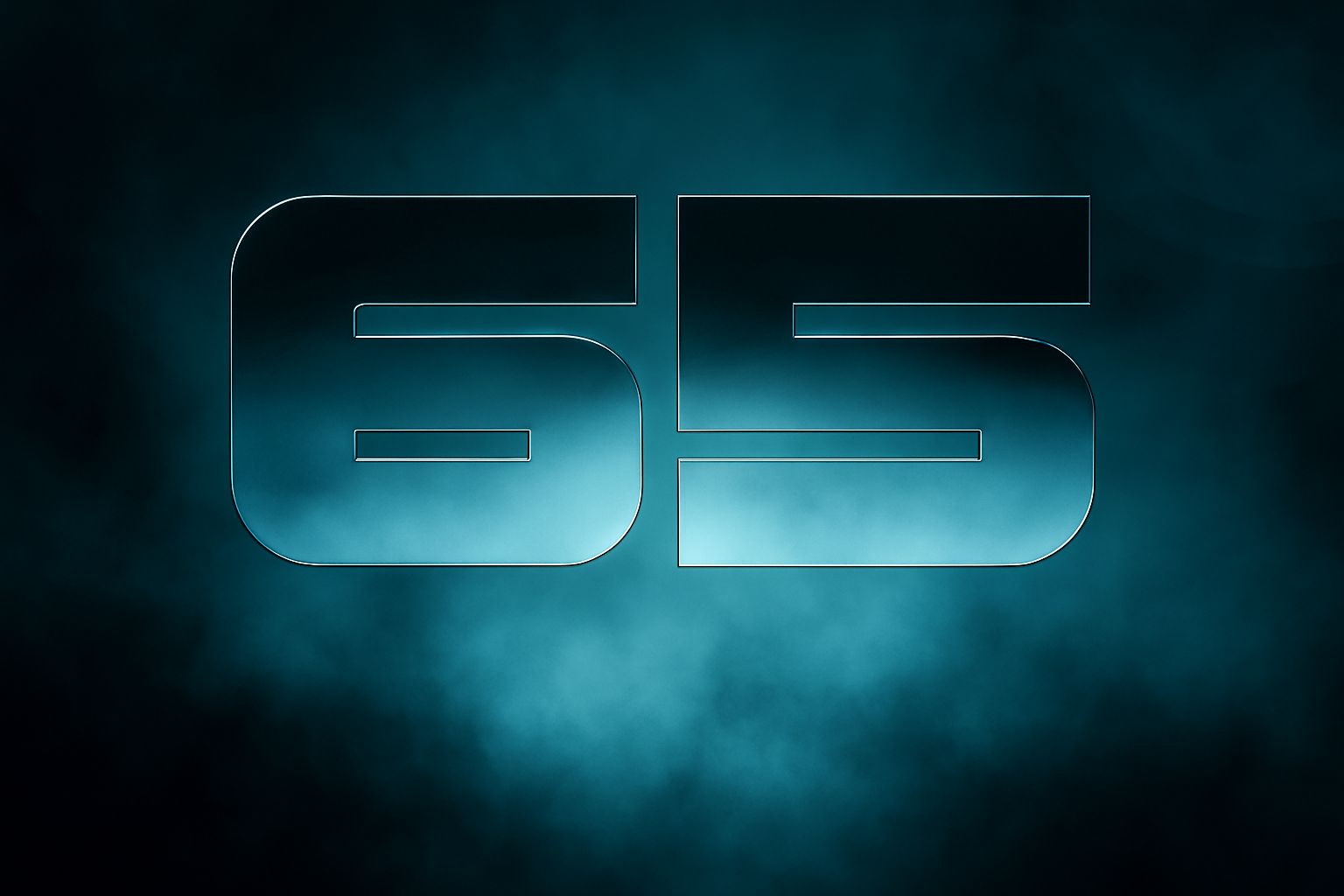
Who doesn’t love a good sci-fi flick? The drama, the suspense, the out-of-this-world visuals—and let’s not forget those awe-inspiring title logos. Today, we’re peeling back the layers on how to recreate the iconic logo from the “65” movie trailer. It’s a simple yet powerful design, and with a blend of Photoshop magic and a little creativity, you can make it your own.
Setting the Stage: Your Photoshop Canvas
Creating a logo like the one seen in “65” means starting with the right canvas. Launch Photoshop and create a new document with the dimensions of 3840×2160 pixels and a resolution of 72 pixels per inch. This widescreen format sets the stage for your logo to shine in high-definition glory.
Crafting Those Cinematic Bars
Let’s give your logo a theatrical widescreen look. Unlock your background layer by clicking the lock icon. Then, create a new black layer beneath it. To ensure the cinematic aspect ratio, you’ll be drawing horizontal selection bars at the top and bottom of your canvas. Use Ctrl/Cmd-click to create a new layer and fill it with black using Alt/Option + Delete, ensuring your foreground color is set to black.
Building Your Cloudy Backdrop
Follow up by hiding those guidelines (because precision is key, but distraction is the enemy). Make your newly created white layer active and select a sea-green color: 308292. This will be the foundation of your clouds. Navigate to Filter > Render > Clouds, and to make them behave under your design whims, increase the size to 300% using the Transform function.
Bringing Life Into the Typography
To cast the spell of sci-fi on your text, download the provided font, which is a close sibling to the one used in the movie logo. And since generosity is the spirit of the internet, you can thank the designer with a small donation. Once you have your font ready, make it bold and keep it heavy. Set your type size to the max—1296 points for a larger than life appearance.
Align your text centrally using Photoshop’s alignment tools: “Horizontal Centers” and “Vertical Centers.” Then, reduce the fill to 0% to cloak the original text while retaining its forthcoming grandeur.
Texturizing and Adding Depth
Now, double-click your text layer to embark on an adventure with Bevel & Emboss. For this part of the trip, I’ll set you up with these coordinates:
– Style: Inner Bevel
– Technique: Chisel Hard
– Depth: 200%
– Size: 7 pixels
This exquisite attention to detail gives your logo text that sci-fi steel look. Additionally, the cloud texture layer you created earlier will serve as the dreamy texture inside your text. Just select your text’s shape and add it as a mask to the cloud layer copy.
The Finishing Touch with Light Flares and Effects
What’s a sci-fi logo without an epic light flare? It’s like peanut butter without jelly! Create a new layer, fill it with black, and change its blend mode to Screen. Navigate to Filter > Render > Lens Flare and set those sci-fi aliens in action with a 105mm Prime lens type.
Stretch out this lens flare with a Transform stretch to craft a wide, cinema-worthy glow. A key maneuver here is changing its Blend Mode to Color, painting your lens flare in a rich 308292 hue to match your ethereal cloud-filled text.
Finally, bring life to the secondary flares by tweaking their sizes and distances with the Transform Tool. Adjust your brush opacity to dim these secondary lights, refining the balance of brightness across your composition.
Remember folks, it’s the delicate dance of light and shade that often turns a logo from good to otherworldly. Now, you’re armed with all the tools to create a sci-fi inspired logo that could easily grace the credits of the next big space odyssey.
Want more Photoshop magic? Hit subscribe on our YouTube Channel. With these digital wands, the universe is your oyster. 🪄✨





