
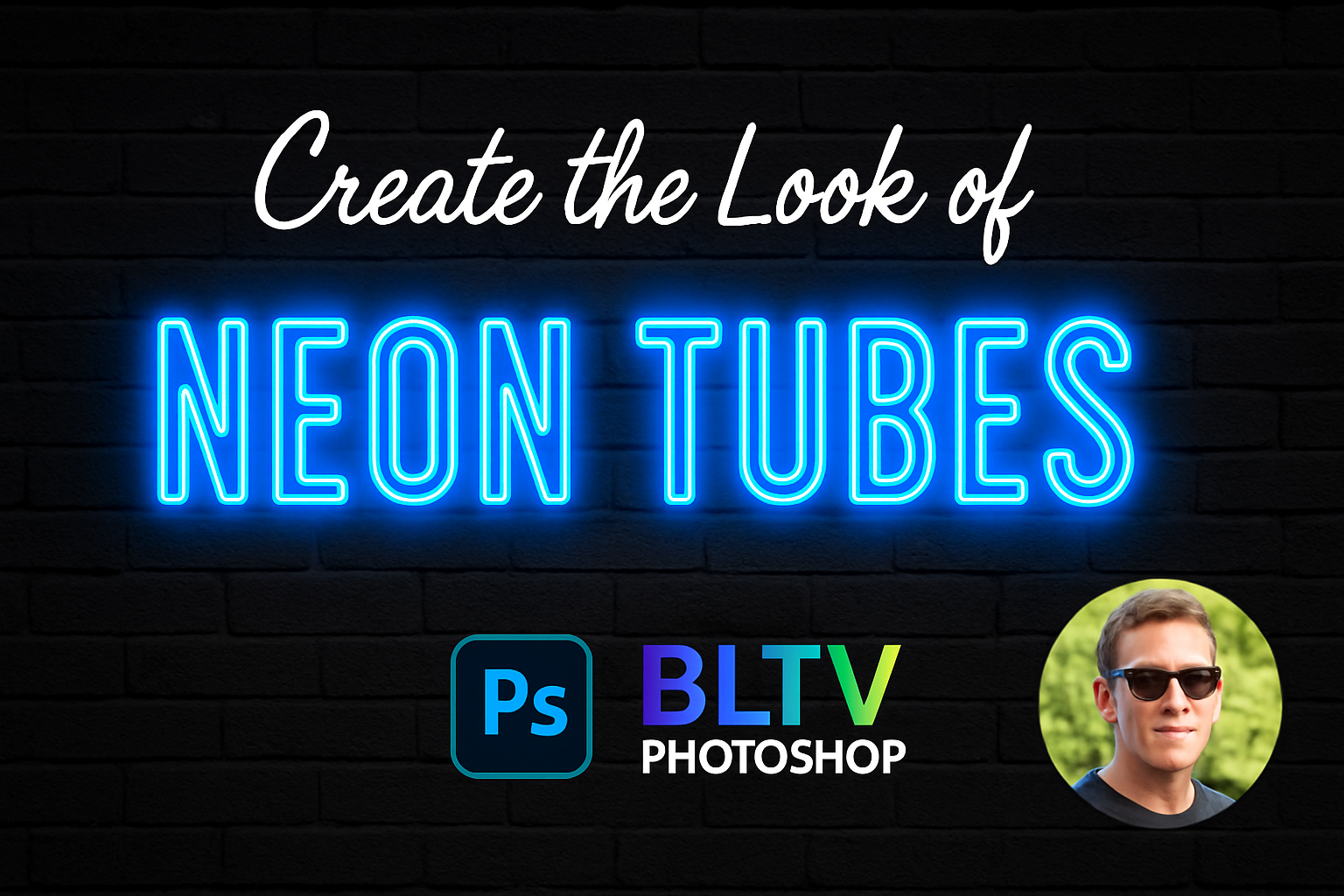
Add Some Electric Flair to Your Typography
If you’ve ever wanted to bring a little Vegas strip to your design game or just have text that jumps off the page like it’s from an ’80s sci-fi flick, creating a neon sign effect in Photoshop is where it’s at. Not only is this effect visually striking, but it’s also pretty straightforward to achieve with the right set of tools and techniques. Oh, and guess what? Using this guide, you’ll be crafting glowing text that’s sure to grab attention faster than you can say “neon.”
The Foundation — Setting Up Your Canvas
Before jumping into the glowing goodness, you’ll need a backdrop. A gritty brick wall image would be ideal since it gives that authentic urban vibe. Lucky for you, this post’s got you covered — with download options available in the original project files for that perfect texture. Don’t shy away from switching up the font, but ensure it carries some weight for maximum neon impact. A thick font is your friend here.
For readers looking for specific resources, this might be a good moment to check out the links provided in the YouTube video description for the exact assets used, including the fancy font of choice.
Crafting the Neon Text
1. Open the Horizontal Type Tool: Start by making sure your text is front and center. The canvas background should ideally be black and white, making your active text white for stark contrast.
2. Choose and Size Your Font: Navigate through the type picker. The font size could be around 544 points, depending on the text length and your aesthetic vision.
3. Center that Text: With the alphanumeric charm in place, center it by using the Move Tool. Commands like Ctrl or Command+A make selection a breeze, aligning both vertical and horizontal centers with just a click.
4. Get Edgy with Transform: Want that text with a hint of drama? Skew it! Use the Transform tool (Ctrl/Command+T) and skew away by manually dragging it to an angle that screams neon-nightlife.
Lighting Up the Night — Adding Effects
Now that your text looks rave-ready, it’s time to bring the glow:
- Color Overlays: By tweaking the color overlays — a bold hue like #6eaafb works, reminiscent of electric blue lighting. Feel free to play with shades that resonate with your neon narrative.
- Adding Outer Glow and Drop Shadow: Elevate the luminous aura with a rich outer glow and a spot-on drop shadow. Think in terms of darker and more saturated hues like #1176ff for a shadowy charm that complements the primary color.
Blur and Highlight for Realism
To make the neon effect pop against the brick backdrop, introducing a slight Gaussion Blur (1 pixel) can add a touch of realism. You’ll want to transform your text to a smart object to maintain flexibility in your edits.
Now, to mimic how real neon might cast light onto its surroundings, add a new layer beneath the text layer for a glowy wall reflection. Use the select, modify, and feather options to ensure this glow feels natural.
Final Flourishes
To seal the deal, ensure your design is cohesive by applying the following:
- Adjust Feathering: Feathering should smoothen the sharp edges around your text, offering that soft, natural transition characteristic of real neon lights.
- Modify Blend Modes: Adjust blend modes like Vivid Light or Color Dodge to enhance the vibrancy. Reducing opacity helps in toning down any excessive brightness.
Once you’ve wrapped these effects around your text, step back and admire the hypnotic glow of your very own neon sign.
Not only is this aesthetic fun and funky, but it also opens the door to endless creative possibilities. As you experiment with different fonts, colors, and backdrops, you will surely develop a signature neon style that electrifies your design projects. Keep shining bright like the neon light you just created.





