
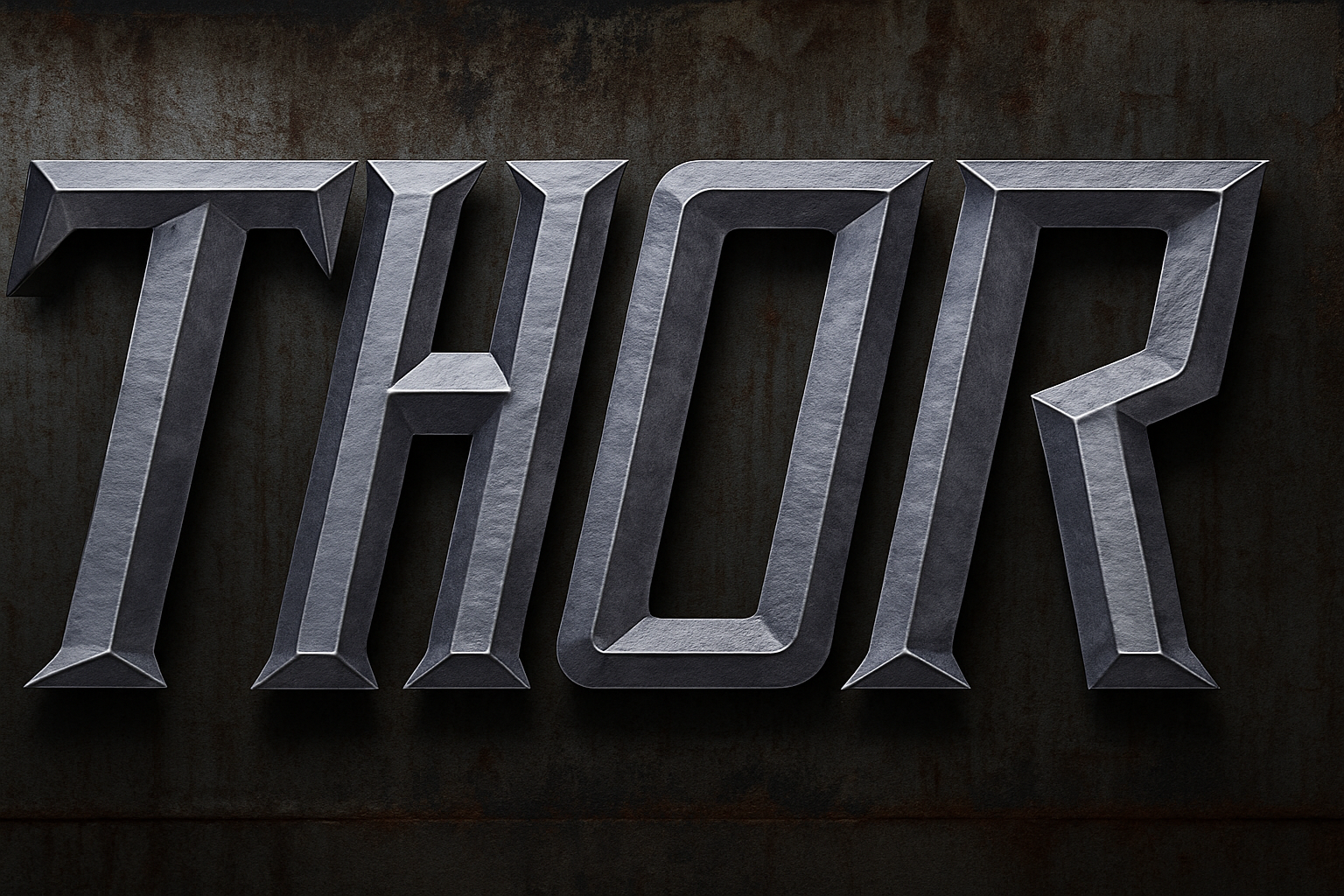
Unleash the Power of Photoshop with Explosive Sparks
Photoshop wizards, gather ‘round! Today we’re diving into the realm of powerful design, bringing explosive sparks into your metal text effect. Imagine words that sizzle with energy, set against a backdrop of aged metal textures—sounds electrifying, right? We’ve got a Photoshop template and all the juicy details to make it happen. Now, if only there were some actual fireworks…
Prepare Your Tools
Before we jump into the creative supernova, make sure you have everything at your disposal. We’ve generously provided a Photoshop template that includes textures and images you’ll need. You can snag that from the video’s description. You’ll find photos of sparks, brushed metal textures, and an aged metal background to kickstart this project. Oh, and there’s a font link included—because typography should also have a touch of drama. We’re using “Aldo The Apache”, but feel free to embrace another typeface if it inspires you.
The Background is Everything
Start by hiding all layers except for the bottom aged metal background. Activate that layer because this is where your text will come to life.
Make all your color dreams come true with the Horizontal Type Tool by pressing “D” for black and white. Pick a font that’ll shine in a large point size, and type out your text. The magic’s in the details—adjust the spacing between characters, using Alt/Option keys and the bracket keys for perfect letter positioning.
Getting in Shape
Transform your text into a vector shape for maximum flexibility. If you’re ever wondering why transform text into a shape, just know this: it gives you endless ways to manipulate its form without sacrificing quality. Use the “Path Selection Tool” to remove all color inside the text and apply a stroke instead. Adjust your stroke to your liking and prepare for the style window.
Create Excellence with Layer Styles
Go on a Layer Style adventure! Start with “Color Overlay”, entering the hexadecimal value A6A6A6 for a gorgeous gray tone. The stage is set to play with “Bevel & Emboss”. Manipulate settings for an “Inner Bevel” and utilize “Chisel Soft” technique, setting the size and depth to bring out steely dimensions.
Enable “Global Light” to ensure lighting consistency, and redefine highlights and shadows—setting vivid light for highlights and multiplying shadows—because subtle lighting nuances make a world of difference.
Espresso Your Design
Yes, you heard that right! It’s time to ensure the text looks as caffeinated as your morning cup of coffee by skewing it. This styling technique infuses energy and movement into stationary design elements. Center your text like a true pro with the Move Tool and align it perfectly.
Texturing the Art
With your text still selected, apply a dark and brushed metal texture. Make it a clipping mask to integrate the grandiose finishing touch into the text. Change the blend to “Overlay”, allowing textures to interplay and create a stunning effect on their metallic surface.
Level Up with Adjustment Layers
Don’t forget to tweak the background using adjustment layers for that extra touch of contrast and brightness. This ensures your text pops against the backdrop like a dazzling, metal-fueled statement.
Ignite with Sparks
Finally, we introduce the stars of the show—real sparks! Layer them creatively over your text using the Screen blend mode. Customize their position, size, and even rotation for that perfect dynamic eruption. Group those spark layers like a boss to maintain organization within the chaos.
Bring Light to Shadows
Illuminate the background to enhance the glow of sparks, bringing an ethereal feel to your design. Use the Brush Tool to selectively lighten areas behind sparks, creating a balanced dance of light and shadow.
And voila! You’ve crafted a striking metal text effect that demands attention and channels your inner special effects master. Now go forth and unleash this newfound power in your design ventures—you might just spark a trend!
With Photoshop’s flexibility and your creative flair, the sky is truly the limit. If you found this exploration as invigorating as our sparks, imagine what other effects you could dream up. Keep creating, and we’ll be here to fuel your artistic flames!





