
Turn Ordinary Photos into Extraordinary Art
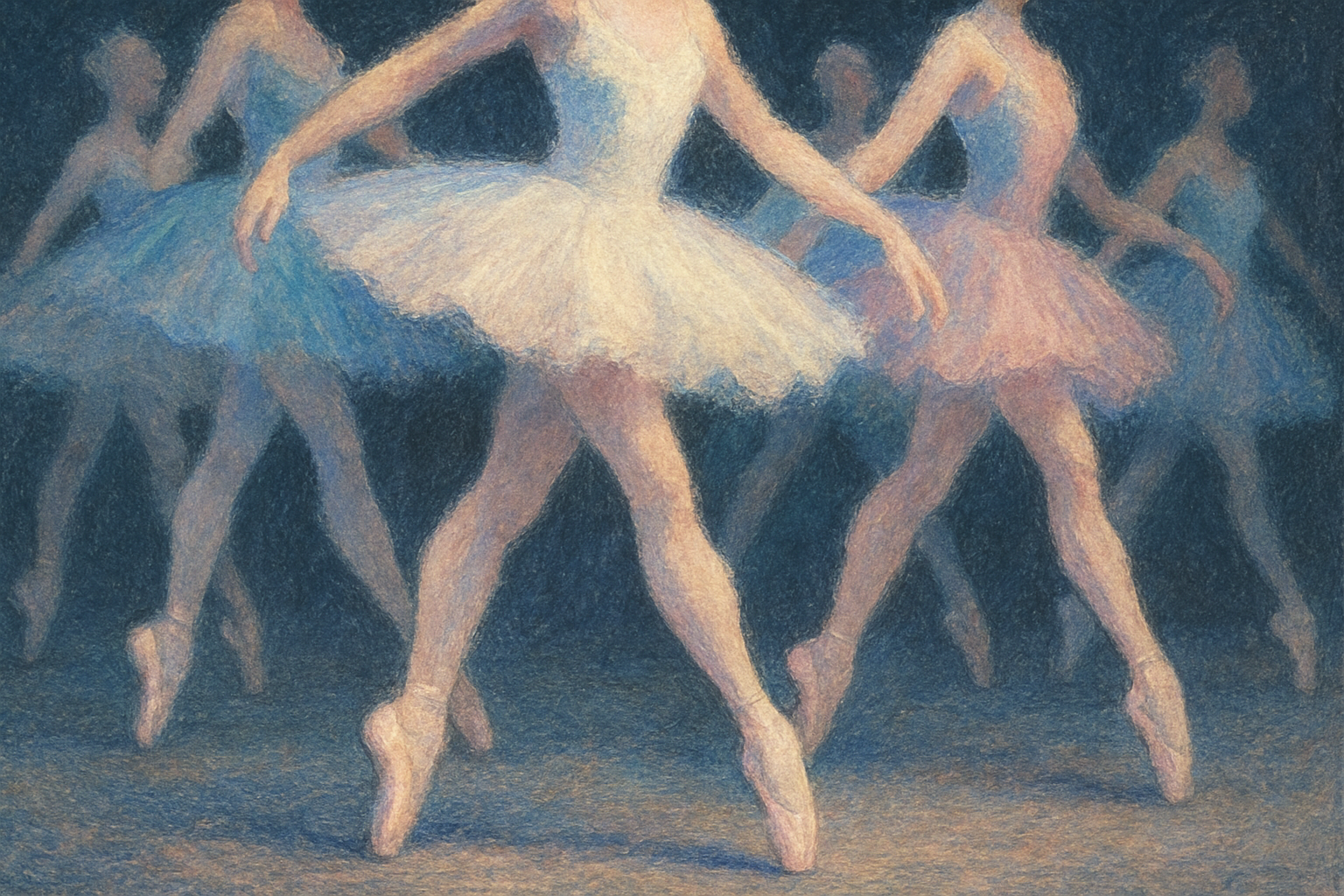
Ah, the digital age! While everyone is racing to slap filters on their selfies to get that “perfect gram,” why settle when you can take your photo editing game to surreal levels? Imagine this: You have a photo—perhaps a scenic landscape, a candid portrait, or even your beloved pet being their adorable self. Now, picture transforming that photo into a mesmerizing pastel drawing. Enter Photoshop, your magic wand to create beautiful pastel drawings from mere photographs. And the best part? It’s quick and easy. Buckle up for this artistic journey!
Getting Started
First off, let’s gather our supplies—a digital canvas and a little know-how. Grab a photo you adore. It could be straight from your camera roll or something you’ve artfully curated from stock image sites like Shutterstock. Open this in Photoshop and prepare to infuse it with artistic brilliance.
Check Your Resolution
Before diving in, a friendly memo: make sure your image resolution is at least 150 pixels per inch. This ensures your final pastel masterpiece retains its charm without pixelating into an abstract mesh. You can check and modify the image resolution by navigating to the Image menu and selecting Image Size. If the resolution needs adjustment, simply type in “150,” click OK, and voila!
Start with the Smart
Converting your image into a smart object is the next magic trick. By transforming it into a smart object, you’re not only enabling non-destructive editing but also setting the stage for flexibility. Imagine being able to swap out your original photo, without retracing all your steps. Bye-bye, repetitive strain injury! To do this, head over to the layers panel, click the enigmatic icon at the top, and choose Convert to Smart Object.
Adding Layers of Artistic Flair
Let’s bring on the layers. Get ready to explore your photo’s hidden potential with Photoshop’s filter gallery. This arena is packed with creative tools, but for our purposes, the artistic and sketch filter families are where the magic happens.
Paint Dabs to the Rescue
Head over to the filter gallery and check out the Artistic folder where the fascinating world of Paint Dabs awaits. Make sure your Brush Size is set at 15, the Sharpness cranked to 40, and the Brush Type declared as Simple. These settings ensure your photo starts its transition, dab by dab, into a charming pastel vision.
Embrace the Pastels
Time to up your pastel game! Revisit the smart object transformation—it’s a recurring theme in our journey here. With your smart object ready for its next layer, dive back into the filter gallery. This time, select Rough Pastels. Keep the Stroke Length at 40, the Stroke Detail at 1, and select the Canvas texture. Remember, scaling should be set at 200%, and the relief should be feeling a cool 50. And for that fairy-tale lighting, make sure it’s from the bottom.
Refine and Define with Chalk and Charcoal
The final touch is all about enhancing depth with a little bit of sketchy charm. Go back to the filter gallery, close the Artistic folder and venture into Sketch. Select Chalk and Charcoal, then set both Chalk Area and Charcoal Area to 6, and Stroke Pressure to a soft 1. It’s subtle, but the dramatic depth it provides is the cherry on top.
Crafting the Final Look
Change the blend mode to Luminosity; it helps meld everything together seamlessly. Then, set the opacity to 50% to balance your composition. As a last flourish, sprinkle some vibrance and color saturation. Click on the adjustment layer icon and navigate to Vibrance. Cranking the vibrance slider to the max will increase the intensity of your pastel drawing, while the saturation slider gives you control over how vivid those colors should really pop!
Voila! You’ve now transformed your digital photograph into a beautiful work of art that mimics the delicate beauty of pastels. This isn’t just a technique for amateurs—it’s a testament to the profound capabilities of Photoshop as an artistic tool.
So, what are you waiting for? Open up Photoshop, roll up your sleeves, and start creating your next masterpiece today.





