
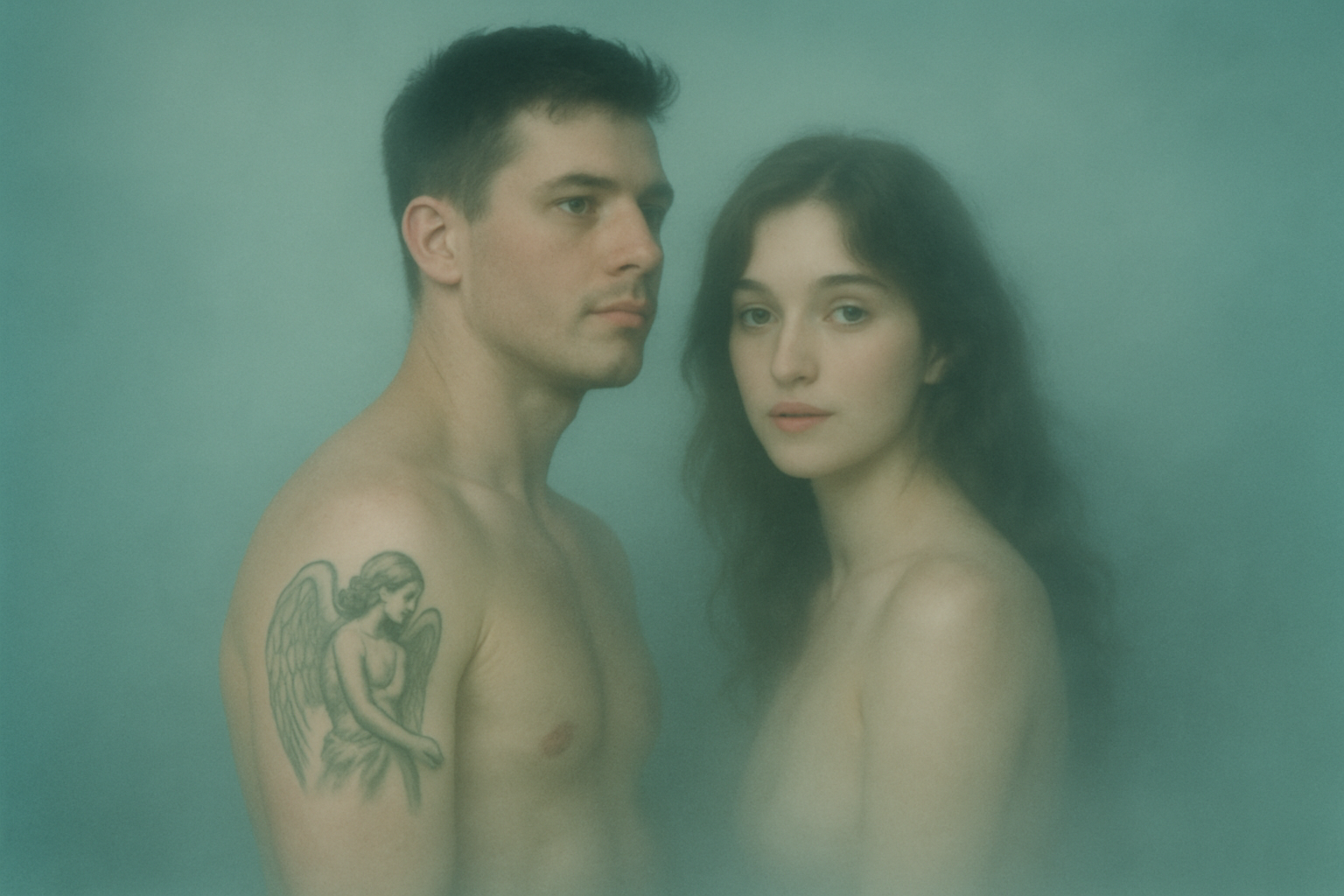
Set the Mood with a Steamy, Ethereal Look in Your Portraits
It’s not every day that a photo gets to transform into steamy, fog-enshrouded art. It’s like you’re beckoning viewers into a world that’s equal parts mysterious and alluring. With the wonders of Photoshop, you too can envelop your subjects in a thick, dramatic fog — no cauldrons or mist machines required. Welcome to the magical world of digital art, where reality is just a starting point.
The Starting Point – Selecting Your Subject
Every captivating portrait begins with choosing the right photo. Open the image you want to use; this will be the canvas of your ethereal masterpiece. Not to worry if the photo isn’t perfect — it’s the creative use of Photoshop that will carry it to new heights.
Step 1: Make a Rough Selection
Begin by isolating your subject from the background. The Quick Selection Tool is your friend here. Adjust its radius (around 10 pixels should suffice for most projects), then glide the tool over your subject. This is Photoshop playing its version of connect-the-dots, latching onto the spots you highlight. For the rebels among you who need to undo areas, the “Alt” or “Option” key is your sidekick.
Once you’ve outlined your subject, press “Q” to give it a quick mask look. If it seems a tad off, not to worry — refinements are next.
Step 2: Refine Your Edge
Those using Photoshop CC 2015.5 or later can employ the “Select and Mask” feature. For those who enjoy vintage vibes with earlier versions, “Refine Edge” will do the trick. Adjust the Smart Radius settings to ensure the whispery areas like hair aren’t left in the digital dust. A subtle drag on the Radius Slider mends those feathery fringes like a charm.
Dream-like Backgrounds – Crafting a New Document
Now, birth a new document (Command + N on a Mac) with cinematic proportions — a width of 1920 pixels by a height of 1080 pixels, shrugging off 1080p connotations. Embrace RGB colors and ensure the resolution stands at 150 pixels per inch. Once your dimensions are confirmed, haul your subject into this new document like a protagonist crossing realms.
Step 3: Expanding the Background
Before unleashing the fog, let’s tweak the foundation. Unlock the background layer (click the lock icon), then adjust its color to a brooding dark gray by setting brightness at 20. With the scene set, march over to Filter > Render > Clouds, and voilà, the misty beginnings emerge.
Layering the Drama – Adding Depth with Blurs
To get those layers to look like a Renaissance painting — intricate and layered — they need some blur.
Step 4: Gaussian and Motion Blur
Convert the art into a Smart Object, which allows filters to be editable and reworkable, giving you room to get dramatic. The Gaussian Blur, set to a romantic 14 pixels, adds just the right touch of softness. Meanwhile, the Motion Blur adds movement, making things dynamic and sizzling.
Step 5: Cloning with Confidence
Duplicate your image layers and play with the Layer Mask icon to focus or hide particular areas. Brush over your subject with gusto to apply blurs selectively. Mix it up by using different brushes and opacity for a more detailed touch — it’s all about that custom feel.
Fine-Tuning Color and Hue
For the final flourish, add an Adjustment Layer and tap into Hue/Saturation. Colorize is checked to bestow an ethereal cloak over your image; a hushed, blue hue often does the trick for an air of calm, yet it’s entirely customizable. Adjust these settings to your satisfaction — be it a vivid moonlit scene or mysterious midnight hues.
So there you have it, a deep dive into fashioning a steamy, fog-laden portrait that’s just teeming with theatrics and digital mystique. Now, all that’s left is for you to grab your stylus or mouse, and Photoshop will be your theater stage. Welcome to the world where fog meets fantasy and pixels work their magic.





