
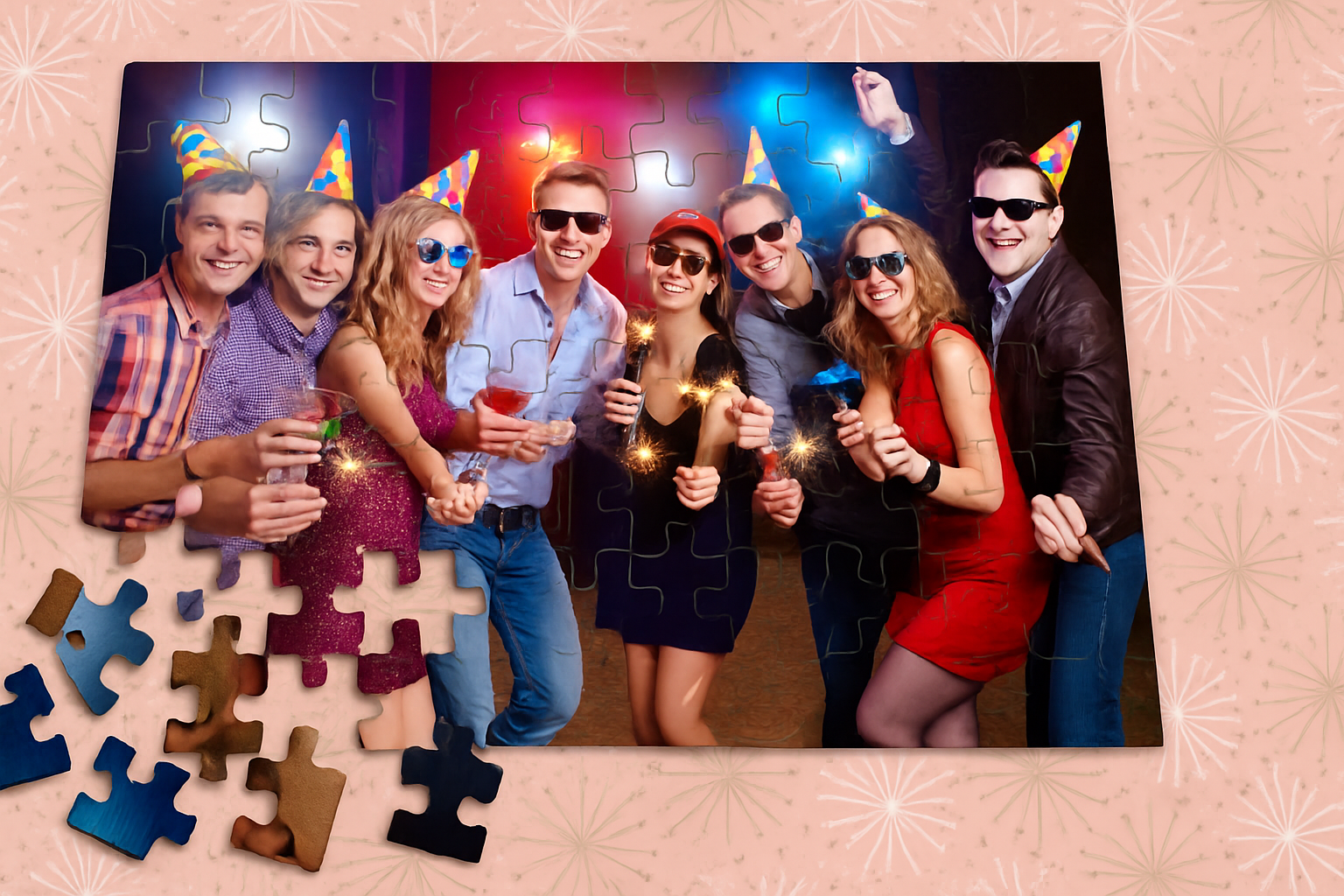
Juxtaposed Pixels: Turning Your Image Into a Pieceful Puzzle
Feeling like a missing piece in the world of image editing? Fear not, we’ve got a way to fill that gap. Today, we’re diving into the wonderful and whimsical world of jigsaw puzzle effects through Photoshop CC and later versions. What better way to add a splash of fun and creativity to your work? And the best part is—it’s all done with a free plugin from Adobe. Let’s not only piece together the process but also add a retro Formica pattern background for an extra pop of nostalgia.
Diving into the Puzzleland with Adobe Add-ons
Kickstarting this process, if you’re using an older version of Photoshop, now might be a good time to consider an upgrade—that nifty plugin won’t work on versions earlier than CC. Adobe’s Creative Cloud is about to become your new best friend.
First thing’s first: pull up Photoshop and your desired image. Perhaps take a little detour to Shutterstock for some inspiration. Once your artsy side is satisfied and you’ve chosen your canvas, switch to the “Window” tab and pick “Browse Extensions Online.” Welcome to Adobe Add-ons! If you’re not already signed in to Creative Cloud, now’s the time.
Finding and Installing the Puzzle Plugin
In the treasure trove of extensions, search for “puzzle” and select the “Free Puzzle Pieces” plugin. Like the promise of free snacks, just click Install and watch the magic unfold. After Adobe has served you well, close or minimize your browser and locate your Downloads folder. Double-click the Puzzlepieces zip file.
Action Stations: Puzzle Actions Loading
In the coolest of moves, double-click Puzzle.atn to jumpstart your actions panel in Photoshop. Can’t find it? No worries, go to the Window tab and click Actions. It’s here you’ll glimpse a suite of 20 actions waiting to transform your image into a puzzle tapestry. Choose your adventure — for our demo, it’s 96 pieces on a 12 x 8-inch puzzle canvas. Tempting, isn’t it?
Craft Your Puzzle Canvas
Let’s talk crop tools. Input the same dimensions as your chosen puzzle size: 12 x 8 inches.
Set your resolution to 150 pixels per inch and ensure Delete Cropped Pixels is checked.
Hit that check-mark and boom—instant canvas fitting by pressing Ctrl or Cmd + 0.
Time for the pièce de résistance: click that play button to watch your puzzle picture magically unfold before your eyes. Layers will materialize like independent puzzle pieces, creating an intricate ensemble of 96 pieces with drop shadows and bevel effects ready to dazzle.
Setting the Scene: The Retro Formica Pattern Background
Next up, your puzzle needs a backdrop as groovy as it is. Open the groovy Formica image we provided—it practically screams retro chic. Now, head to Edit and select Define Pattern, giving it any jazzy name you fancy. Heading back to your puzzle doc, make sure your background layer stands at the ready. Select Pattern from the adjustment layers and don’t hesitate—click OK.
Jiggle Those Jigsaw Pieces
Now it’s time to channel your inner artist and rearrange the pieces, ensuring Auto Select is ticked. This nifty trick will allow you to activate and adjust each puzzle piece with a mere click, giving you complete creative control over their whimsical positions and angles.
For enhancing viewer disorientation or dramatic effect, rotate the pieces using Ctrl or Cmd + T. Let your artistic vision run wild!
Puzzle Presentation with Shadows and Bevels
To unify your masterpiece, it’s time to bring all those pieces into a cozy folder—Ctrl or Cmd + G is the magic formula. Let’s give your work some depth: select Drop Shadow under the fx icon. Adjust the blend mode to Linear Burn, opacity at 40%, and get those angles right at 90 degrees. For distance, 12 pixels, and size, 15 pixels should suffice.
Equally important, emphasize those bevels. Opt for Inner Bevel mode, ensure the technique is smooth, and tweak the depth and size to taste. Adjust the highlight and shadow modes to your liking to make your puzzle pop.
The Final Touch: Angling and Cropping
For the finishing flourish, add perspective by making a composite snapshot with Ctrl + Shift + Alt + E on Windows or Cmd + Shift + Option + E on a Mac. Drag your canvas angle-deep with the perspective transform, then crop with a deft rectangular marquee selection.
Voila! With pieces perfectly positioned, shadows cast, and angles amped up, you now stand before a masterpiece that captures the imagination—a puzzle that’s completed by none other than you.
If you’re eager for more creative tips, inspiration, and tutorials, stick around Blue Lightning TV for all that and more!





