
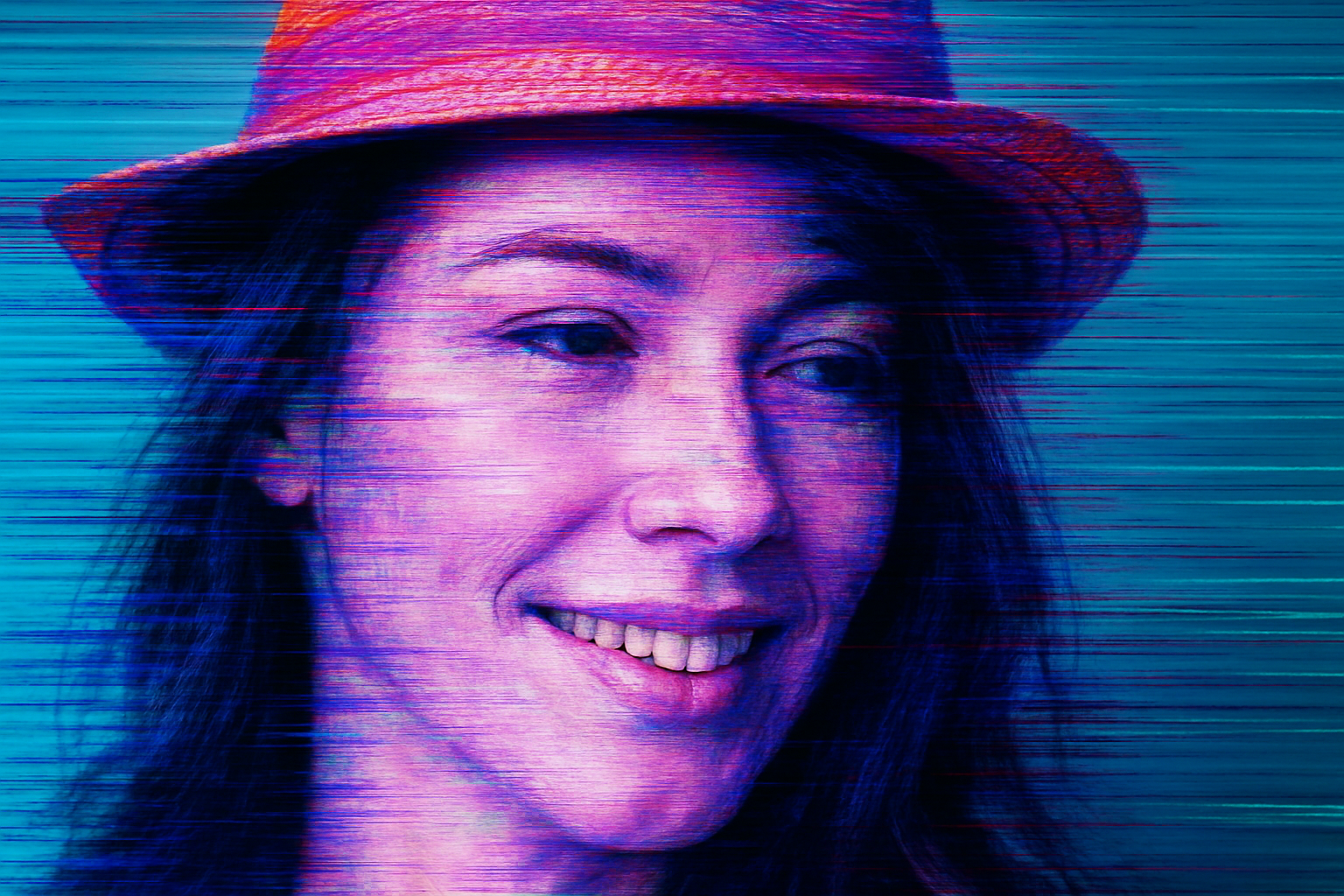
Unleashing Your Inner Movie Hacker: Glitch Style!
If you’re a creative soul who revels in retro aesthetics and wants to throw some digital chaos into your art, mastering the video glitch effect in Photoshop might just be your next obsession. This guide dives into the ins and outs of crafting a glitchy, pixelated vibe—perfect for posters, social media graphics, or spicing up your photography portfolio. Throw on your favorite 90’s track, let your imagination run wild, and let’s get glitchy.
A Walk Through the Digital Wilderness
Creating a video glitch effect requires Photoshop and at least a sixth sense for mayhem. Or just follow these steps. Here’s what you’ll need:
- Photoshop – Ensure your version is updated enough to support the techniques. (Bonus tip: Avail Adobe’s $7.99 monthly offer for Photoshop and Lightroom click here to explore more).
- An Image – A starting point for your creative chaos. You can use a stock image from Shutterstock or your own digital deep-cuts.
- Basic Knowledge of Layers and Filters – No rocket science here, but a little confidence with layers and filters will go a long way.
Getting a Little Edgy with Smart Objects
Start by opening your chosen image in Photoshop. Here, we’ll use Smart Objects extensively, making our effects non-destructive and flexible. Follow these steps:
- Set your image resolution to 150 pixels per inch for optimal results.
- Make your subject selection with the Quick Selection tool—it’s fast, it’s handy, and surprisingly intuitive.
- Utilize the Refine Edge feature to fine-tune your selection and eliminate background noise.
- Convert your layers to Smart Objects. This allows you to recycle your creative energy for swapping images without losing those carefully crafted effects.
Navigating Displacement Maps and Waves
Displacement Maps are your new best friend for wrapping textures around your subject’s contours, effectively creating that glitchy vibe. Here’s how:
- Duplicate your base layer, name it ‘Displacement’, and apply a Gaussian Blur.
- Convert this layer to black and white—producing a map more apt for distortion.
- Save the Displacement Map as a PSD file, ready to be summoned when the call for chaos arrives.
To add waves:
- Create six iterations of your original layer, each one primed for a different form of digital disruption (horizontal waves, displacement, with varying blend modes like overlay and hard light).
Spice Things Up with Neon Glow and Distortion
For that retro digital glimmer, add a neon glow:
- Adjust the glow color to your liking, explore with wave distortions, play around with your composition.
- By selectively using blend modes such as Luminosity, these layers can enhance our original image with gritty, offbeat vigor.
Layer Masks and Hard Light
The secret sauce to achieving the glitch effect? Layer masks and the hard light blend mode. Mastering these will allow you to blend your distortions with the intended artistic chaos:
- Align the edges using layer masks.
- Apply layer masks to your adjustments like Hard Light or Luminosity to keep everything seamless.
Remix and Glitch Again
Creativity doesn’t stop at one image. If inspiration hits and you want to swap out your subject for another:
- Simply replace the content of the smart object with a new image.
- Photoshop will retain your applied effects letting you experiment without the tedious redundancy.
In Conclusion: The Glitch That Keeps On Giving
Channeling your inner sci-fi film editor or visual aficionado has never been more accessible. With these techniques in your Photoshop arsenal, creating a visually arresting video glitch effect isn’t just straightforward, but also incredibly fun.
As a canvas for creativity, Photoshop combined with the knowledge of using Smart Objects, wave distortions, and blend modes provides endless possibilities. Whether you’re recreating the notorious vaporwave style or mixing aesthetics for a cutting-edge project, remember: the key is in the distortions—but always done stylishly.
Take this knowledge, remix, and be the glitch artist you are meant to be. Happy creating, and may your pixels always stay chaotic!





