
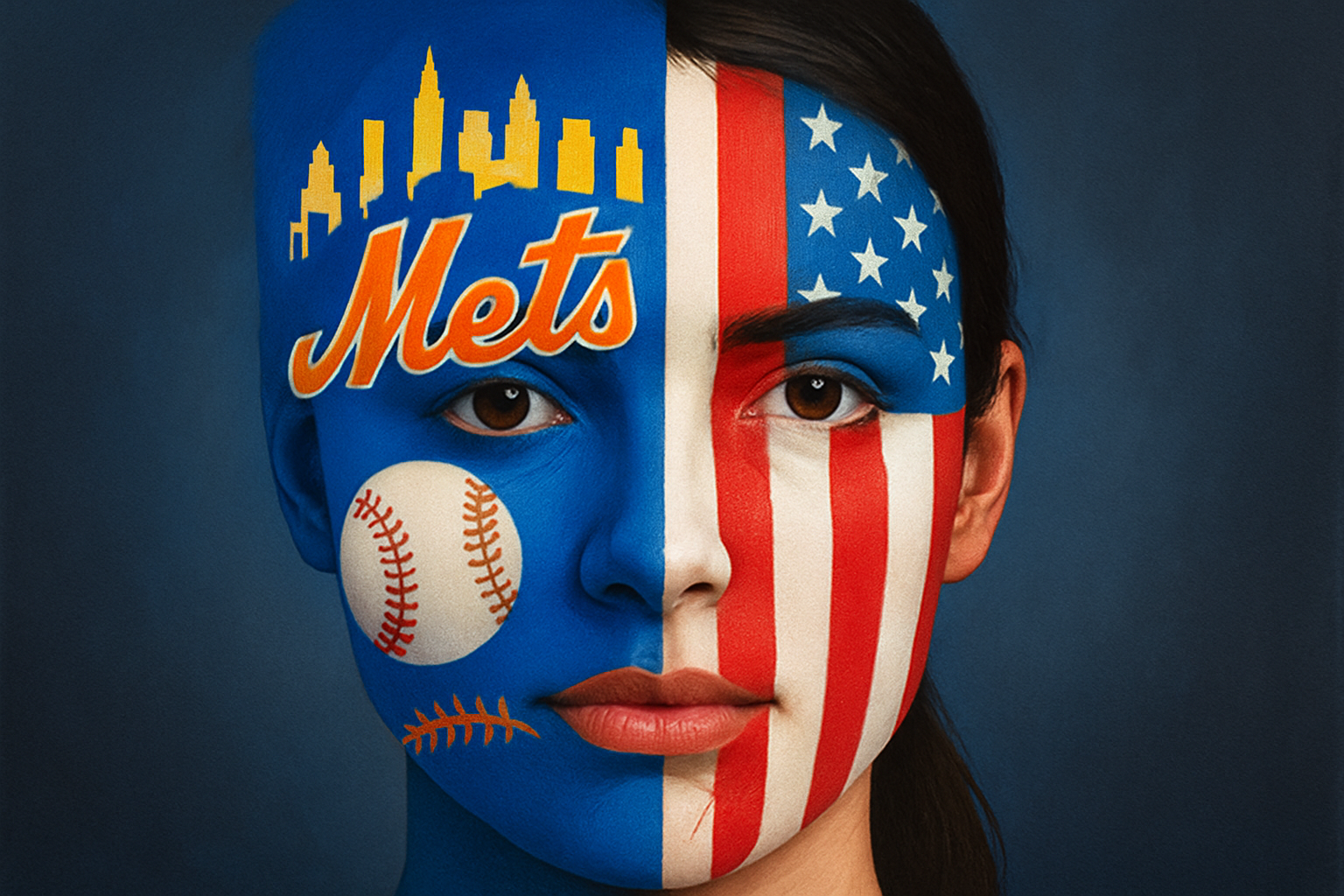
Bring Your Creativity to Life: Paint Images Onto Faces Using Photoshop
So, you fancy yourself a Photoshop whiz, or maybe you’re just starting to feel the magic of digital art? Either way, painting images or logos onto faces can be that one cool trick you pull out at parties—digitally, of course. We’re digging into how to harness Adobe Photoshop to brilliantly paste images like flags or sports team logos onto a face. This technique is not just about photos—it’s about giving your projects a personalized, artistic edge that screams creativity.
Step into the Shoes of a Digital Picasso
Here’s why you’ll love this: When you blend a creative idea with Photoshop, your digital canvas has no boundaries. Whether you are projecting shout-outs to your favorite sports teams or embracing patriotism with a flag, it’s about transformation—an art form reflecting personal or collective identity on one’s very expression.
Let’s get nerdy. The magic happens using Adobe’s Photoshop from the Adobe Creative Cloud Photography Plan. Sweet deal alert: you could grab a 20% discount for this plan, making it $7.99 monthly, practically a Netflix substitution but for the creative soul. Check out the description in the original video for that juicy discount.
Step-by-Step: Creating the Face Canvas
1. Select Your Canvas with Precision: Choose an image where the subject is facing the camera directly.
2. Smart Objects are Smart Moves: Convert your subject to a Smart Object.
3. Creating a Displacement Map: Make a separate displacement map file by applying Gaussian Blur and converting your image to black and white.
4. Selection Mastery: Use the Quick Selection tool to outline the face and refine the edges.
5. Eyes, Windows to the Soul: Brush the eyes back in after prepping the face to keep them colored.
Bring on the Flair
1. Import and Position the Graphic: Choose a graphic (like a team logo) and convert it to a Smart Object.
2. Pinch and Transform: Use Transform and Pinch tools to fit the graphic to facial curves.
3. Rediscover Opacity and Blend Modes: Set opacity to 50 percent and use the Color Burn blend mode for realism.
Final Touches: Enhancing and Polishing
1. Displacement for Realism: Apply the Displace Filter using your displacement map.
2. Mask Like a Pro: Mask out unnecessary parts of the graphic, revealing key features like the eyes.
3. Vibrance and Saturation Spices: Boost vibrance to 100 and saturation to 20 for a vibrant finish.
This face painting technique not only elevates your Photoshop skills but is also perfect for creating memorable, customized visuals for any occasion. So go on, let your digital artwork do all the talking! And remember, each face is a unique canvas waiting for your distinctive artistic flare.
Now, who’s ready to paint the digital town red, white, and indeed, blue?





