
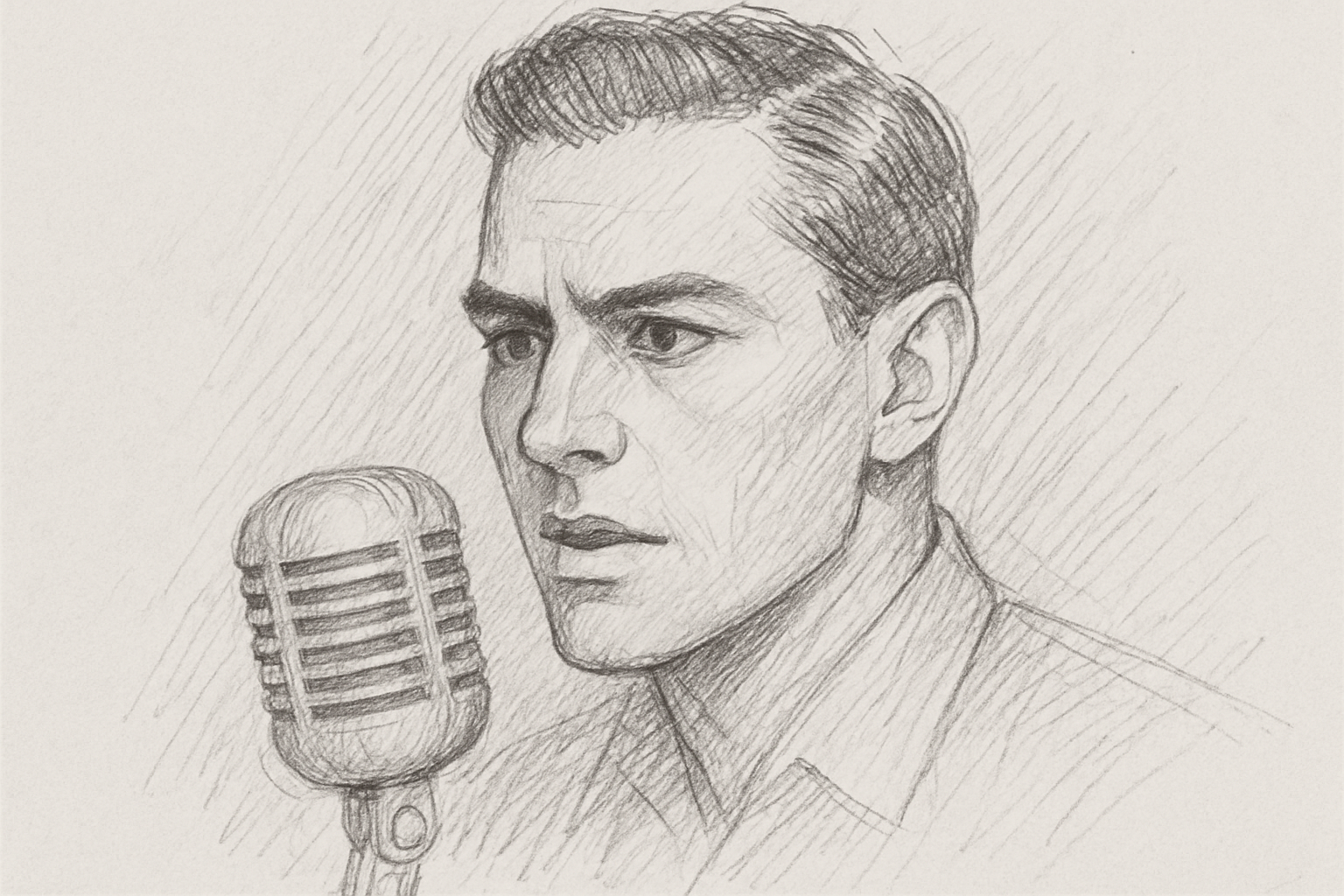
Unleash the Inner Artist in Your Photos
In the age of digital photography, transforming a simple photograph into a work of art might seem like a feat reserved for experienced artists. However, with Adobe Photoshop’s incredible toolbox, you can breathe a new artistic life into your images, turning them into stunning pencil sketches. This blog post explores how you can accomplish this effect through a series of simple Photoshop steps, giving your favorite memories the elegance and timeless charm of a classic pencil drawing.
Step into the Digital Art Studio
Creating a pencil drawing from a photograph isn’t just about applying filters and calling it a day. It’s a careful process of layering, blending, and utilizing smart filters. Each step is potent with creative potential and allows you to customize the final look.
Getting Started with the Basics
Firstly, you need an image to work with. If you don’t have one ready, Shutterstock is a great place to find inspiring photos for your project.
- Duplicate the Base Layer: Start by making two copies of your base image. This can easily be done by pressing
Ctrl + Jon Windows orCommand + Jon Mac twice. - Desaturate and Adjust: Remove all color from your image by selecting the top layer and pressing
Ctrl + Shift + U(Windows) orCommand + Shift + U(Mac), then adjust the brightness and contrast usingCtrl + Shift + L(Windows) orCommand + Shift + L(Mac) to autotone.
Let’s Get Smart with Smart Objects
Converting layers into Smart Objects means you can non-destructively edit filters and settings.
- Convert to Smart Object: Right-click the top layer and select “Convert to Smart Object.” This handy feature lets you tweak filters even after they’ve been applied.
- Layer Naming for Clarity: Rename it to something meaningful like “Glowing Edges” to keep track of your edits.
Layer, Mask, and Transform
This is the stage to start making your art shine—literally and creatively.
- Hide and Multiply: Temporarily hide the top layers. Click on the base layer and apply a Hue/Saturation adjustment layer. Slide the saturation down to zero to desaturate the image.
- Invert and Convert: Invert the layer (
Ctrl + IorCommand + I), convert it to a Smart Object, and change its blend mode to Color Dodge. Your image will now appear mostly white. - Blur It Out: Go to the Filter menu, navigate to Blur, and select Gaussian Blur. Adjust the radius to your liking. This creates the delicate pencil effect you’re aiming for.
Finishing Touches with Filter and Blend Modes
Your photo is now ready to be sketched to life.
- Glowing Edges Effect: Make the “Glowing Edges” layer visible again, go to Filter, open the Filter Gallery, and choose the Stylize folder to find Glowing Edges. Tweak the width, brightness, and smoothness settings to your preference, ensuring your “pencil” lines pop.
- Inversion and Clipping: Use an Invert adjustment layer and apply a clipping mask to confine effects to the edges. Change the blend mode of this layer to Multiply.
- Apply the Charcoal Look: Make the charcoal layer visible, ensure your colors are set to black and white (
Don the keyboard to reset), and re-enter the Filter Gallery. Find Charcoal within the Sketch folder and adjust the settings like thickness and light/dark balance until you have a desirable sketchy finish. - Set to Blend: Change this layer’s blend mode to Multiply, and you can always go back and adjust your settings due to the flexibility provided by Smart Filters.
The World of Digitized Pencil Art
With these tools and techniques, you’re now well-versed in transforming any photograph into a stunning pencil sketch. Whether you wish to create a pencil portrait, immortalize landscapes in sketch form, or just play around with creative effects, Photoshop has all you need at your fingertips.
By using these blend modes, adjustment layers, and smart object techniques, you not only level up your editing game but also bring a touch of traditional artistry into the digital realm. So, ready your digital canvas, let imagination run wild, and produce wonders that marry the simplicity of pencil with the vibrancy of photography.
And remember, the best part about digital artistry—it’s all about experimenting. Feel free to fiddle around with the settings, find new techniques, and develop a style that’s uniquely yours. Happy creating!





