
Get Ready to Unleash Your Creativity with this Photoshop Guide
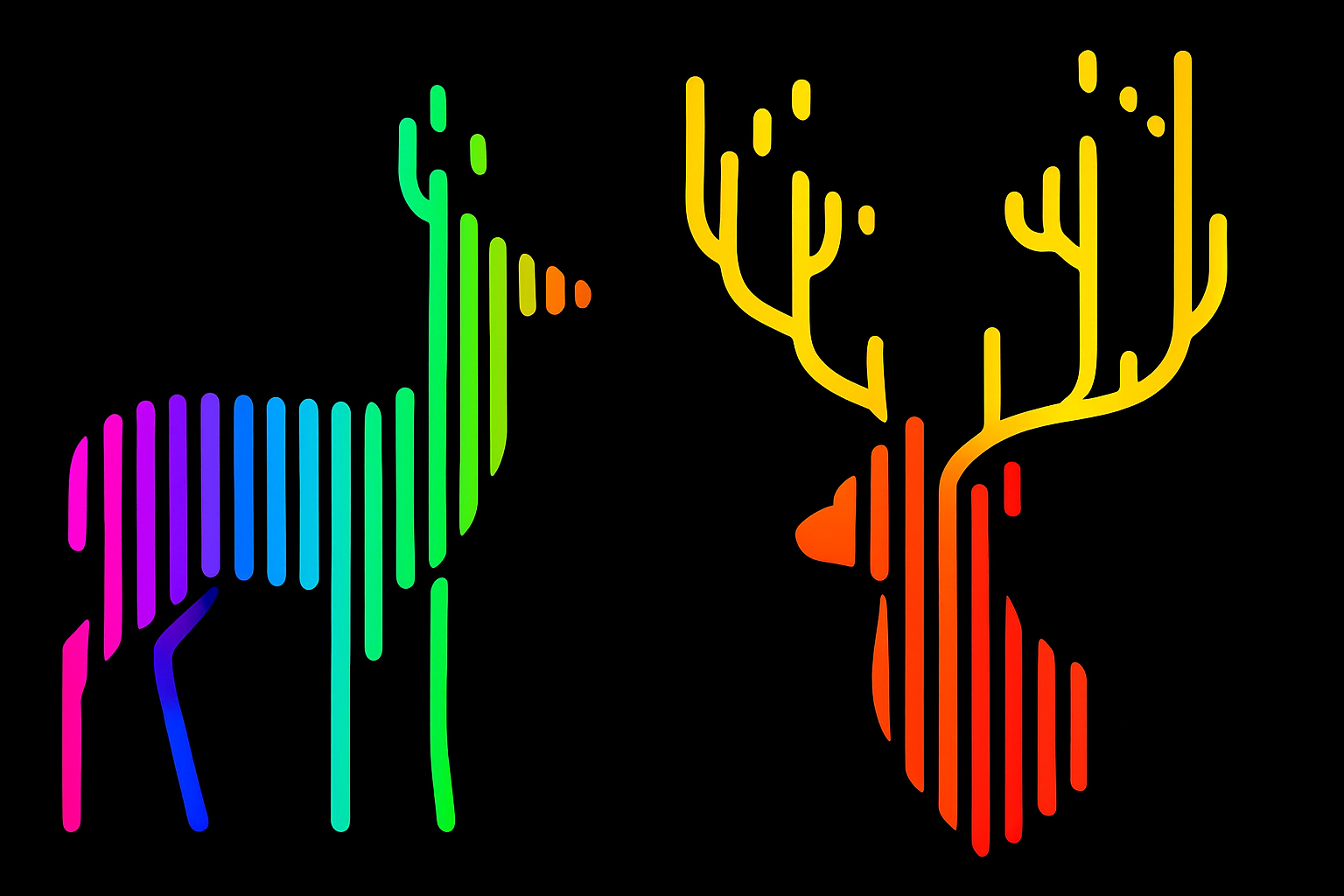
Have you ever looked at a simple black and white graphic and wished it could somehow transform into something dynamic, colorful, and, dare we say, techno-inspired? Well, you’re in the right place. Today, we’re diving deep into the world of Photoshop magic, where simple graphics meet techno vibes, ultimately transforming into vibrant logo-like shapes. Why waste time reinventing the wheel, when you can enhance simple clip art into extraordinary, colorful compositions in just a few steps? Let’s break it down.
Start with a Simple Graphic and Add Some Color
First things first, open a basic black and white graphic file. Clip art is a great starting point because its simplicity lends itself well to dynamic transformations. Before you dive in, make sure your foreground and background colors in Photoshop are set to black and white, respectively. Pressing “D” on your keyboard will quickly set these defaults.
The Magic of Layers and Patterns
With the setup in place, create a new layer. For that blank canvas feel, fill this layer with white by using the command Control + Delete (Windows) or Command + Delete (Mac)—because who needs a blank slate when you’ve got white? Once the layer is duplicated (Control/Command + J), it’s time for some pattern magic. By opting for a pattern adjustment layer, you can explore vertical lines or any default patterns to provide a mesmerizing background. Dial that pattern to a whopping 750% scale for dramatic effect.
Selective Coloring
Now, this is where it gets interesting. Use ‘Select and Color Range’ and choose ‘Shadows.’ Make the pattern invisible (simply click off the eyeball icon), then set your next layer active. Fill your selection with black, making those techno lines a stark contrast to the white backdrop.
Fine-Tuning Your New Techno Look
Here’s where the artisan’s touch comes into play. Applying a ‘Minimum’ filter with a 6-pixel radius will give you those clean lines but pay close attention to any rough edges. If you’re like us and can’t stand a ragged finish, a custom brush does just the trick.
Create this by setting up a new 20×20 pixel document, fill it with black, and define this as your new brush preset. The brush becomes your all-in-one tool for tidying those imperfections, square by square.
A Splash of Color for a Bold Finish
Once your lines are good to go, adding color is a breeze. By using a gradient adjustment layer, you can overlay a feast of colors onto your graphic. Choosing the ‘Spectrum’ gradient gives you a classic rainbow effect, but don’t let our bias sway you. Experiment with settings like linear style and a 0-degree angle to line up those colors just right. Adjust the scale to ensure every color from the red end of the spectrum finds its place within your frame.
Blend for Depth
Switch the blend mode to Screen to see those colors vibrantly on your white and black grids. For effects on a darker backdrop, simply swap the blend mode to Multiply and invert any layer under your gradient for additional color depth.
The beauty of this process is the flexibility to tweak at any stage—satisfaction is just a filter edit or brushstroke away.
Wrap Up: Your Techno Transformation Is Complete!
And there you have it—a simple graphic transformed into a technicolor logo worthy of any rave flyer or cyberpunk society logo. The underlying beauty of this process lies in its versatility, allowing you to mold the colors and shapes to fit your creative vision. Whether you’re crafting personal logos or pitching to clients who love all things colorful and geometric, this technique will set your designs apart.
Now stop reading and start creating. You’ve got everything you need to take any black and white graphic from “meh” to mesmerizing!





