
Elevate Your Photography with a Touch of Digital Artistry
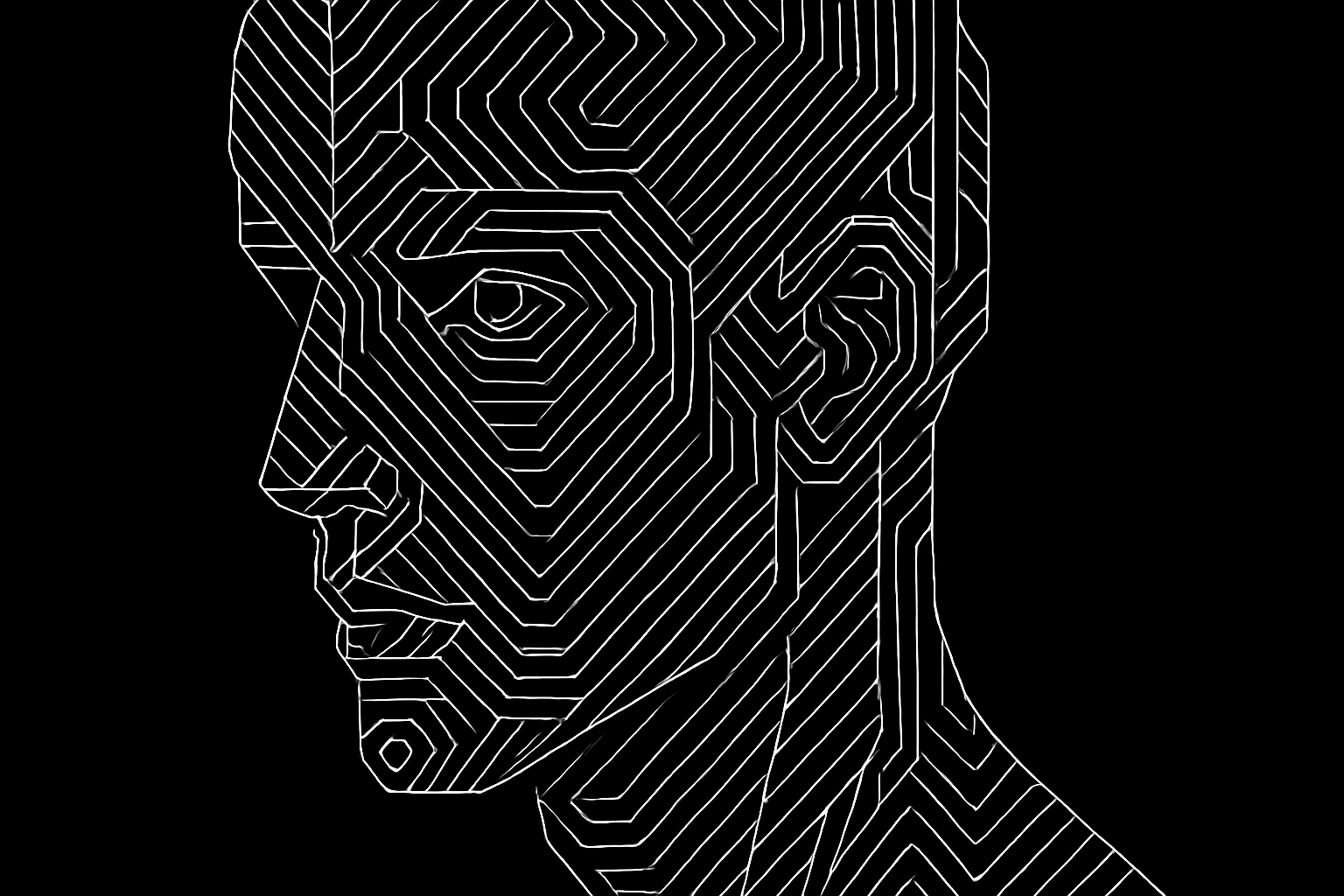
Have you ever wanted to transform a mundane photo into a mesmerizing digital portrait? Sure, a conventional snapshot holds memories, but turning it into a work of art with just a few clever moves in Photoshop? Now that’s something else. Welcome to our tutorial where we delve into the depths of Photoshop to create a digital portrait that will make you question if your original photo was ever that cool.
Smart Objects: The Photographers’ Best Friend
Kicking off your journey to digital portraiture, it’s essential to understand the magic that is Smart Objects. These adaptable layers allow you to apply effects without altering the original pixel data. This means you can tweak and modify to your creative heart’s content without ever starting from scratch. It’s non-destructive editing at its finest, offering endless opportunities for perfectionists and procrastinators alike.
To convert your layer into a Smart Object, just click the icon in the top right of the Layers Panel and choose “Convert to Smart Object”. Once that’s done, the magic can truly begin.
Prepping Your Canvas
Let’s get our creative juices flowing by first setting your image resolution. Head over to the Image menu and select Image Size. Ensuring your picture has a resolution of 150 pixels per inch with a height of 850 pixels will keep the quality intact while restructuring it into a digital masterpiece.
Got it? Alright! Moving on, if your subject isn’t standing in front of a white background, it’s time to make some selections. We have to cut the subject out, and for that, let’s use the trusty Quick Selection Tool. Select your subject — don’t stress if it’s not picture-perfect. Start with a brush size of 15 pixels, making your selection straightforward and quick.
The Background Swap
Bracing the white background is as easy as adding a new layer underneath your subject’s layer, which you’ll fill white. Tada! You now have a clean palette upon which to build your digital portrait. Merge your layers and convert them newly minted layer into, you guessed it, a Smart Object.
Mosaic Magic and Glowing Edges
Time to jazz it up. Our first stop is the Filter menu. Choose Pixelate and then Mosaic. Set them to create a tantalizingly pixelated backdrop. Amp up the vibes by modifying square mosaics into round shapes using Median noise, another trick in Filters. Making the radius five pixels will do the trick.
Then, tap into the Filter Gallery where you’ll discover the mesmerizing Glowing Edges effect. Play around with the edge width, brightness, and smoothness, adjusting until it suits your fancy. One of Photoshop’s many charms is its ability to make your process as bespoke as possible, so experiment until you find that sweet spot.
Effortless Swaps with Smart Objects
To switch out the image without losing your expressive effects, simply double-click on your Smart Object. Swap in another picture by modifying its resolution and size to match. With a few clicks, maintain all your hard-earned digital magic while showcasing a new portrait.
Not only does this save you a ton of time, but it ensures that the portraits remain consistent, saving your peace of mind and effort. If only everything in life were this efficient!
Cropping for Perfection
Finally, whip out the Rectangular Marquee Tool to crop your newly anointed digital portrait masterpiece. Select the portion you wish to keep, then crop away the rest. Simple yet transformative tweaks like these create art that truly embodies that Instagram-ready level of pristine refinement.
With just a few clicks and tweaks, you’ve transformed a standard photo into a digital spectacle worthy of any gallery wall—or Instagram feed.
With these tools at your disposal, Photoshop becomes an ally in creating striking digital portraits. Don’t let the initial intricacy of these steps daunt you. Once you get the hang of it, you’ll see how fun and rewarding turning everyday photos into digital masterpieces can truly be. Happy editing!




