Turn Your Photos into Mind-Bending Glitch Art: A Step-by-Step Guide
Have you ever looked at those funky, colorful, distorted images called “Glitch Art” and thought, “Whoa, how do they do that?” The truth is, glitch art can seem like digital magic, but with a little understanding of Photoshop’s features, you can create your very own glitches from your real-world photos. Today, we’ll go through the importance and the fun behind creating glitch art, which aligns perfectly with the zeitgeist of digital aesthetics. Let’s embark on this transformative journey on how to turn the ordinary into the extraordinary!
A Few Shades Off Normal: What is Glitch Art?
Glitch art resides at the intersection where technology meets chaos—a field where unintended technical errors become a canvas for digital creativity. It’s a style birthed by the imperfections of digital machinery that has now grown into an intentional and attractive aesthetic. Most creatives utilize these mistakes to spark conversation or to manifest nostalgia in our fast-paced digital lives. Whether it’s by tapping into the raw nostalgia of 80s vaporwave or the contemporary fever dream aesthetics, glitch art just screams “cool.”
Glitch art has now been embraced by photographers, digital artists, and even corporates looking to appeal to a tech-savvy audience. It can be surreal, dreamy, energetic, and even foreboding. Creating glitch art isn’t just about visual appeal; it’s a digital rebellion and an exercise in creative manipulation. With that context, let’s dive into the process of making your own glitch art.
The Blueprint: Preparing Your Tools
Before transforming your image into glitch art, you’ll need a few key tools and set up a document. Here’s a quick rundown:
- Adobe Photoshop: Your digital canvas and toolbox.
- PSD File: I’ve provided a downloadable PSD file (linked in the original tutorial description) that contains some pre-made glitch elements to seamlessly guide you through the process.
When you’re ready, open your Photoshop and create a new document or use a pre-existing one. Import the photo you wish to turn into glitch art by using the Move Tool (press “V”)—an essential tool you’ll know inside and out by the end of this journey.
Starting with a Bang: Setting the Stage
- Photo Relocation: Load your chosen photo atop the glitch art tab. Resize and adjust it using the Transform Tool (Ctrl/Cmd + T). The aim is to balance fit and composition—press Ctrl/Cmd + 0 if you need a full-screen view for adjustments.
- Prepare the Canvas: Crop your photo to match the glitch doc size using the Rectangular Marquee Tool. Align and fine-tune your selections, and boom, you’re ready to make some magic happen.
Cooking Up Chaos: Transformations Begin
Pixelation and Offset Effects
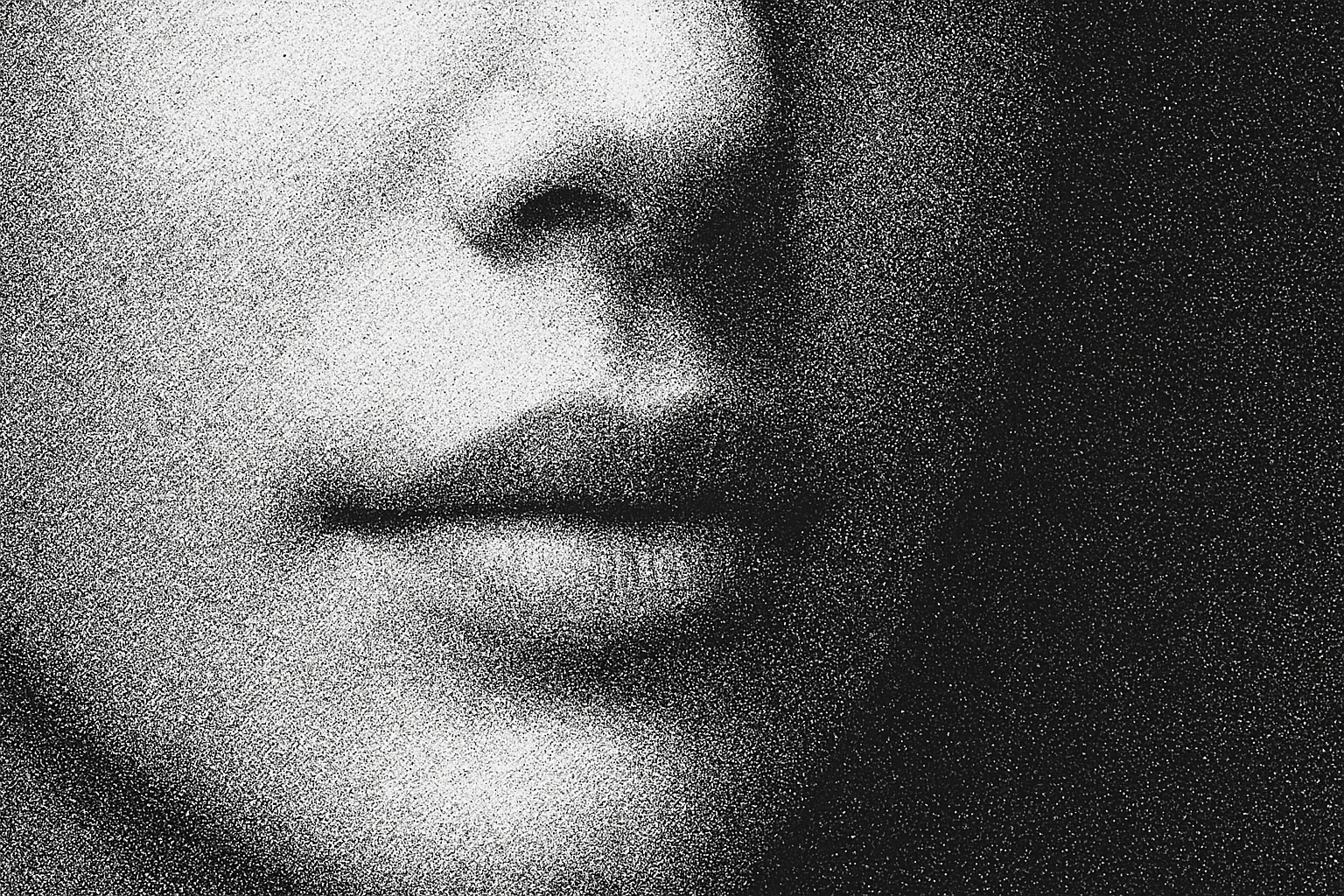
Using Photoshop’s filters, channel your inner glitch artist. Start by pixelating your photo via the Filter > Pixelate > Pointilize, setting the cell size to 3. This step starts breaking the image into classic glitch components.
- Navigate to
Filter > Other > Offset. This literally ‘shifts’ parts of your image—a classic glitch art hack. Slide it right by 100 pixels (or play around with different values)! Make sure ‘undefined areas’ are transparent to see the RGB beneath the layers. Experimentation is key here; there’s no one-size-fits-all.
Monochrome Madness
To desaturate your colors into sleek greyscales, create an adjustment layer: Hue/Saturation, sliding saturation to minus 100. But don’t worry, we’ll bring color back later.
Adding Textures and Text
Triple your creative expression by incorporating text into your glitch art. After settling on a font (Arial Regular, size 50 is a pretty default suggestion), make the most of Smart Objects—excellent for preserving transformations. Add motion blur for an eye-catching pop.
Bringing Out the Zing: Layer Adjustments
For brighter highlights and more pronounced contrasts, tweak the Levels of your image (Adjustment Layer > Levels with Input Black: 100). This is DPS for your art, upping the drama and spotlighting your piece’s dynamic components.
The Final Touch: Let’s Distort
Convert everything into a smart object to preserve effects and move to a new panoramic view: Filter > Distort > Shear, stretching your digital canvas in unexpected, quaky, yet captivating ways.
Glitch art is kind of like jazz—improvisation over rules, mistakes as art. Make your image sing out loud in a web of chaotic glitches, and save those wild results by confirming your layers and transformations.
Conclusion: Your Controlled Digital Frenzy
And there you have it! Glitch art might appear like a cacophony of digital disruption, but with the right tools and this guide, you’ll be creating your unique interpretation of what digital chaos can express. Glitch art is a testament to creative control amidst perceived chaos—an invitation to embrace and celebrate the imperfection of digital life.
Ready to warp reality? Let’s create some trends of tomorrow! Keep exploring the bounds of creativity with us at Blue Lightning TV.
(Note: Be sure to credit ©2023 Blue Lightning TV in any public displays or distributions of your newly minted glitch artworks!)