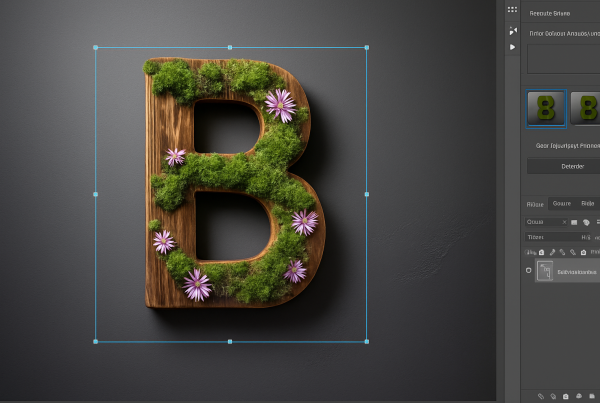
Designing Your Personal Emblem Logo Just Got Easier
Creating a custom emblem logo may sound like a task for a graphic designer, but with a few Photoshop tricks up your sleeve, it’s something anyone can achieve. Today, we’re diving into the depths of Photoshop wizardry to craft an eye-catching emblem using just your initials. This project is not only a fantastic exercise in design but also a clever way to brand yourself or your creations. Let’s get started with a breakdown of this exciting process.
Step-by-Step Guide to Crafting Custom Emblems
Start with a Blank Canvas
Begin by opening Photoshop and creating a new document. Here’s a quick setup guide for your project:
- Document Name: Emblem Logo
- Width: 1200 pixels
- Height: 900 pixels
- Resolution: 15 pixels per inch
- Background Color: Black
This specific setup ensures your emblem has enough room to shine and remains high-quality for digital presentation.
Creating a Carbon Fiber Background
A sleek background can be the difference between a mediocre and a professional-looking emblem. To add a dynamic background that pops:
- Head to the
Filter -> Render -> Lens Flare. Position the flare in the center and crank up the brightness to 130%. - Use
Ctrl + Shift + U(Windows) orCommand + Shift + U(Mac) to desaturate the image. - Open the
Filter -> Filter Gallery, navigate to the distort folder, and selectGlassto give it a carbon-fiber finish.
Designing the Emblem Shape
Now, let’s dive into the meat of the project—the emblem.
- Utilize the Rectangular Marquee Tool to draw a square.
- Transform it using
Select -> Transform Selectionand rotate it by 45 degrees. - After you’re satisfied with the shape, create a new layer and apply a 60-pixel stroke in black, positioned inside.
To ensure symmetry, use the Move Tool for alignment. Press Ctrl or Command + A, then center the shape vertically and horizontally.
Adding Effects for Depth and Texture
Photoshop’s style effects can elevate your emblem from basic to booming.
- Stroke: Apply a 24-pixel stroke with an outer position.
- Inner Glow: Choose a bright turquoise for color contrast.
- Gradient Overlay: Use a turquoise-to-lavender gradient for a vibrant look.
- Pattern Overlay: Select a subtle texture like Gray Granite to add depth.
- Drop Shadow: Set it to Multiply and adjust for a subtle depth effect.
Embellishing with Text
With the emblem shape set, it’s time for the spotlight—your initials.
- Pick a professional font like Zero’s Karma, set the point size to around 250 for a bold statement.
- Adjust character spacing for a snug fit and center your text both vertically and horizontally within the document.
The final touch? Duplicate the effects from the shape layer to the text, adding an inner glow and custom gradient for a cohesive look.
Final Touches
After crafting your emblem, refine the overall brightness with a composite snapshot:
- Use
Ctrl + Shift + Alt + E(Windows) orCommand + Shift + Option + E(Mac) to create a snapshot. - Adjust brightness with Levels (
Ctrl + L/Command + L).
For added oomph, tweak the highlights and shadows, ensuring your emblem leaps off the screen.
Emblem Creation—Why It Matters
In a world saturated with visuals, a custom emblem isn’t just art; it’s a brand. Whether it’s elevating your personal aesthetic or establishing a professional presence, a well-crafted emblem imbues your identity into your work, making your brand unmistakably yours. With these Photoshop methods, you aren’t just learning design; you’re mastering the art of digital branding.
Have you tried this tutorial yet? Share your creations with us by commenting below or tagging us. We’re excited to see what you create with these techniques!