
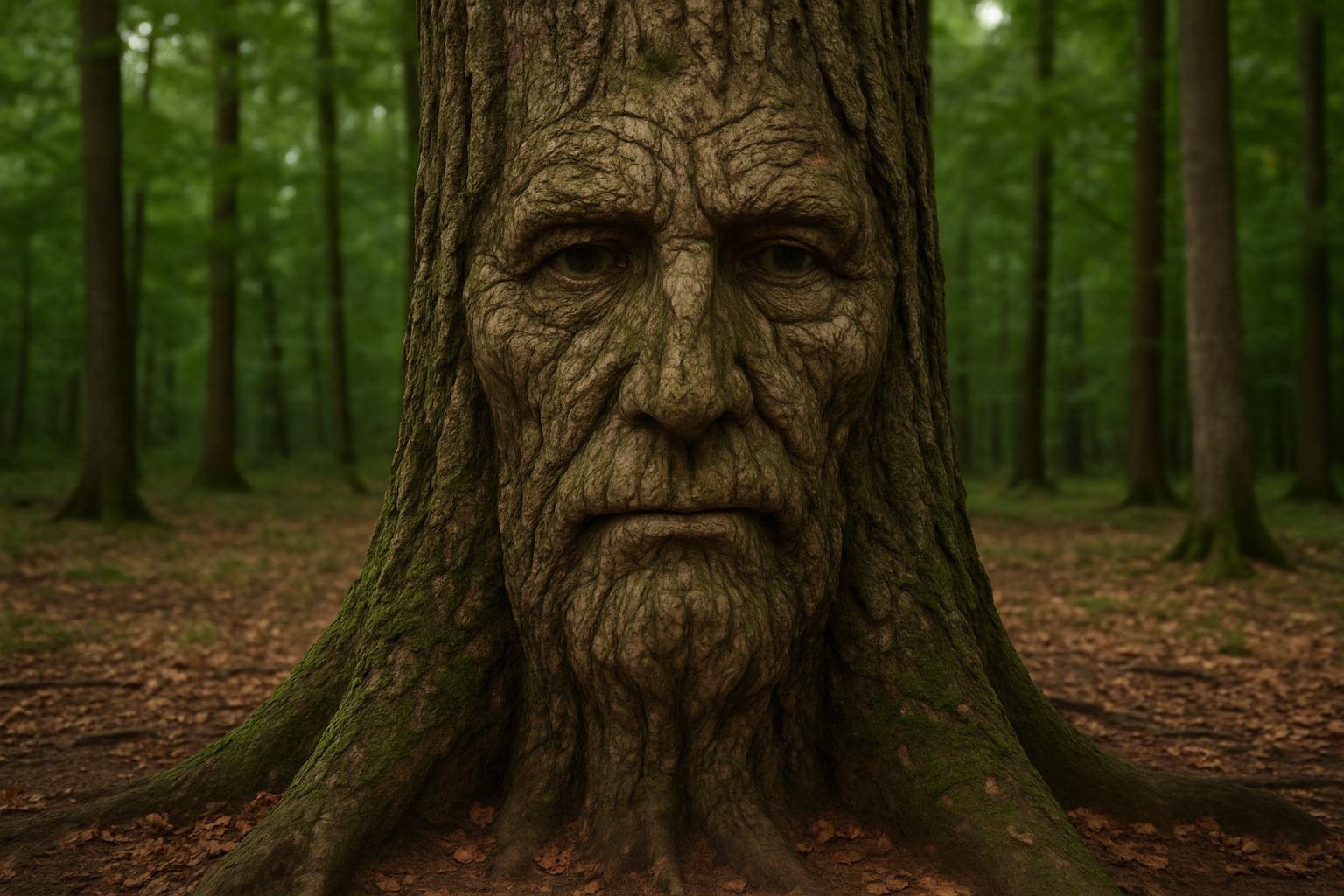
Dive Into the World of Nature-Inspired Art with Photoshop
Ever wanted to add a touch of mystique to your creative portfolio by blending the surreal with the natural? How about camouflaging a familiar face onto the tangled bark of a century-old tree? This avant-garde technique is not just for the nature-obsessed—it’s for everyone who wants to push the boundaries of creativity in Adobe Photoshop.
Ready to go on a digital art adventure? Because we’re about to merge faces with the gritty, raw textures of nature!
Step-by-Step Process to Blend Faces with Tree Bark
Setting the Stage: Prepping Your Images
First things first, you’ll need two key elements—a tree bark texture and a portrait of the person you want to blend into the tree. If you’re unsure where to start, fear not! A pre-selected tree document is provided, linked in the video description for you to download.
Once you’ve loaded your portrait into Photoshop, let’s desaturate it to eliminate distractions from color. Think of this as setting the ambiance for your quaint tree-dwelling persona. Simply press Control + Shift + U on Windows or Command + Shift + U on Mac to achieve this effect.
Aligning and Adjusting Your Portrait
To integrate the desaturated image with our tree document, maneuver it using your Move Tool by pressing V. Drag and drop your portrait into the tree’s tab without releasing your faithful mouse or stylus, then hover and set it right on the new frame.
Need a resize? Invoke the Transform tool (CTRL + T on Windows or Command + T on Mac) and tweak the size while maintaining proportions using Shift.
Setting the Tone with Levels Adjustment
Enhance your image by deepening shadows and bringing light to lighter areas. Activate Auto Levels with Control + Alt + L on Windows or Command + Option + L on a Mac. Voilà, your portrait now shares a colorful dance with the rough textures of the wood.
Quick Masks: Your Brush, Your Story
Now, let’s automate selection with the Quick Mask Tool. Use a soft brush—preferably set to 0% hardness and 100% opacity. As you paint over the face in Quick Mask mode (Q to activate), it’ll ultimately convert to a neat selection around your portrait. By inverting the mask (Control + Shift + I on Windows or Command + Shift + I on a Mac), you quickly sculpt selections like a pro.
Displacement Magic: Bark Texture Wrapping Party
Crafting Your Displacement Map
To wrap the bark precisely around your subject’s face, apply a Displacement Filter. Begin by duplicating the bark layer and add a gentle blur via Gaussian Blur set to 2 pixels. This step ensures the bark’s texture flows smoothly over facial features, enveloping them in an embrace as old as time itself.
Once blurred, save this softened bark as a Displacement map and delete the duplicate since it’s now served its purpose.
Applying Displacement to Your Subject
With your top layer keenly visible, head over to Filter > Distort > Displace. Play with the horizontal and vertical scales set to 10; and watch as your person seamlessly blends into their wooden habitat. Like sharing a secret with the forest.
Bringing It Together: Finishing Touches
To elevate your masterpiece, fine-tune the brightness and contrast using adjustment layers. By selecting Curves, style your tones into an artwork that is truly singular to your vision. You dictate the narrative—whether it be haunting, ethereal, or just playfully mysterious.
Use the Color Overlay effect to match the skin tone with the tree bark, further intensifying the illusion that your friend or foe is part of the wild arboreal landscape.
Why This Technique is Worth Trying
Beyond just a cool party trick, this artistic endeavor expands your skills in Photoshop, proving you can manipulate images beyond standard creative confines. It’s a versatile technique—it could be applied in advertisement, create questions about time and place, or just be an expression of both humanity and the wilderness combined.
Have fun exploring the realms outside conventional art forms. Not just by watching the YouTube tutorial, but by trying this technique and letting your creativity take root!





