
Unlock Your Creative Potential with Free Photoshop Brushes
Let’s face it, Photoshop is a mighty powerhouse in the realm of digital creativity, but the fun truly begins when you add a little flair in the form of brushes. They bring textures, patterns, and effects that can revolutionize your digital projects—whether you’re crafting a masterpiece or just fiddling around for kicks. This time, we’re diving into the wonderful world of free Photoshop brushes and seeing how you can easily load them into your canvas of creativity.
Getting Started with Free Photoshop Brushes
Downloading and installing free Photoshop brushes is about as thrilling as embarking on a virtual treasure hunt. Free resources like brushes can dramatically alter the quality of your work—and who wouldn’t love more options in their creative toolkit?
The internet is teeming with fantastic resources, but it’s crucial to download from reputable sites to ensure your system’s safety. Websites like BrushEasy offer a vast array of free brushes for every need imaginable. Whether you want to create the look of cracked concrete, wispy clouds, or rusty grunge textures, there’s a brush set for that.
Finding That Perfect Brush Set
Start by typing your desired brush theme into the search bar of a dedicated brush resource site. For instance, if you’re yearning to add a gritty edge to your designs, search for “grunge brushes”. Websites like BrushEasy will present you with a roster of curated brush sets. Each set typically contains a variety of brushes, allowing you to discover different styles within the same theme.
Once you’ve located the brush set that sings to you—let’s say, “Grunge Brushes 007″—you’ll want to click that sacred ‘Download’ button.
Installing Brushes on Your System: A Quick Guide
Before you proceed, ensure Photoshop isn’t running. While the universe of PC operating systems is vast (Windows 7, Windows 10, or even a Mac out there somewhere), the installation process remains largely consistent.
Here’s a quick rundown:
1. Download and Locate: Once your chosen brush set has downloaded, usually into your desktop or downloads folder, it’s time to extract them. If you don’t have a zip file extractor, tools like WinZip or 7-Zip are at your disposal. Choose one, and let it guide you effortlessly through the unzipping journey.
2. Path to Greatness: It’s time to place those brush files in Photoshop’s mystical folder of magic. Typically found under:
– C: Drive > Program Files > Adobe > Photoshop (Your Version) > Presets > Brushes
3. Install: Simply drag and drop the extracted brush file(s) into this sacred repository.
4. Permissions Check: If you bump into a sly pop-up demanding you prove your worth as an administrator, fret not—it’s a routine reminder. Ensure you’re logged in with the right credentials, so that you can proceed.
Just a Few Steps to Creative Liberation
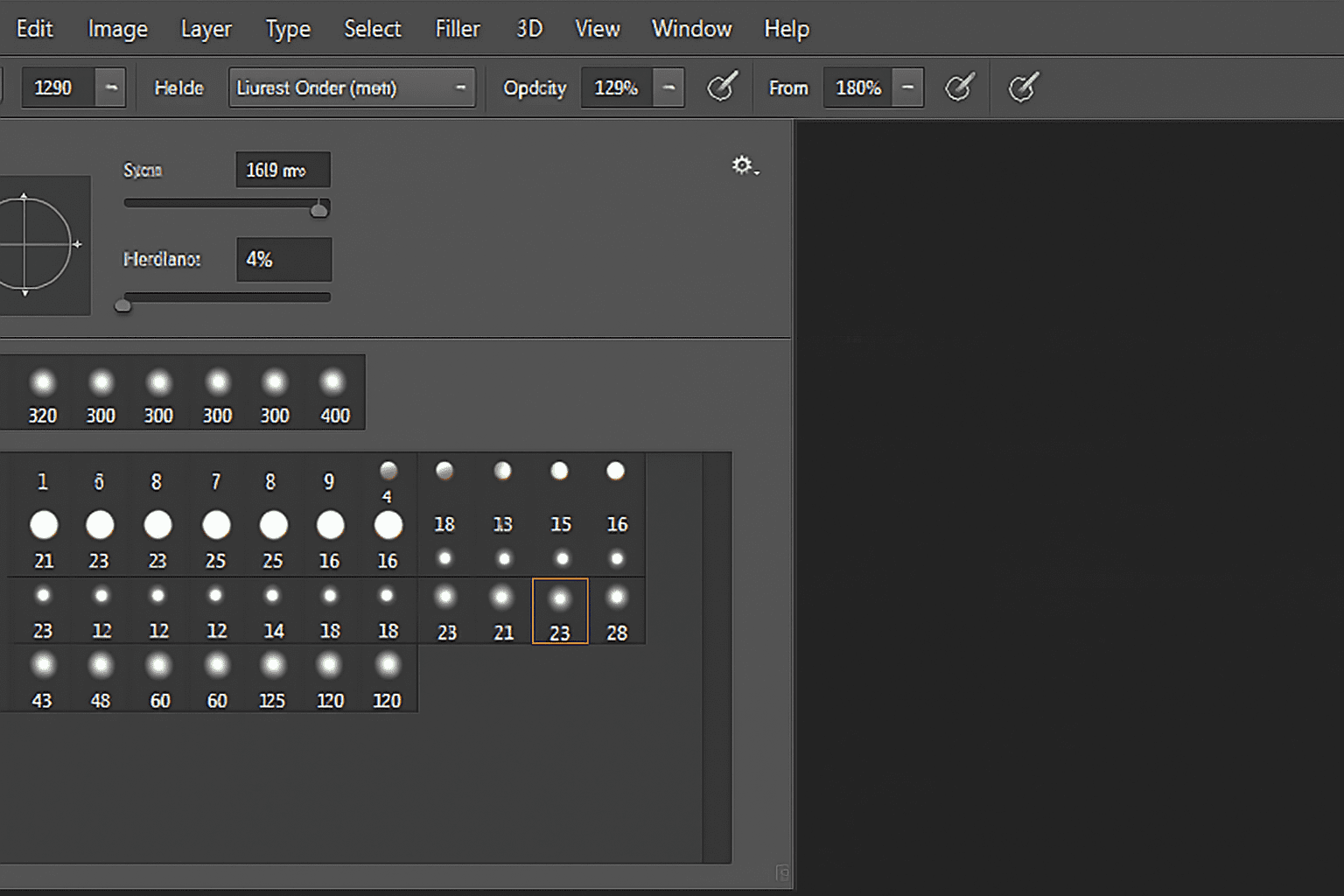
Now that you’ve added your brushes to Photoshop’s library, it’s all about letting the creative juices flow. Open up Photoshop with a document ready to soak in all that new inspiration. By selecting the brush tool (shortcut ‘B’), you’ll find your extensive list of brushes where you can seamlessly swap your previous tiny dull pencil for a mighty digital tool worthy of your vision.
To access your new digital arsenal, follow these steps:
– Click the small arrow located near the top of your Firefox window (or similar).
– From the descending menu, find your new brush set in alphabetical order.
– Select your desired set, and voilà, the digital canvas is yours to conquer.
Brush It All Off with Sketching Genius
There you have it! With just a few moments of digital dexterity, you’ve vastly expanded your artistic horizons. Whether you decide to tackle hyper-realistic artwork or channel abstract vibes, Photoshop brushes will help manifest your uniqueness onto the screen.
Remember, these vital additions won’t just change how your work appears, but also how it’s capable of speaking to viewers. So next time you’re hunting for the missing element in a design, perhaps it’s already residing in that hidden treasure box—just a brush away.
So go ahead, and let those digital bristles fly!





