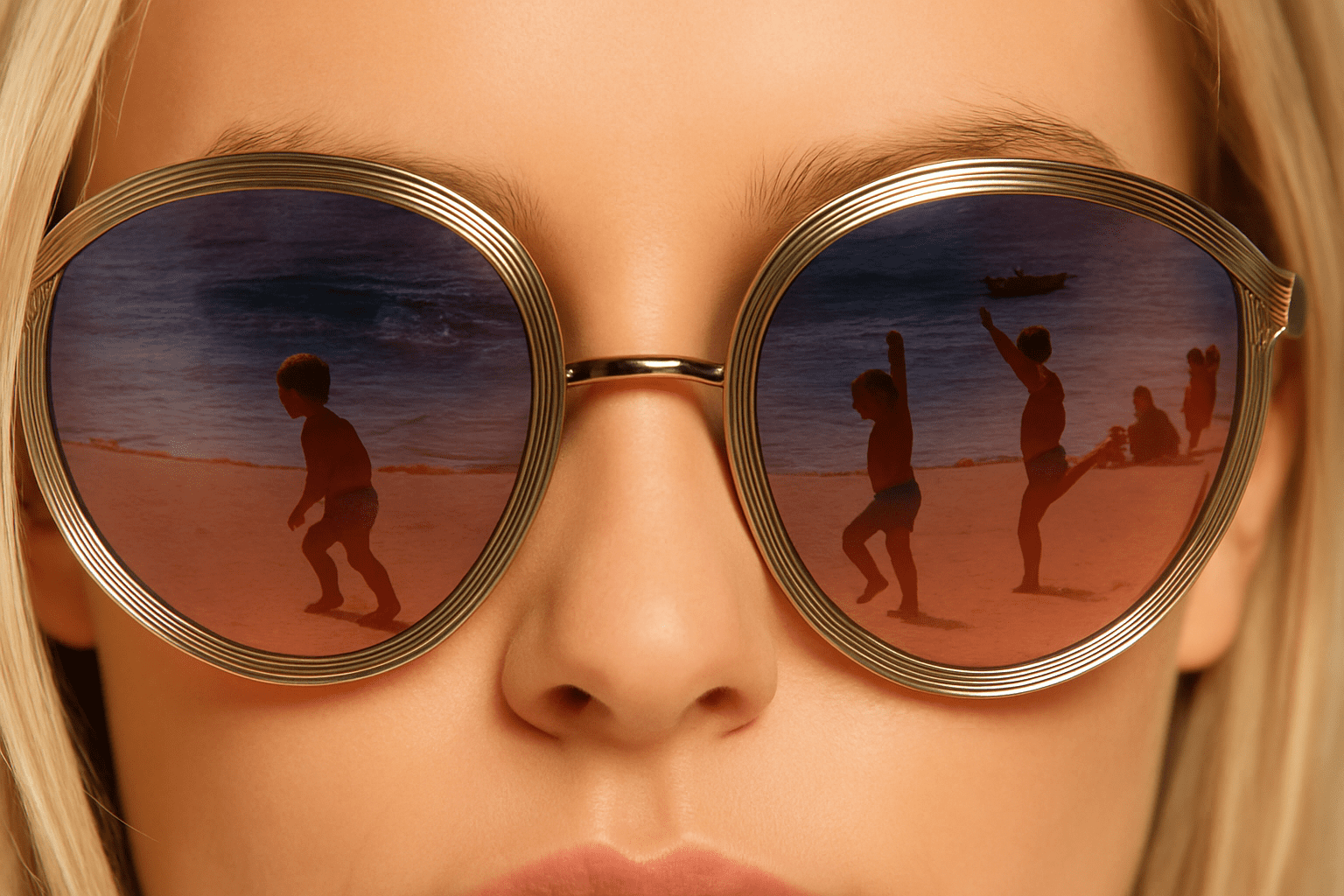
Master the Art of Sunglasses Reflection: Bringing Life to Your Imagery
Ah, sunglasses! Not only do they protect our eyes from harsh sunlight, but they also add a quintessential element of mystery and style to any portrait. In Photoshop, sunglasses do more than just cover eyes—they offer a fabulous opportunity for creative reflection effects. Picture this: capturing the bustling energy of a cityscape or the serenity of a beach scene as a reflection in the sunglasses of your portrait subject, rendering it more dynamic and appealing. A simple photograph instantly becomes a storytelling masterpiece, and that’s where the magic of reflections comes in.
But if you’ve ever tried to add reflections in Photoshop, you know it isn’t as simple as slapping an image layer over the lenses. It takes careful manipulation to mimic the natural curves and trajectory of light. Let’s delve into a Photoshop technique that beautifully simulates those lifelike reflections, transforming your ordinary photos into extraordinary works of art.
Exploring Types of Sunglasses and Their Impact on Reflections
Before embarking on our Photoshop adventure, let’s clarify that not all sunglasses are created equal—particularly when it comes to reflections. There are essentially two varieties:
1. Goggle-like Sunglasses: These feature a continuous, single lens across both eyes, offering a uniform and expansive reflection.
2. Separate Lens Sunglasses: These sport individual lenses for each eye, resulting in distinct, overlapping reflections. The overlap includes various shapes and bends due to the convex nature of the lenses and the position of reflected objects.
When “Photochopping” these reflections onto sunglasses, the goal is to replicate these traits for an authentic look. Master these steps, and the world of reflective photography is yours to explore.
Setting Up Your Photoshop Document
Before diving into the creative process, you need to lay the groundwork—like figuring out why your setups always end up resembling a secret agent mission.
Start by ensuring your digital workspace is ready. A good size is 1280 by 720 pixels at a resolution of 72 pixels per inch. With your workspace set, let’s dive into the lenses.
Creating Lens Selections
Our first task is to make selections of the sunglasses’ lenses, allowing us to precisely insert our reflections. Here’s how you can do it:
– Select the Pen Tool to draw paths around each lens, which will become paths first before turning into selections. This is one of the most accurate methods and allows for precision.
– Once paths are drawn, convert them into selections by accessing the Paths tab, clicking the work path thumbnail, and pressing Ctrl or Command (on Mac).
Introducing the Reflections
You’ve got your sunglasses selected—now, let’s add the reflections to those lenses:
– Import your choice of reflection image into Photoshop. This could be anything from bustling urban landscapes to tranquil beach scenes.
– Position the reflection over the lenses and copy it there. Make sure each reflection precisely corresponds to each sunglass lens.
Applying Distortions for Realism
To mimic the natural distortions caused by the curvature of real sunglass lenses, it’s critical to apply specific distortions. Follow these steps:
– Use the Pinch Filter to create a bulging effect (convex shape) on the reflections corresponding to the lens curvature. A pinch distortion around -35% generally works well, although adjustments might be necessary based on the photo characteristics.
After applying the distortion, if the outcome appears underwhelming, you can repeat the filter action using Ctrl or Command + F.
Performing Final Adjustments
Once your reflections align with the lens curvature:
– Add layer masks to your reflection layers to neatly confine reflections within defined boundaries.
– Unlink the images from their masks, enabling you to move each reflection independently within their respective lens.
Resizing and Perfecting Overlaps
Remember, the reflection should not appear as though it has just been pasted on. Instead, it should look naturally integrated:
– Use the Transform Tool (Ctrl or Command + T) to align the reflection size and angles perfectly with respect to sunlight and positioning.
– Allow for slightly overlapping reflections to enhance realism, mimicking what happens with two separate lenses, where one might show a slightly different part of the reflected object than the other.
Finishing Touches for Stunning Results
Change the reflections’ blending mode to hard light, letting them blend seamlessly with the sunglasses, subtly adjusting opacity for balance. Here’s where experimenting with opacity becomes crucial. Start at an opacity of around 40% for a credible reflective feel.
Adjust accordingly for the scene’s lighting and sunglass tint. Your monumental effort in applying tailored reflections elevates your photo from a flat image to a scene alive with storytelling vibrancy.
And voila! With a splash of creativity and a dash of patience, you have now mastered the art of dynamic sunglass reflections, transforming your images into captivating visual narratives. So go ahead, amplify your next photoshoot with the allure of reflective storytelling—your audience’s eyes will thank you.