Transforming Ordinary Images into Extraterrestrial Wonders
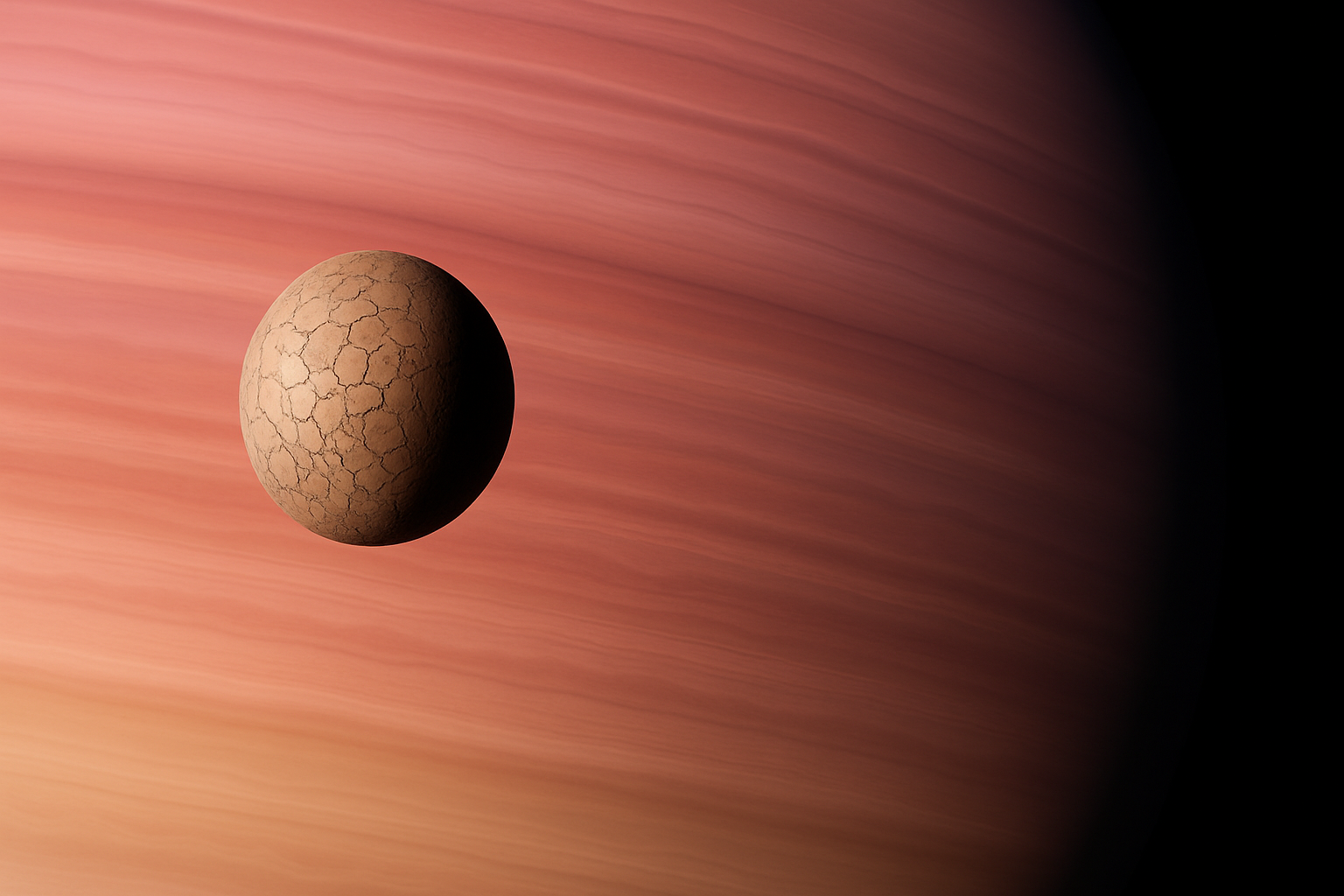
There’s a certain thrill in taking something ordinary and turning it into an eye-catching masterpiece. That’s exactly what we’ll be exploring in today’s post as we dive into the compelling world of photo manipulation. Specifically, we’re going to create a powerful image of the planet Jupiter, showcasing its turbulent surface and one of its dramatic moons. We’re talking about using Adobe Photoshop to make digital art that’s truly out of this world!
The Nuts and Bolts of a Planetary Makeover
Creating a celestial wonder requires a good foundation. Start by setting up a new document in Photoshop. Here’s the framework:
- Width: 1550 pixels
- Height: 870 pixels
- Resolution: 150 pixels per inch
- Color Mode: RGB, 8 bits per channel
Once you’re all set, a simple click on Create or OK will launch your canvas. With this bold first step, you’re transforming a blank document into a digital universe waiting to be explored.
Getting Gradient-ious with It
You’ll want to delve into the Gradient Tool, ensuring the Linear Gradient icon is activated. Enter a world of vibrant possibilities by exploring Gradient presets. Start off with ‘Noise Samples’ and marvel as the hue adjustments add levels of depth to your creation.
Keep it realistic and nicely saturated by checking Restrict Colors. Then utilize HSB — or Hue, Saturation, and Brightness — for color adjustments. Randomize them if inspiration strikes because sometimes, the best effects are those we don’t plan for.
Making Waves and Capturing Curves
With your beautifully blended gradient, it’s time to convert the image into a Smart Object. Why? Because Smart Objects allow us to non-destructively modify the filters that we’ll apply later. Next, you’ll want to add some turbulence to your creation using the Ripple distort filter. Set the Amount at around 30% with a Size of ‘Large’, and then hit OK.
Creating this cosmic element also involves some warping magic. Using the Transform Tool, select ‘Perspective’ to lend your design a touch of realism. For that extra panache, enter ‘Warp Mode’ and play around by dragging Control Points to create a slightly bowed effect.
Casting Shadows in the Vast Expanse
Time to bring depth to this astral body. Switch the Blend Mode to ‘Multiply’ and use a black-to-white gradient to cast shadows across your planet. Subtlety is key, and with the right tools, you’ll create an inspiring and suffused look that highlights both light and dark areas.
Building A Moonlight Serenade
No planet would be complete without its moon, right? Add your chosen texture (or use a cracked soil texture for added drama), and then create a circular selection using the Elliptical Marquee Tool. This cut-out will act as the foundation for your moon, and with the ‘Spherize’ filter set to 100%, you’ll make it pop with added dimension.
To mimic the source’s mighty gravitational influence, press Ctrl/Cmd + F to impress the sphere form further. Next, drag it into your Jupiter document, manipulate its position via the Move Tool, and boom — instant stardust vibes.
Dramatizing Celestial Features with Shadows and Lights
Once you’ve plastered your cosmic scene, delve into shadow work. Already equipped with the Elliptical tool’s practiced selection, create a mask and finesse that shadow arc with the Brush Tool, gently applying opacity with a feathered brush to capture a desirable gradient effect.
But darkness should always be complemented by light. Use the Dodge Tool to introduce brightness on the planet’s left side. Adjust it to Midtones, allow high exposure at 100%, and bam — you just gave your digital Jupiter a morning coffee, and it’s radiating all the energy it needs.
Adding a Twirl for Dynamic Disturbance
A Liquid Tool will be your ally here. Choose the ‘Twirl Clockwise Tool’ at almost exclusive settings of 60 (Size), 50 (Density), and 100 (Pressure & Rate) to add dynamic swirls to your Jupiter image. These strokes contribute to the illusion of motion and existing disturbances constantly visible in gas giants’ visuals.
And just like that, you’ve summoned a universe ready to captivate attention. A final save underpins all these artful maneuvers, sealing them succinctly for futurist journeys beyond the ordinary.
Color and Creativity: The Final Brush Strokes
Embrace the spectrum of colors your planet can take on by applying a hue/saturation adjustment. Fine-tune the hue left and right and immerse yourself in the wondrous spectrum—from brilliant blues to daring reds—that could signal scientific wonders or just provide personal pleasure.
Who’d have thought that the humdrum of ordinary imagery could turn into the cosmic ballet we’ve assembled here? With this handy guide, carve out a corner of the universe that’s truly yours to explore.
And that wraps up our galactic journey across the realms of Photoshop wizardry. Continue to explore, push boundaries, and craft designs that intrigue and seize the imagination. Until then, stay curious, and keep creating!